

Do you need to hide WordPress posts and pages? In this post, we will show you several ways you can use to achieve this.
There are many reasons why you may want to hide WordPress posts and pages from public view. You might need to keep content private for clients, create members-only resources, or simply prevent certain pages from appearing in search results and archives.
In this guide, you will learn multiple easy methods to hide posts and pages on your WordPress site.
We will cover built-in visibility settings, password protection, user role restrictions, and helpful plugins that give you more control. Follow these steps to manage content visibility without affecting the rest of your site.
First, let’s see why you need to hide WordPress posts or pages.
Table of Contents
Why Do You Need to Hide WordPress Posts or Pages
Not every piece of content on your WordPress site needs to be public. There are many practical reasons to control visibility settings and restrict access to certain posts or pages using built-in options or a plugin.
- Keep client work, drafts, or internal documents private so only admins and editors can see them until they are ready to publish
- Create members-only or login-required content that visitors can access only after signing in
- Prevent specific pages from appearing in search results, archives, RSS feeds, or public category and tag listings
- Protect sensitive information or temporary offers that you don’t want accessible to every visitor on the web
- Hide WooCommerce pages, landing pages, or private resources from the front end while still managing them in the admin
- Restrict access based on user role, password protection, or custom visibility settings for individual posts and pages
How to Hide WordPress Posts and Pages
There are multiple ways to hide posts and pages in WordPress. Some of the common ones are:
- Password-protect the posts and pages
- Make it Private
- Change it to Draft
- Using a dedicated plugin
We will take a look at each option below.
1. Password Protect the Posts and Pages
If you do not need to unpublish the post and need to let limited users access it, this is the best way. By password protecting the page or post, you and people who have the password can still access its content.
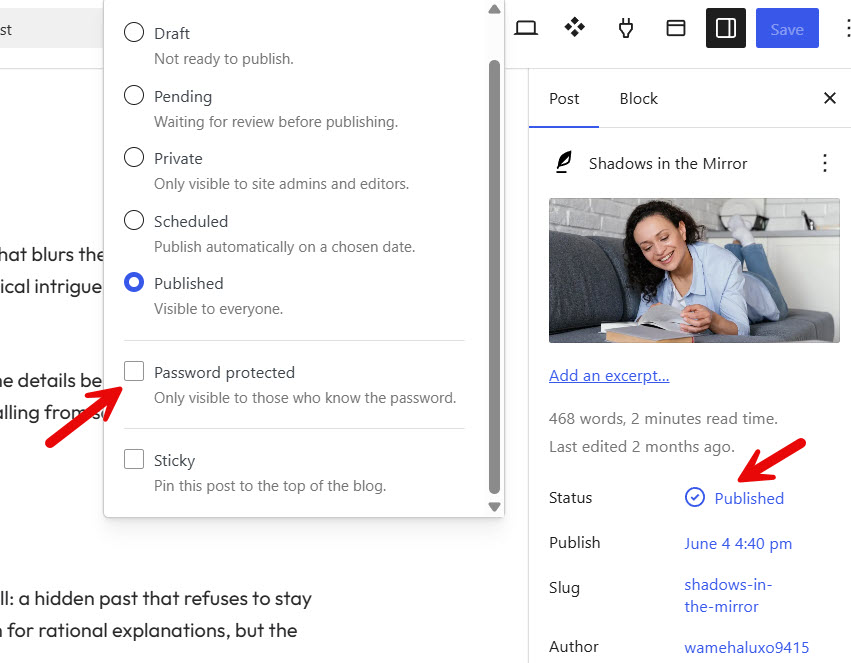
This will be ideal for membership websites or something similar. Here is how you can do it. First, open the post in the editor and open the status option.
There, you can see the password protection checkbox.
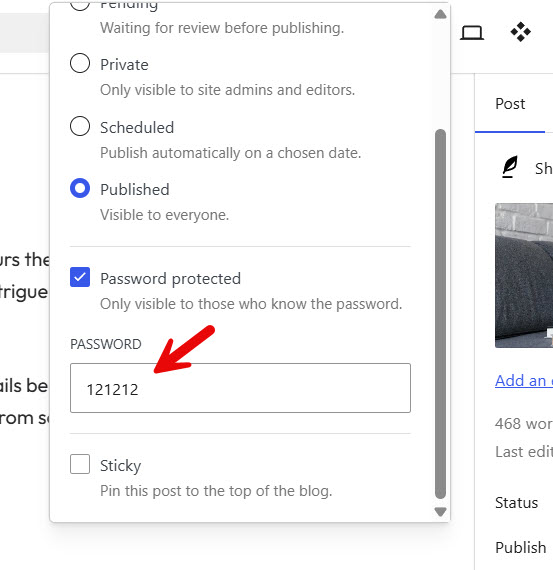
Once you have enabled the password protection, enter a password.
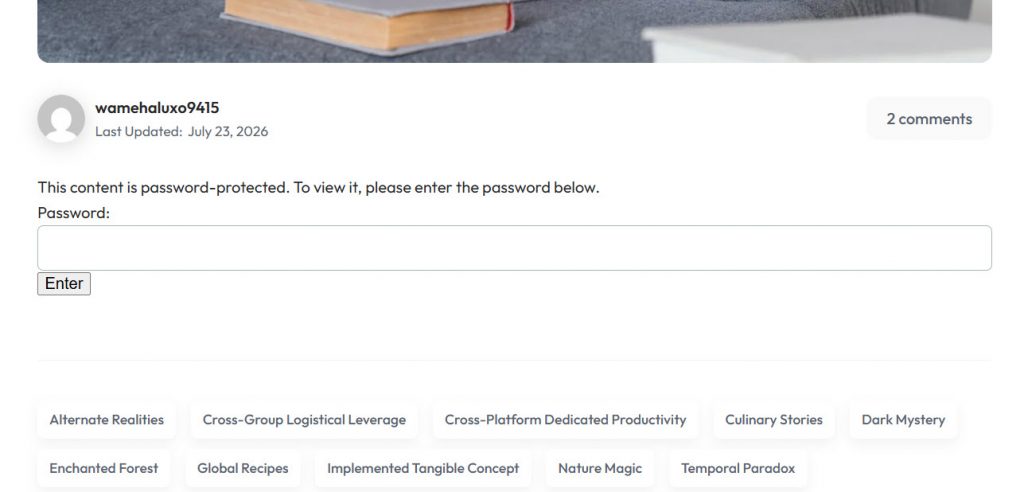
After that, update the blog post. Now, when someone accesses the post from the front end, it will ask for a password:
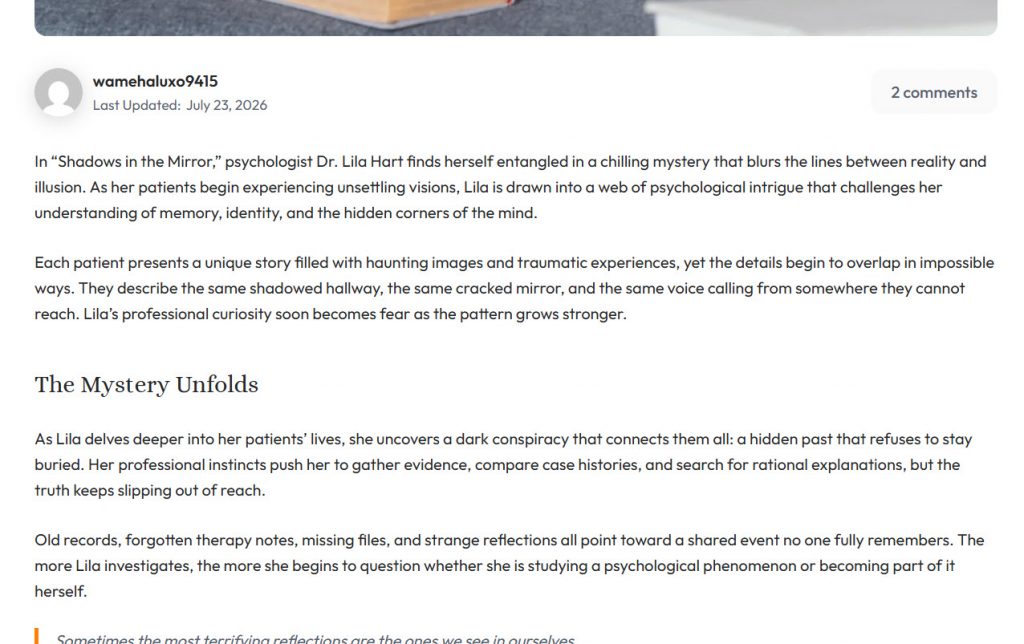
And when you enter the right password, you can see its content:
2. Change Visibility to Private
When you switch the visibility to private, only the website admins and editors can see the post.
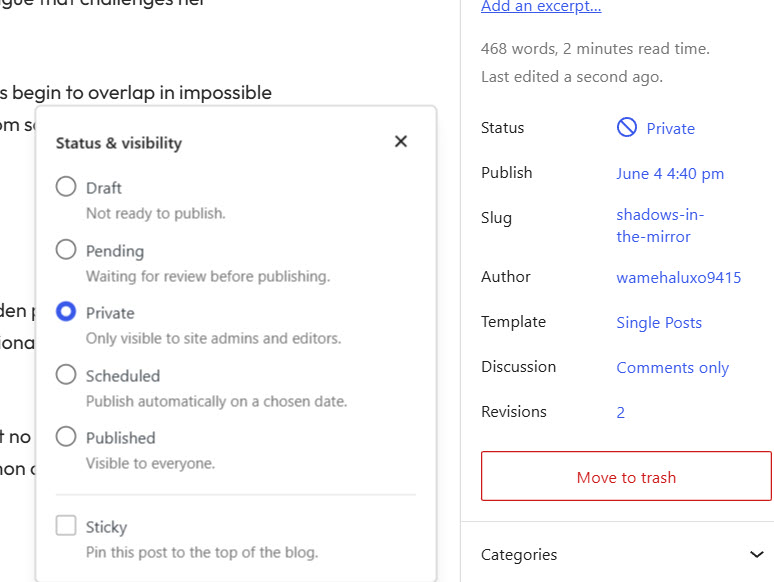
This will help you edit the post or page while keeping it private from other authors.
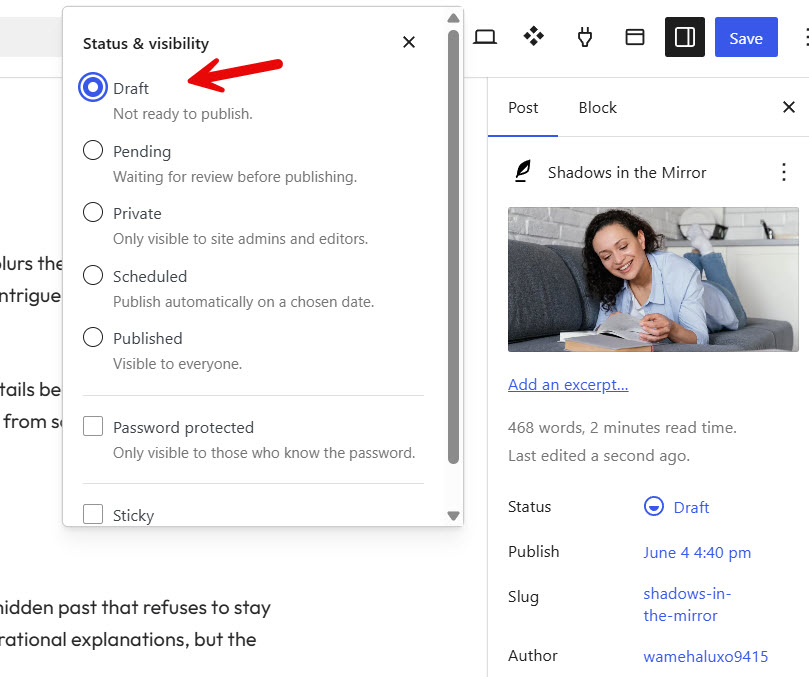
3. Turn it into a Draft
The next thing you can do is change the status from published to draft. As you know, if a post or page is saved as a draft, it is not visible to everyone.
Only specific people like admin, editor, author, and so on can see its content. So if you have a post that needs a revamp, turning it into a draft might help.
4. Using a Dedicated Plugin
If you are interested in a dedicated plugin method, check out WP Hide Post. It is a free WordPress plugin that you can use to control post visibility.
Here is how it works so you can learn how to hide posts.
Once you have installed and activated the plugin, choose the post types you need to include in the plugin functionality.
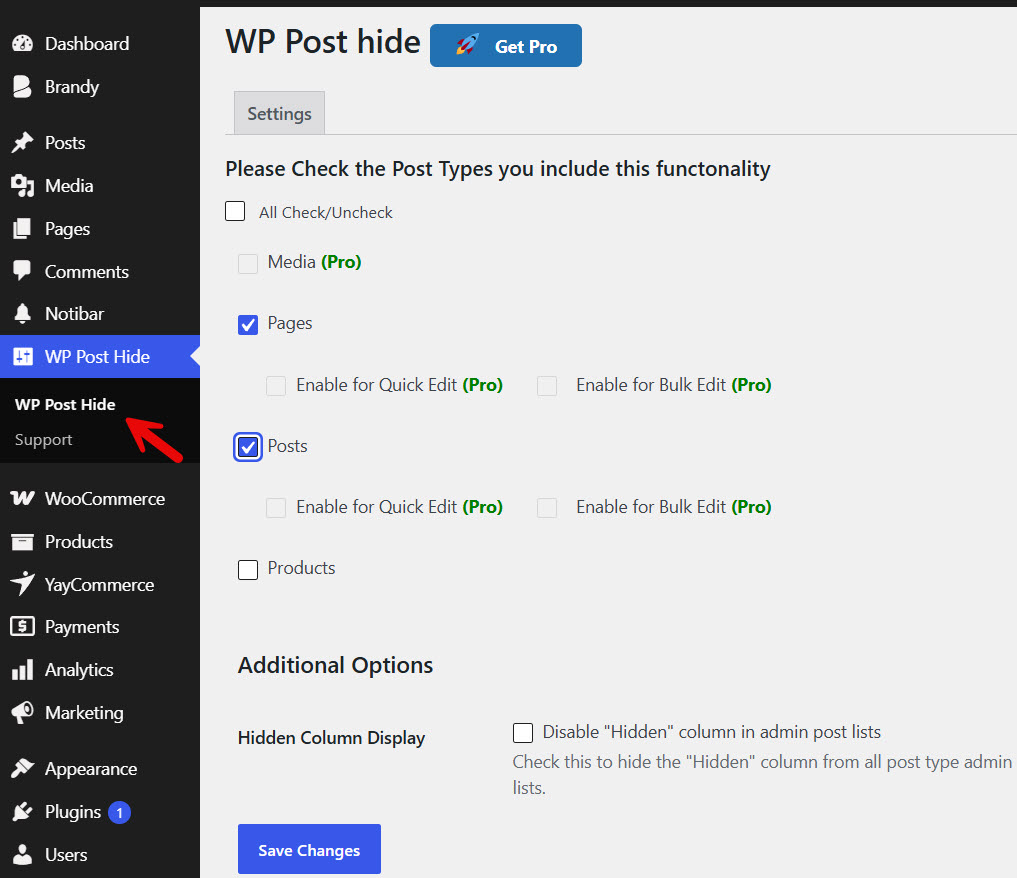
Some features are only for premium version users, but the lite version is good enough. After tweaking the settings, save the changes.
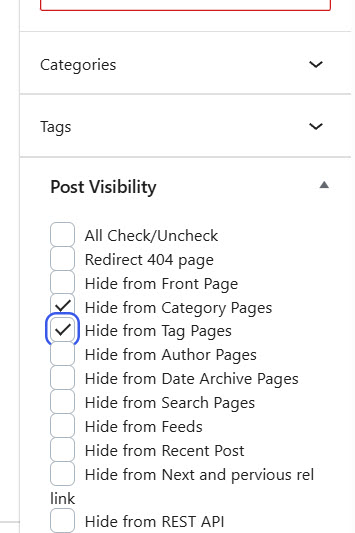
Now open the post that you want to hide from the website. On the right-hand side, you can see the WP Hide Post settings.
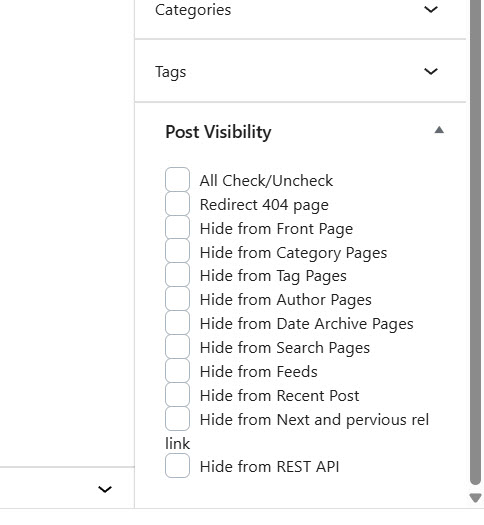
Select the option you need. For example, as you can see in the image above, the plugin can hide posts from
- 404 pages
- Front page
- Category pages
- Tag pages
- Author pages
- Date archive pages
- Search pages
- Feeds
- Recent posts
- Next and previous links
- REST API
Click the options you need and update the blog post. For this tutorial, we will be hiding the post from the category and tag pages.
Once you have done that, the posts or pages will be hidden from the selected archives.
How to Hide WordPress Posts and Pages in Search Results
If you are trying to hide your posts and pages from Google search results, follow this method. You might be using any SEO plugin like:
- Yoast
- Rank Math
- All In One SEO Pack
Or something. In this case, we are using Rank Math. If you open the post in the Gutenberg editor and open the Rank Math settings, you can see the option to add noindex for the post.
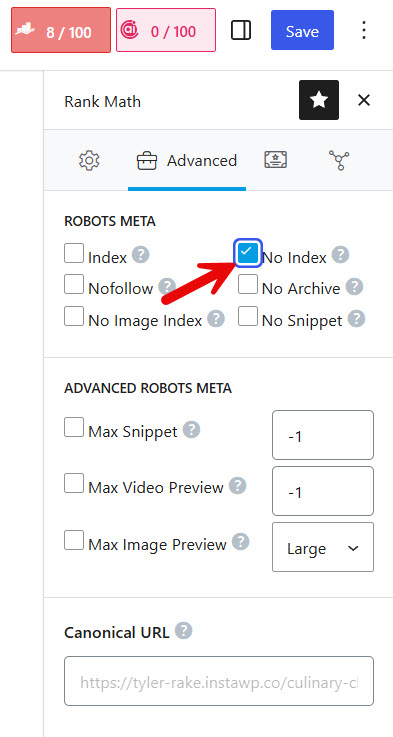
When you enable this option, the plugin tells the Google bot not to index this specific post in search results. A common example is when you have a single-author website; you do not need to index the author archive pages.
So, this method can be used.
Here are some more articles you can find useful:
- 920+ Reiki and Energy Healing Business Name Ideas
- 850+ Advertising Agency Name Ideas That Actually Stand Out
- What’s New in Bookster 3.3.0
- 720 Yoga Studio Name Ideas for a Calm, Memorable Brand
- 7 Best WP Simple Pay Alternatives & Payment Gateway Options
Frequently Asked Questions
Now, let’s see some of the frequently asked questions and answers regarding this topic.
How can I hide posts on my WordPress site?
You can hide posts using the built-in visibility settings. Open the post in the editor, go to the Status & visibility section, and change it to Private or Password Protected. Only logged-in users with the right role will be able to see private content.
What is the easiest plugin for WordPress to hide pages?
Several plugins make it simple to control content visibility. Look for a plugin that lets you restrict access by user role, membership, or password. Once the plugin is activated, you can apply rules to individual posts or pages.
Can I hide posts using category or tag settings?
Yes. Some plugins allow you to hide all posts under a specific category or tag. This is useful when you want to bulk-hide content instead of changing visibility settings one by one.
How do I restrict access based on user role?
You can use a membership or access-control plugin to limit content to certain roles such as Administrator, Editor, or custom roles. Only users with the assigned role will be able to see the protected posts or pages.
Will hidden posts still appear in search results or RSS feeds?
By default, private posts stay out of public search and feeds. For stronger control, use a plugin that also removes the content from sitemaps, archives, and external links.
Can I hide WooCommerce pages or products?
Yes. Many visibility plugins work with WooCommerce. You can restrict product pages, thank-you pages, or account-related content so only specific users can access them.
Is password protection enough to hide content?
Password protection is a quick built-in method. Visitors need the password to view the post or page. For more advanced control, combine it with user role restrictions or a dedicated plugin.
How do I hide multiple posts at once (bulk)?
Some plugins offer bulk editing tools that let you change visibility settings for many posts in one go. This saves time when you need to hide a large group of articles or pages.
Will the Gutenberg block editor show hidden content to editors?
Yes. Admins and editors can still see and edit private or password-protected content inside the dashboard. The restrictions mainly affect front-end visitors.
Can visitors find hidden pages through a direct link?
Private posts are blocked from public view even with a direct link. Password-protected pages will ask for the password. For the strongest protection, use a plugin that fully restricts access.
Conclusion
Hiding WordPress posts and pages is a useful skill for any site owner. You can control content visibility using built-in settings, password protection, user roles, or a dedicated WordPress plugin.
These methods help you keep drafts private, restrict access to members, or hide specific pages from public view. You can apply visibility settings to individual posts, categories, tags, or even bulk content.
Some solutions also let you block access based on user role or login status. The right approach depends on your needs, but all the options in this guide are easy to set up and manage.
Choose the method that works best for your WordPress site, test it carefully, and keep full control over who can see your content.
Do you know any other ways to hide WordPress posts and pages?
Let us know in the comments.
We hope you found this article helpful and enjoyed reading it. If you did, feel free to check out our blog archive for more useful guides and tips. Also, check out our YouTube channel, X, and Facebook page to get the latest news.
