

Have you ever finished a client appointment only to realize that your next customer is already waiting? Maybe you need a few minutes to prepare your workspace, write down notes from the previous session, or simply take a breath before moving on to the next task.
If your calendar is packed with back-to-back appointments, even a small delay can throw off your entire day.
This is where buffer time comes in.
Picture a normal Tuesday. Your 9:00 client arrives five minutes late and then needs ten extra minutes. Your 10:00 client is already in the waiting room. You haven’t written up your notes, the room isn’t reset, and now you’re apologizing before you’ve said hello.
By noon, you’re 25 minutes behind. By 3:00 PM, you’re skipping lunch, rushing through the last three appointments, and wondering why your calendar always looks fine on paper but feels impossible in real life.
The challenge is that manually leaving gaps between every appointment can quickly become difficult to manage, especially when customers book online at different times throughout the day.
In this article, we’ll explain what buffer time is, why it matters for you and your clients, how much to add, and how to set it up in WordPress with Bookster, a free appointment booking plugin.
Table of Contents
What Is Buffer Time?
Buffer time is a scheduled gap before or after an appointment that gives you extra time to prepare, complete follow-up tasks, reset your workspace, or handle unexpected delays.
Instead of scheduling appointments one after another without a break, you intentionally leave some breathing room in your calendar.
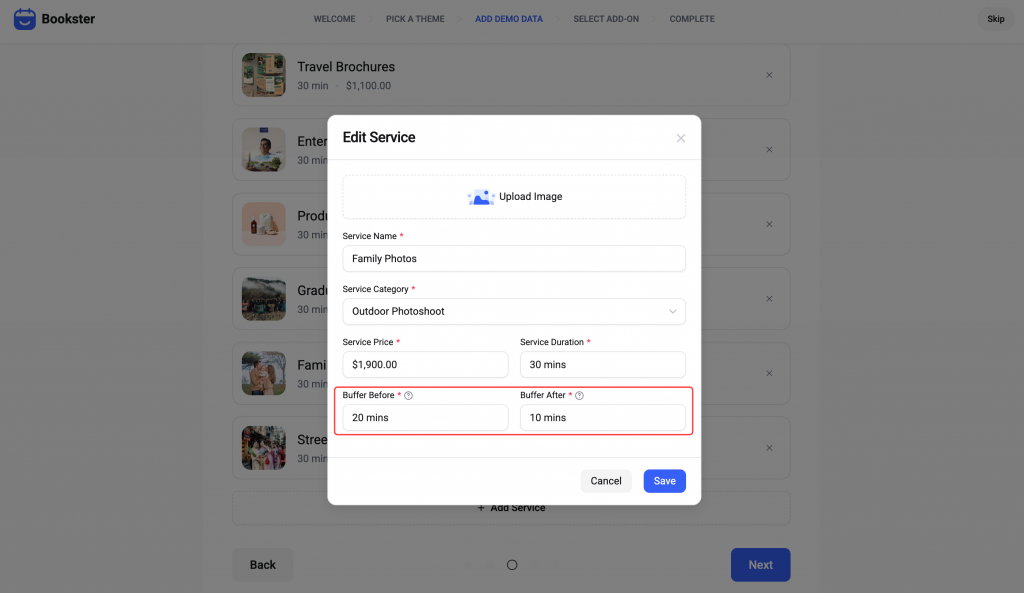
Buffer time comes in three simple forms:
- Buffer before: Time reserved before the appointment starts. Use it for preparation, setup, reading notes, or travel.
- Buffer after: Time reserved after the appointment ends. Use it for cleanup, notes, follow-up messages, or running over.
- Both: Padding on each side of an appointment, which is common for in-person work with setup and cleanup.
For example, imagine you run a consulting business, and each consultation lasts 60 minutes. Without buffer time, your schedule might look like this:
- 9:00 – 10:00 AM: Client A
- 10:00 – 11:00 AM: Client B
- 11:00 AM – 12:00 PM: Client C
On paper, everything looks perfectly organized. But what happens if Client A needs an extra five minutes? What if you need to write a meeting summary or prepare documents for Client B?
Suddenly, your carefully planned schedule starts falling apart.
Now, let’s add a 15-minute buffer after each appointment.
- 9:00 – 10:00 AM: Client A
- 10:00 – 10:15 AM: Buffer time
- 10:15 – 11:15 AM: Client B
- 11:15 – 11:30 AM: Buffer time
- 11:30 AM – 12:30 PM: Client C
Your calendar now reflects the reality of running a service business. Appointments don’t always end precisely on time, and there are often small tasks to complete between customers.
Buffer time helps account for those tasks before they become scheduling problems.
Why Does Your Appointment Calendar Need Buffer Time?
When you run a service business, your calendar is more than a list of appointments. It determines how you spend your working hours, how many customers you can serve, and how much flexibility you have when something unexpected happens.
A calendar without buffer time can look efficient while leaving almost no room for real-life situations.
Think about the small tasks that happen around every appointment. You may need to review a client’s information, prepare equipment, answer a quick question, update records, process a payment, or reset the room.
These tasks are easy to overlook when you’re deciding how many appointments to accept in a day.
Without enough time between bookings, those small responsibilities can accumulate and make your entire schedule harder to manage.
Buffer time helps you build a more realistic calendar. It doesn’t eliminate every delay, but it gives you a little room to handle them without immediately affecting the next customer.
And the benefits go beyond simply keeping appointments on time.
5 Reasons to Add Buffer Time Between Appointments
| Reason | What It Helps With | Example |
| One late appointment shouldn’t ruin the day | Absorbs small delays so they don’t push every following booking back | A 10-minute buffer after each session covers a client who runs slightly long |
| Time to prepare and reset | Gives you room to review notes, set up tools, or get ready before the next person arrives | A consultant reviews the next client’s file in the five minutes before the call |
| Time for cleanup and follow-up | Creates space for notes, cleaning, or messages after the appointment ends | A stylist sanitizes tools and updates the client record before the next booking |
| Less stress during the day | Reduces the feeling of always being behind when small things take longer than expected | You finish one session properly instead of rushing because the next client is already waiting |
| Better customer experience | Helps you avoid cutting sessions short or making clients wait because the previous one overran | Clients arrive to a ready room and get the full time they booked |
1. One Late Appointment Shouldn’t Ruin Your Whole Day
One of the biggest problems with back-to-back appointments is that a small delay can affect every subsequent booking. Without buffer time, every delay is passed along to the next client, and then the next. This domino effect is the number one reason schedules fall apart.
If you leave a 10-minute gap after an appointment, a minor delay may be absorbed without affecting the next booking. Of course, a longer delay can still disrupt your schedule, but a realistic buffer gives you more flexibility than a calendar with no gaps.
This is especially helpful for businesses that rely on a single person to provide every service, such as independent consultants, massage therapists, tutors, and personal trainers.
Practical tip: Review your past appointments and note how often sessions run longer than expected. Use that information to decide whether your current schedule needs more breathing room.
2. You Need Time to Prepare and Reset
A good customer experience often starts before the appointment officially begins.
A consultant might need to review a client’s goals. A hair stylist might need to prepare products and tools. A tutor might want to check the student’s previous assignments. A photographer might need to adjust lighting and equipment.
Without preparation time, you may have to complete these tasks while your next customer is already waiting.
That can make your service feel rushed, even when you’re doing your best.
A pre-appointment buffer gives you time to prepare without having to squeeze everything into the previous session.
For example, if each consultation takes 5 minutes to review customer notes and prepare materials, adding a 5-minute buffer before each session can help you maintain a consistent process.
Your customers may never see those five minutes on your calendar, but they can benefit from the extra preparation.
3. Give Yourself Time for Cleanup and Follow-Up
Not every appointment ends when the customer leaves.
You may need to clean equipment, sanitize tools, update customer records, send a follow-up email, or prepare the workspace for the next person.
For businesses that provide physical services, cleanup can be especially important. A salon, spa, clinic, or repair workshop may need to reset the space before accepting another customer.
For consultants and coaches, the follow-up might involve writing session notes, sending resources, or recording next steps.
If you schedule every minute for customer-facing work, these responsibilities have to happen somewhere else. Often, that means working late or rushing through tasks that deserve attention.
Post-appointment buffer time creates space for these responsibilities within your normal working day.
Practical tip: Make a short list of the tasks you usually complete after a session. Estimate how long they take, then use that estimate as a starting point for your post-appointment buffer.
4. Reduce Stress and Improve Your Working Day
Running a business can be demanding, especially when you are responsible for both customer service and day-to-day operations.
When your calendar is completely full, every unexpected event becomes another problem to solve.
A customer arrives late. A session takes longer than expected. A payment needs to be checked. Someone calls with an urgent question.
Without any flexibility, even a minor interruption can leave you feeling behind.
Buffer time gives you a little breathing room between responsibilities. You can finish one appointment properly, collect your thoughts, and prepare for the next customer rather than moving immediately from one task to another.
It also helps you create a more sustainable daily schedule. You might discover that accepting slightly fewer appointments allows you to deliver better service and finish the day with fewer unfinished tasks.
The goal isn’t to leave unnecessary gaps in your calendar. It’s to make sure your schedule reflects the actual work required to serve your customers well.
5. Create a Better Customer Experience
Customers don’t only evaluate the service they receive. They also notice how organized and professional the experience feels.
If someone arrives for an appointment and has to wait because the previous customer is still being served, they may feel that their time isn’t being respected.
Of course, delays can happen in any business. But a schedule that allows for realistic transitions can reduce the frequency with which one appointment affects another.
Buffer time also helps you avoid rushing through the final minutes of a session because the next customer is already waiting.
You have more opportunity to answer questions, explain next steps, and finish the appointment properly.
For appointment-based businesses, this can contribute to a more professional and consistent customer experience.
Remember: Buffer time isn’t simply time you aren’t selling. It’s time you reserve to help deliver the service your customers have booked.
How to Set Up Buffer Time for Your WordPress Booking System
If you manage appointments through a WordPress website, you might currently manually leave gaps in your calendar. This can work when you have only a few appointments, but it becomes more difficult as your bookings increase.
Step 1: Install and Activate Bookster
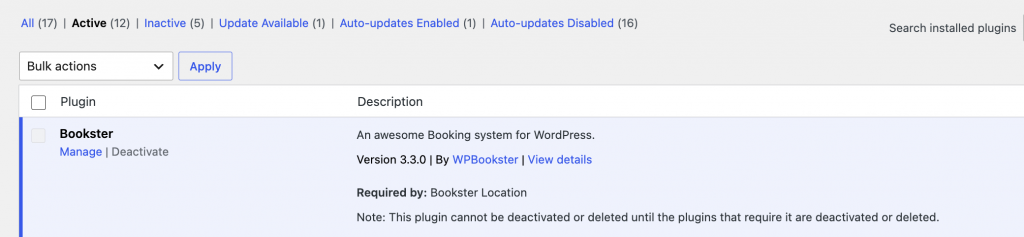
In your WordPress dashboard, go to Plugins > Add New and search for Bookster. Click Install Now, then Activate. Once the plugin is active, you’ll see its settings in the left-hand admin menu.
Step 2: Run the Setup Wizard
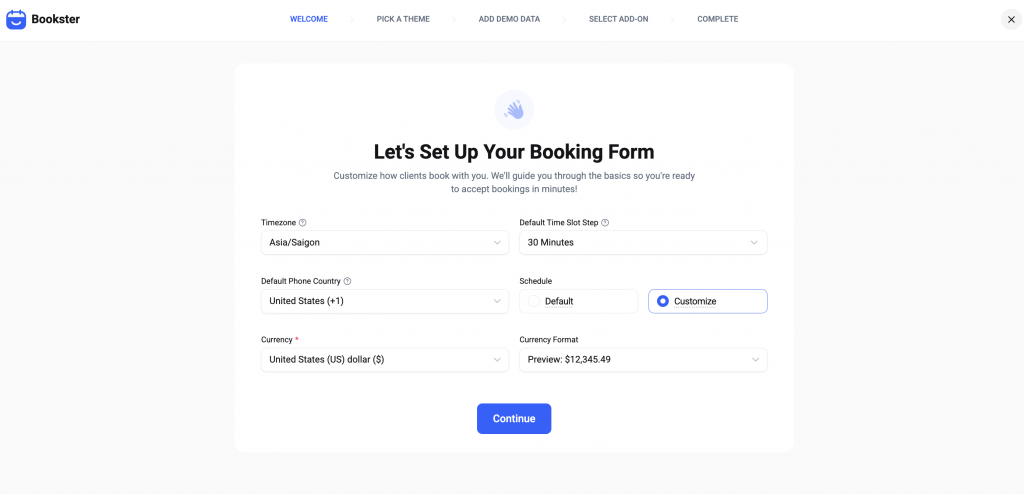
After activation, Bookster walks you through a setup wizard. It covers the basics, like your general settings and working hours. You can run through it quickly now and fine-tune everything later.
Step 3: Set Your General Settings
Open Settings > General. Here you can choose your default time slot, default appointment status, time and date formats, currency, and the earliest and latest time customers can book. If you want to avoid last-minute surprises, set a sensible earliest booking time, such as 24 hours ahead.
Step 4: Set Your Working Hours and Breaks
Go to Settings > Schedule. Switch on your open days and set your work periods. If you want a lunch break, add a second work period so there’s a gap in the middle of the day. Then open Settings > Holiday to block days off.
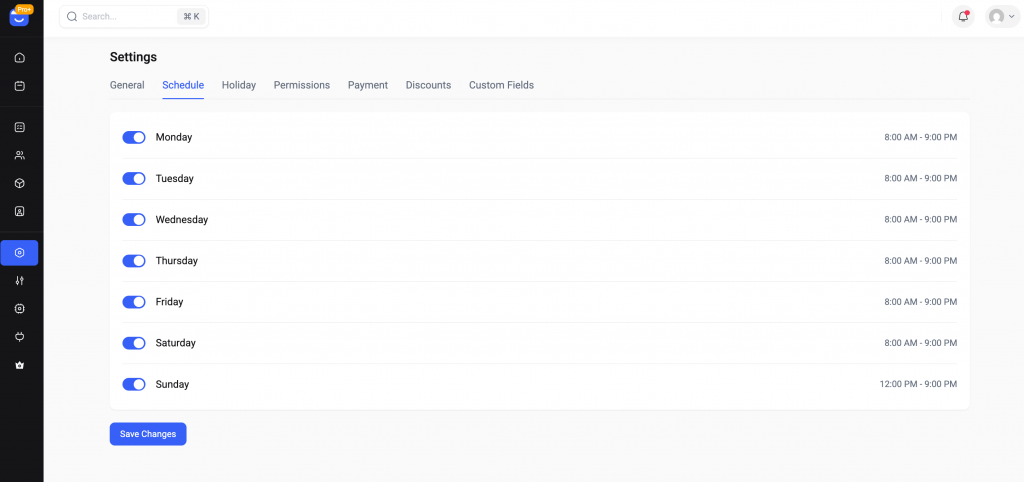
This matters because buffer time and breaks do different things. Breaks protect your day. Buffer time protects each appointment.
Step 5: Add Your Services and Their Buffer Time
Now for the main step. Go to Services and create your categories and services. For each service, you’ll see options such as name, category, description, color, price, and duration. You’ll also find buffer before and buffer after fields.
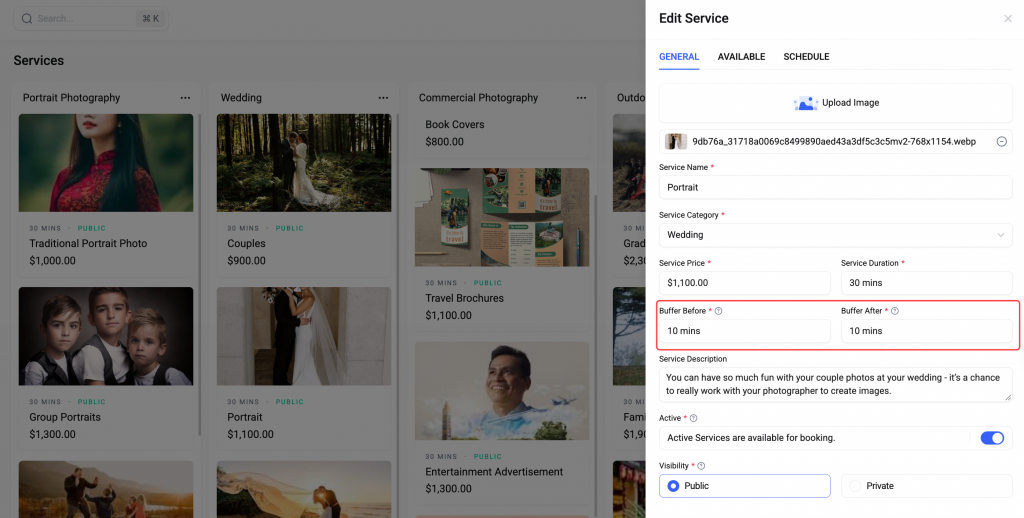
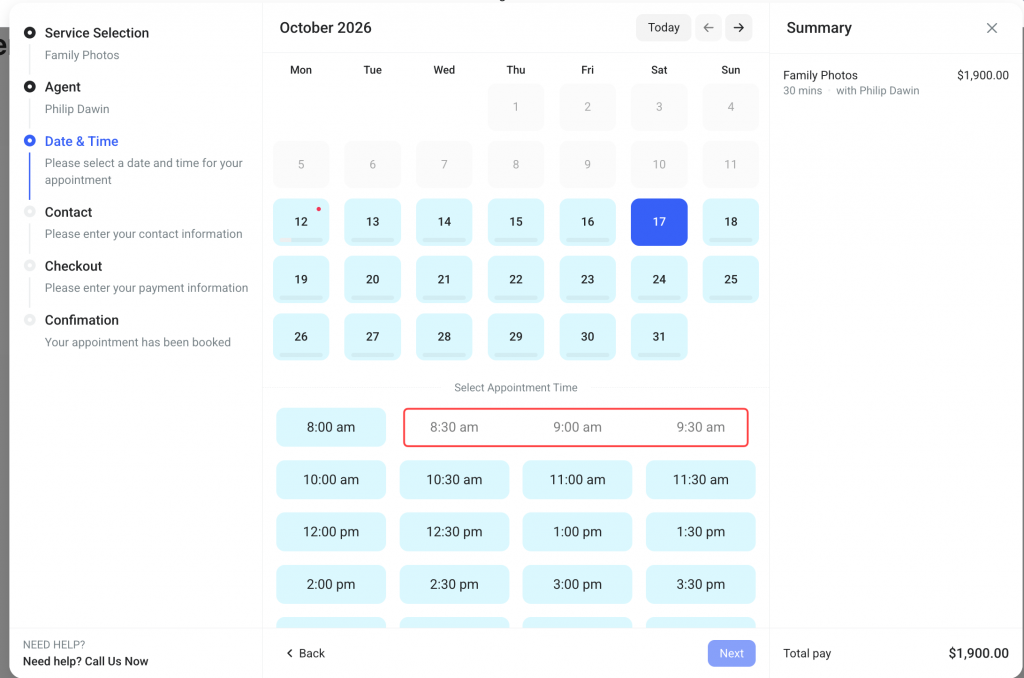
From now on, Bookster will treat each booking as the service time plus its buffer, so clients can’t book into the gap.
Step 6: Add Your Agents
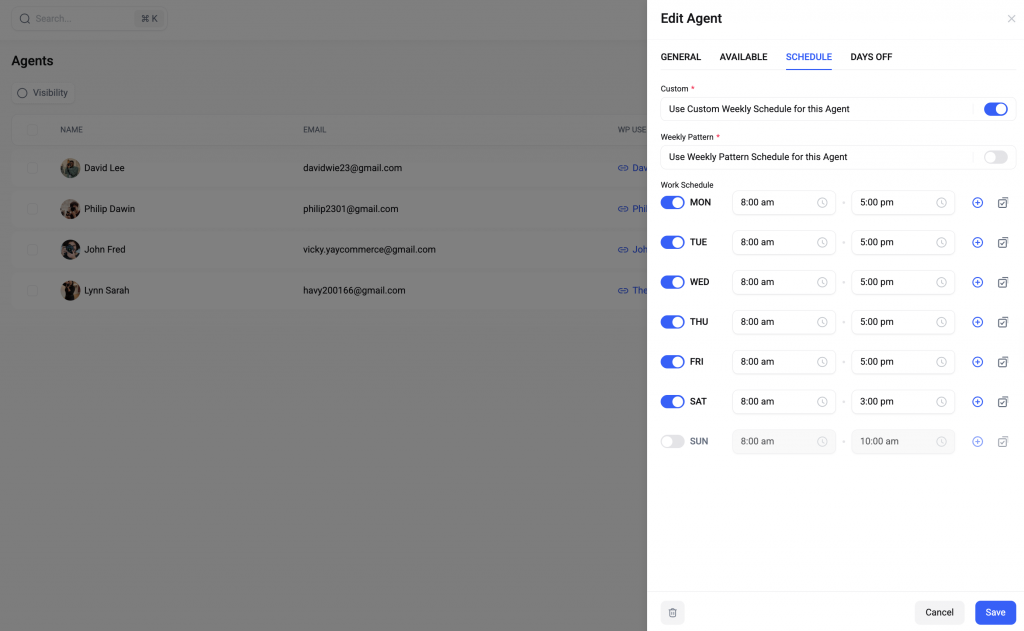
If you work with a team, open Agents and click New Agent. Each agent has tabs for general details, the services they offer, a custom weekly schedule, and days off. Keep in mind that the free core supports one agent, so teams will need Bookster Pro.
Step 7: Add the Booking Form to Your Site
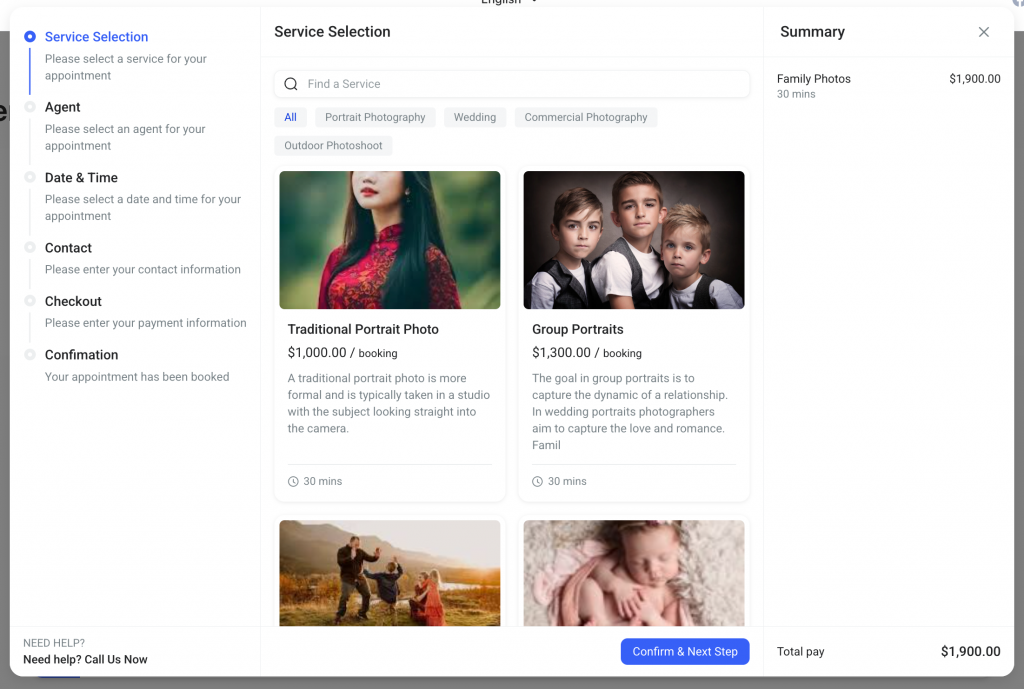
Create or open the page where you want the form, then add the shortcode [bookster_booking_form]. Publish the page and add it to your menu.
Step 8: Test Your Buffer Time
Open your booking page in a private browser window and book a test appointment. Then check the available times for the next booking. You should see that the buffer time after your first appointment isn’t offered as a start time. Check the admin calendar too, so you know how the appointment and its gap look on your side.
How to Communicate Appointment Policies to Customers
Even when your calendar is well organized, clear communication remains important.
Customers should know when they can book, what to expect from the appointment, and whether they need to arrive early or prepare anything beforehand.
A notification bar can change that. It’s a slim message at the top of your site that you can use to share your timing policies, and it fits neatly with a booking page.
For example, Notibar can complement your booking system by displaying a short announcement or linking visitors to your booking policies.
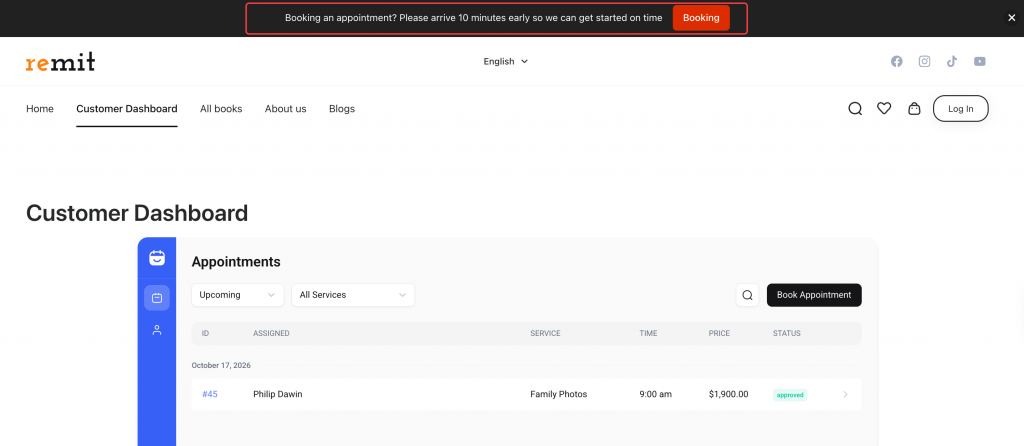
However, remember that a notification bar communicates information; it doesn’t replace the scheduling rules in your booking calendar. Use Bookster to manage appointment availability and buffer settings, and use Notibar when you want to make relevant booking information more visible on your WordPress website.
Common Mistakes to Avoid While Dealing with Buffer Time
Even when you understand buffer time, a few common mistakes can reduce its benefits or create confusion for customers. Setting it up carefully in Bookster helps avoid most of these issues.
- Adding the same buffer to every service. A short consultation and a longer treatment usually need different amounts of time. Set buffer before and buffer after separately for each service based on the actual work involved.
- Forgetting to test the booking flow. After you set buffer times, book a test appointment and check the next available slots. This confirms that customers cannot book into the gap and that the calendar looks correct on your side.
- Set buffer time but leave no breaks in the day. Buffer protects individual appointments while breaks protect your overall schedule. Both are useful. Use Bookster’s working hours and holiday settings for lunch or rest periods.
- Making the buffer too short for real-world delays. If most sessions regularly run long, a five-minute buffer will not help much. Review past appointments and increase the buffer where overruns are common.
- Adding buffer only after appointments. Some services need preparation time before the session starts. Check whether you need buffer before, buffer after, or both so the calendar matches how you actually work.
- Expecting buffer time to solve every scheduling problem. Buffer helps with normal transitions and small delays. It will not fix chronic overbooking or last-minute changes. Combine it with clear policies and realistic daily limits.
Frequently Asked Questions
Now, let’s take a look at some frequently asked questions and answers on this topic.
- What does buffer time mean in appointment scheduling?
Buffer time is extra time reserved before or after an appointment for preparation, cleanup, notes, or unexpected delays. It keeps your calendar realistic, so one late or longer session does not immediately push every following appointment back.
2. What is the difference between buffer time and a break?
Buffer time is attached to a specific service and blocks the calendar automatically when that service is booked. A break, such as lunch, is a fixed part of your daily schedule. Buffers protect each appointment while breaks protect your overall day.
3. How much buffer time should I leave between appointments?
It depends on your service. A short online consultation may need only 5 minutes, while a salon treatment or photography session may need 10–30 minutes. Start by listing the tasks you do before and after each session, estimate the time they take, then adjust based on real bookings.
4. Can I add buffer time to my WordPress booking website?
Yes. Bookster includes buffer before and buffer after settings on each service. Once set, the plugin treats the service duration plus the buffer as unavailable time, so customers cannot book into the gap. You set it once per service, and it applies automatically.
5. Does buffer time reduce the number of appointments I can take?
Yes, slightly. That is intentional. The goal is fewer rushed or delayed sessions rather than packing every minute. Many service businesses find that slightly fewer appointments improve service quality and reduce the stress of constantly running behind.
6. Can I set different buffer times for different services?
Yes. In Bookster, you set buffer before and buffer after separately for each service. A quick consultation can have a short buffer while a longer treatment or in-person session can have more time for setup and cleanup.
7. Will customers see the buffer time on the booking form?
No. Customers only see the available appointment start times. Bookster blocks the buffer period in the background so the next available slot starts after the gap. The buffer itself does not appear as a selectable time.
8. What happens if an appointment runs longer than the buffer?
The buffer gives you some flexibility, but a much longer delay can still affect the next booking. Use your past appointments as a guide when deciding how much buffer to add. A realistic buffer reduces problems even if it cannot prevent every overrun.
9. Should I add buffer time before, after, or both?
It depends on the work. Use buffer before when you need preparation or travel time. Use buffer after for cleanup, notes, or follow-up. Many in-person services use both so there is time to reset before the next customer arrives.
10. How do I test that buffer time is working in Bookster?
Book a test appointment on your booking page, then check the available times for the next booking. The slot immediately after the first appointment should not appear if buffer time is set. You can also view the appointment in the admin calendar to confirm the gap is blocked.
Final Thoughts
A well-organized calendar isn’t necessarily one with the most appointments. It’s one that gives you enough time to deliver your services properly.
Buffer time helps you prepare for customers, complete follow-up tasks, manage small delays, and avoid turning one late appointment into a stressful afternoon.
The best place to start is simple: look at your current schedule, identify what happens before and after each service, and estimate how much time each task actually requires.
If you’re managing appointments through a WordPress website, Bookster can help you put that plan into practice with configurable pre- and post-appointment buffers and flexible booking time slots.
You can then use your website to clearly communicate important booking instructions, helping customers understand what to expect before their appointments.
A few minutes between bookings might not look like much on a calendar. But when those minutes give you the space to prepare, reset, and serve your next customer properly, they’re time well spent.
Give your calendar a little breathing room. Your customers, and your future self, may thank you for it.