

Do you want to add custom fees to WooCommerce payment gateways? In this post, we’ll show you how to add a checkout fee to your store with minimal hassle.
Adding custom fees to WooCommerce payment gateways is a common requirement for many online stores. Store owners often need to apply extra fees based on the selected payment method to cover processing costs, improve profit margins, or offer better control at checkout.
In this guide, you will learn how to add payment gateway fees in WooCommerce easily.
We will cover both custom code methods and a simple plugin-based solution using YayPricing. You can set fixed or percentage-based fees for Cash on Delivery, PayPal, credit cards, and other payment options directly on the checkout page.
But before going further, let’s see why and when you should consider adding payment gateway fees to your store.
Table of Contents
When Should You Add Fees Based on WooCommerce Payment Gateways
Adding fees based on payment gateways makes sense in several common situations. Many payment methods come with processing fees that eat into your profit margins.
For example, credit cards and PayPal often charge transaction costs, while Cash on Delivery may involve extra handling expenses.
You should consider payment gateway fees when you want to:
- Offset processing fees charged by gateways
- Encourage customers toward lower-cost payment options
- Cover additional costs for specific methods like COD
- Maintain better profitability on every order
- Apply different fee amounts based on order total or product categories
Setting the right fees helps you stay transparent with customers while protecting your margins. It also gives you more control over the checkout process and pricing strategy.
How to Add Custom Fees to WooCommerce Payment Gateways
As we mentioned in the introduction, we are going to use the YayPricing plugin to add custom fees to a WooCommerce payment method. It is a freemium plugin, and for this tutorial, we will be using the premium version.
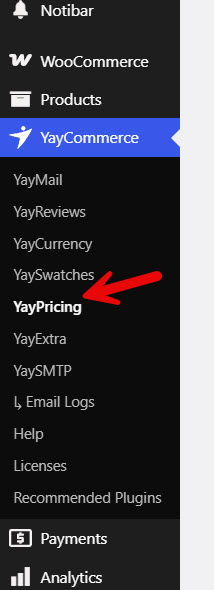
Once you have installed and activated the plugin, you can see its configuration on the left-hand side.
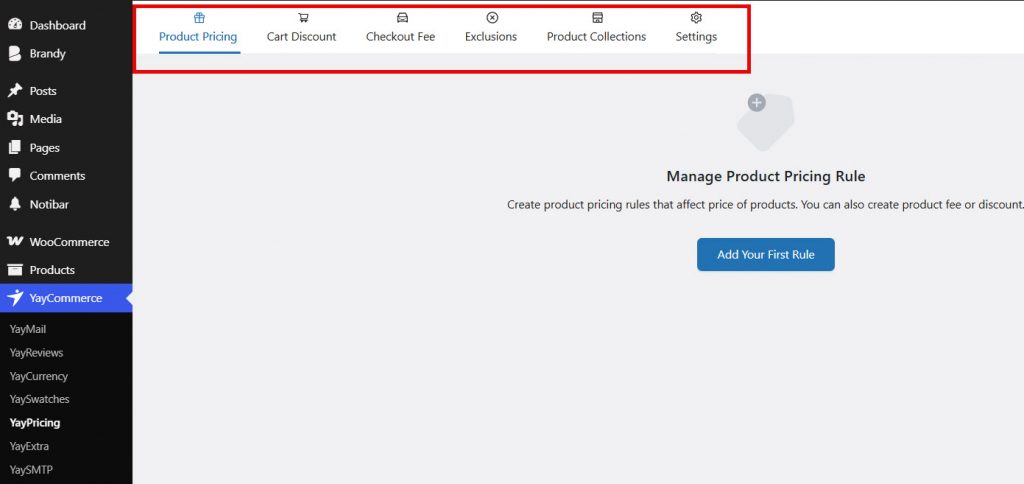
Open it, and you will be redirected to the main customization page. On the top of the page, you can see options like:
- Product pricing
- Cart discount
- Checkout fee
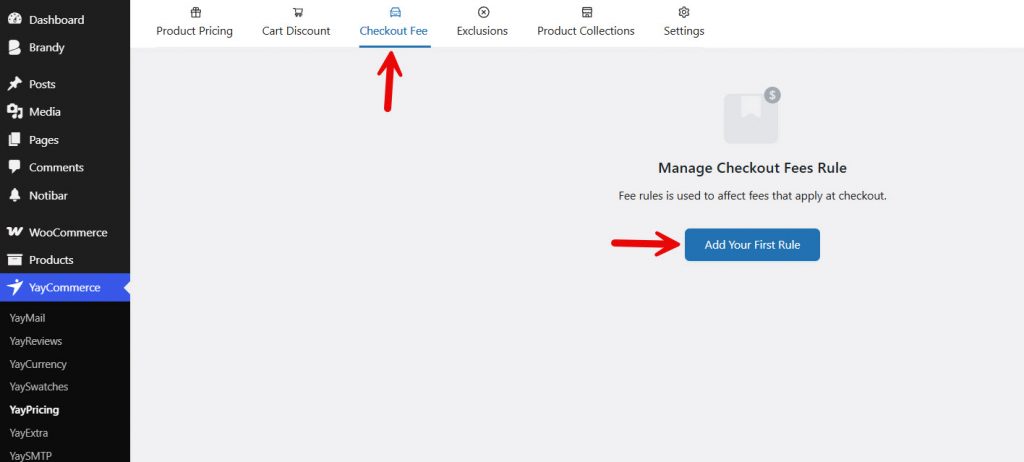
From there, we will choose the Checkout Fee option. Once you have selected that, add a rule.
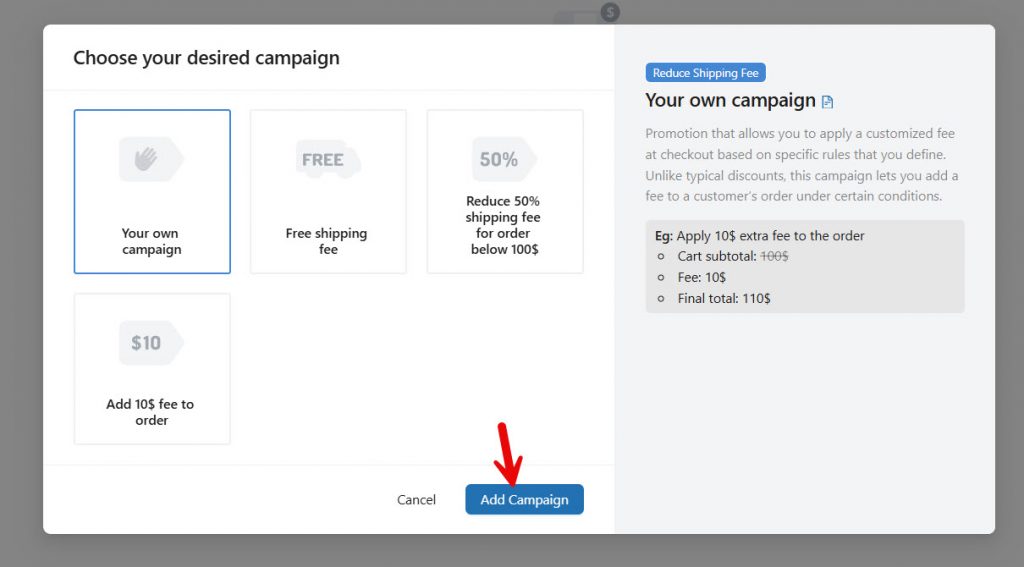
You can see several pre-made templates, or you can start one from scratch. In our case, we will choose the blank template and build one from scratch.
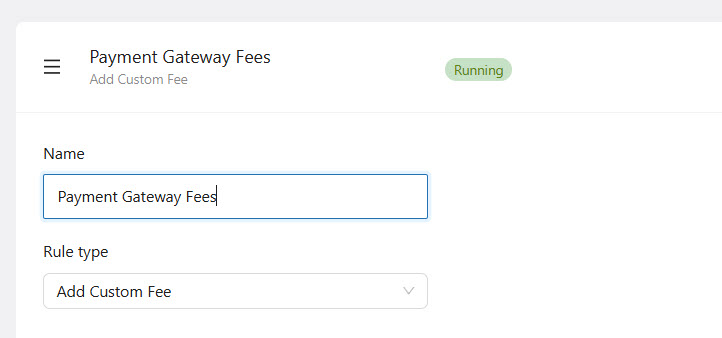
The next thing you need to do is name the rule and choose custom fee from the dropdown.
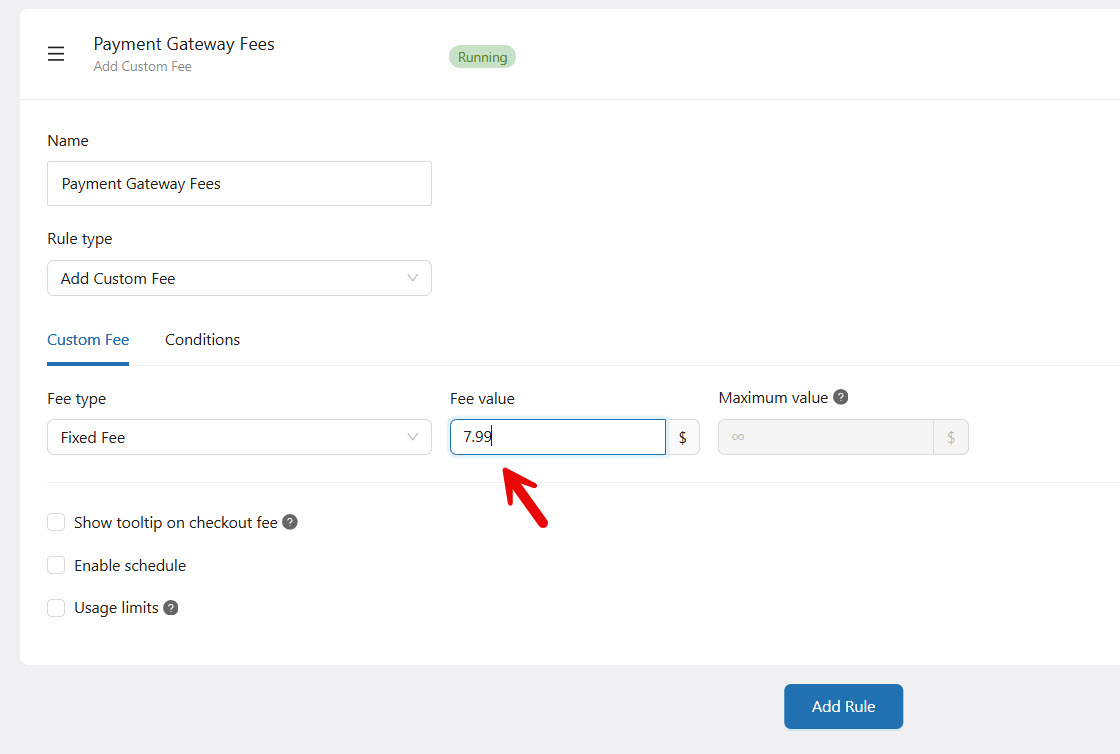
If you scroll down, you can tweak the fees too. You can add a fixed fee or a percentage-based fee. A fixed fee helps if you are going to add it to cash on delivery orders. On the other hand, if you are handling payment gateways charge like PayPal charges, a percentage-based fee will be helpful.
So if your specific payment gateway is going to charge you a 2% fee at checkout, you can add the 2% as a fee.
In our case, we will move forward with a fixed fee, and we will be charging $7.99. The configuration will look like:
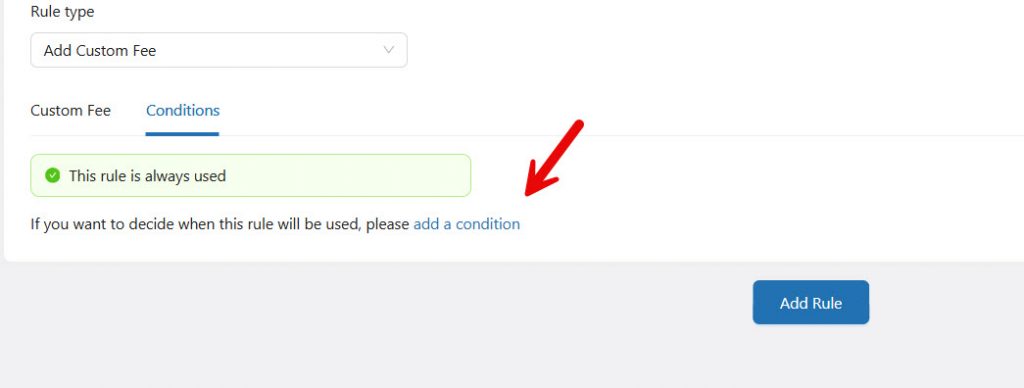
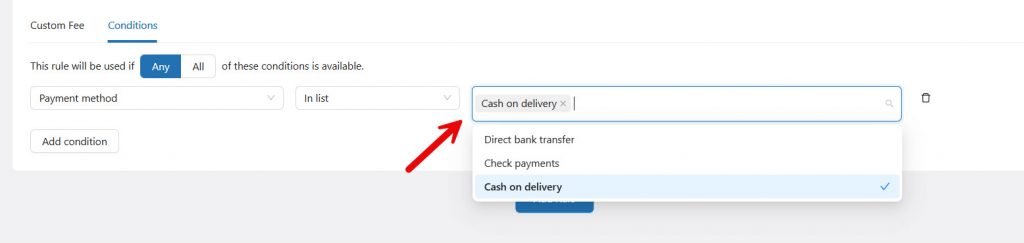
The next thing you need to do is mention when these fees should be applied to the order. For that, we need to use the conditions feature.
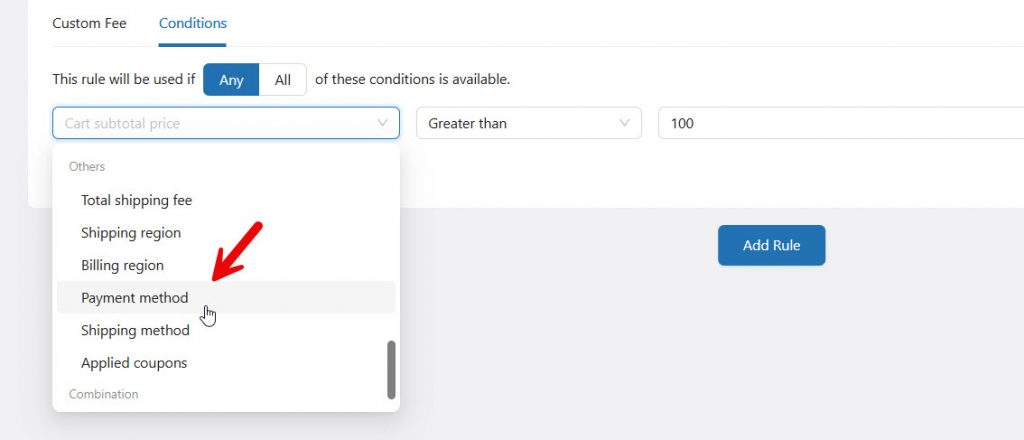
From the dropdown, choose the payment method condition.
Next, choose which payment methods in WooCommerce will come under this YayPricing rule. In our case, we will be adding this to the cash on delivery payment method.
You can also combine multiple conditions. For example, you can apply this rule only when the customer purchases products worth more than a certain order value, or based on the shipping location, and so on.
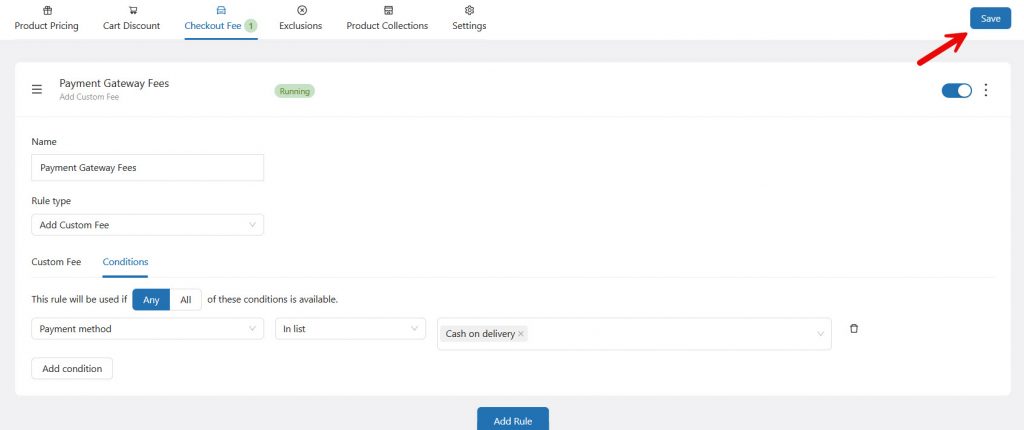
For this tutorial, we will keep it simple. Once you are done with the configuration, save the changes and do a test order from the front end.
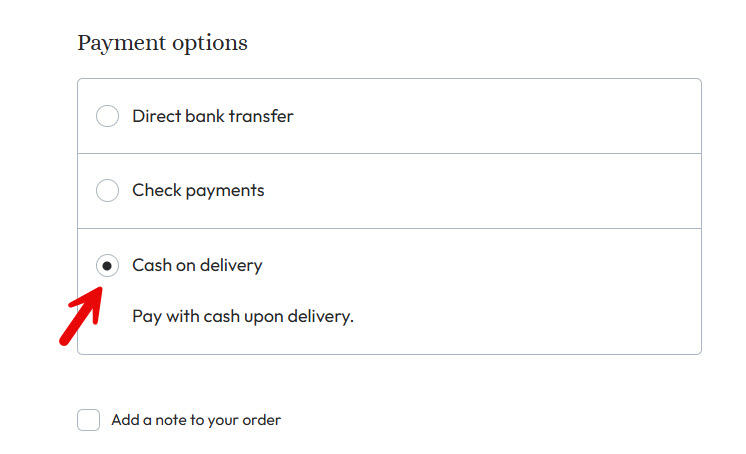
When you add a product and move to the checkout page, ensure you have selected the Cash On Delivery option.
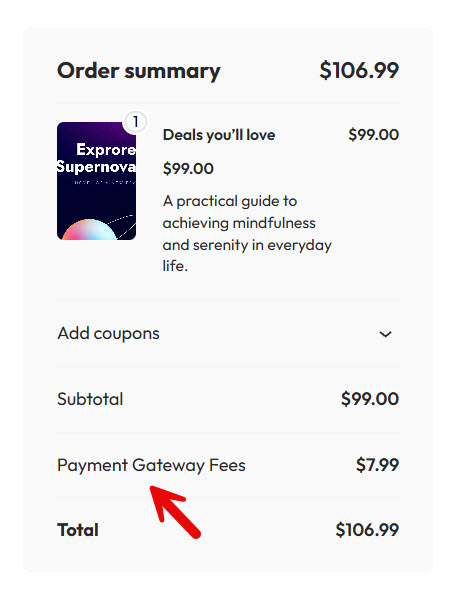
The extra fee will be added to the total order value.
That’s it!
This is how you can set the fee for certain payment gateways.
Common Mistakes You Should Avoid While Adding Additional Fees
Adding payment gateway fees can help protect your profit margins, but small mistakes often create confusion at checkout or reduce conversions. Avoiding these common errors will help you apply fees correctly and keep the process transparent for customers.
- Charging high payment gateway fees without showing a clear notice on the checkout page, which can surprise customers and increase cart abandonment.
- Forgetting to exclude specific payment methods, product categories, or order totals when setting up fees based on payment gateways.
- Using only a fixed fee for every transaction instead of combining fixed and percentage-based fees that better match actual processing costs.
- Skipping proper testing of how the additional charges appear for different payment options like Cash on Delivery, PayPal, or credit cards.
- Not assigning the correct tax class to the custom fees, which can cause incorrect tax calculations on the front end.
- Relying only on custom PHP code when a dedicated WooCommerce plugin can safely handle fees for each payment gateway with more flexibility.
Here are some articles you might find useful:
- 920+ Reiki and Energy Healing Business Name Ideas
- 850+ Advertising Agency Name Ideas That Actually Stand Out
- What’s New in Bookster 3.3.0
- 720 Yoga Studio Name Ideas for a Calm, Memorable Brand
- 7 Best WP Simple Pay Alternatives & Payment Gateway Options
Frequently Asked Questions
Now, let’s take a look at some of the frequently asked questions and answers regarding this topic.
How do I add payment gateway fees in WooCommerce?
You can add payment gateway fees using custom code with the woocommerce_cart_calculate_fees hook or by using a dedicated plugin. A plugin like YayPricing makes it much easier to set fixed or percentage-based fees for each payment method without writing PHP.
Can I charge different fees based on payment gateways?
Yes. You can set unique fees for each payment gateway such as Cash on Delivery, PayPal, Stripe, or bank transfer. This helps you cover processing costs and protect your profit margins.
Will payment gateway fees show on the checkout page?
Yes. When configured correctly, the additional fee appears clearly in the order summary on the checkout page so customers can see the extra charge before placing the order.
Can I apply fees based on order total or product categories?
Yes. Advanced solutions allow you to apply payment gateway based fees only when the order total reaches a certain value or when specific product categories are in the cart.
Is it better to use custom code or WooCommerce plugins?
Custom code works but can break after updates. Using reliable WooCommerce plugins gives you more flexibility, easier management from the admin, and better long-term stability.
How can I improve profit margins with payment fees?
By adding small fees for expensive payment methods (like credit cards or PayPal) and keeping lower-cost options cheaper, you can offset transaction costs and protect your overall margins.
Do payment gateway fees work with shipping and discounts?
Yes. Fees are usually calculated after shipping and discounts, so they appear as a separate line in the order summary without conflicting with other cart adjustments.
Can customers see the fee before selecting a payment method?
Most good setups show the fee dynamically on the front end once a payment method is selected, giving full transparency during the checkout process.
What is the easiest way to manage fees for each payment gateway?
The easiest way is to use a pricing plugin that lets you create rules based on the selected payment method. YayPricing is a strong option for this because it supports both fixed and percentage fees with simple conditions.
Will adding extra fees reduce conversions?
If the fees are reasonable and clearly shown on the checkout page, most customers accept them. High or hidden fees can hurt conversions, so always keep transparency in mind.
Conclusion
Adding custom fees to WooCommerce payment gateways helps you cover processing costs and protect your profit margins. You can do this with custom code or a dedicated plugin that makes the process much simpler.
YayPricing offers an easy way to set fixed or percentage-based fees for specific payment methods directly from the admin. It works smoothly on the front end and gives you full control over when and how the fees appear at checkout.
Choose the method that fits your store, test thoroughly, and keep the fees transparent for your customers.
What other things do you need to achieve in your eCommerce store?
Let us know in the comments.
We hope you found this article helpful and enjoyed reading it. If you did, feel free to check out our blog archive for more useful guides and tips. Also, check out our YouTube channel, X, and Facebook page to get the latest news.

