

Do you want to add a table of contents in WordPress? If you are looking for a simple guide, keep reading. In this post, we will show you multiple methods you can use to add a table of contents in WordPress.
Adding a WordPress table of contents is a simple way to improve navigation and user experience, especially for long-form content.
When your posts include multiple heading tags, like H2 and H3, a table of contents helps readers quickly skim sections and jump to the information they need.
In this tutorial, you’ll learn how to create a table of contents in WordPress using different methods, including a table of contents plugin like the Easy Table of Contents plugin or by using the Gutenberg block editor.
Many table of contents plugins can automatically generate a TOC based on your headings and insert a table into your WordPress post. Whether you use plugins or create a WordPress table of contents section with the SEO plugin, adding a table of contents helps organize content and improves SEO.
First, let’s see why you should add a table of contents in WordPress.
Table of Contents
Why You Should Add a Table of Contents in WordPress
Adding a WordPress table of contents can greatly improve how visitors navigate your content and interact with your WordPress site. A well-structured table of contents helps organize long posts and guide readers through different sections using clear heading structures.
- A WordPress table of contents improves user experience by allowing readers to scroll less and jump directly to the section they need through helpful jump links.
- Many WordPress plugins can automatically add a table of contents to your posts, saving time and keeping your content organized.
- A table of contents using a WordPress plugin or the Gutenberg block editor can automatically add a table based on your headings.
- A table of contents may also support search engine optimization by helping search engines understand the structure of your WordPress content.
- It’s easy to add and customize the table using plugin settings, shortcode options, or a sidebar widget.
How to Add a Table of Contents in WordPress
There are multiple ways you can use to add a table of contents in WordPress:
- Using an SEO plugin
- Using a dedicated ToC plugin
We will take a look at each method.
1. Using an SEO Plugin
Most SEO plugins, such as Yoast SEO (premium feature), Rank Math, or All In One SEO Pack, include a built-in table of contents block. Here, we will show you how to use it.
1.1) Rank Math
If you are using Rank Math, you can use the dedicated ToC block.
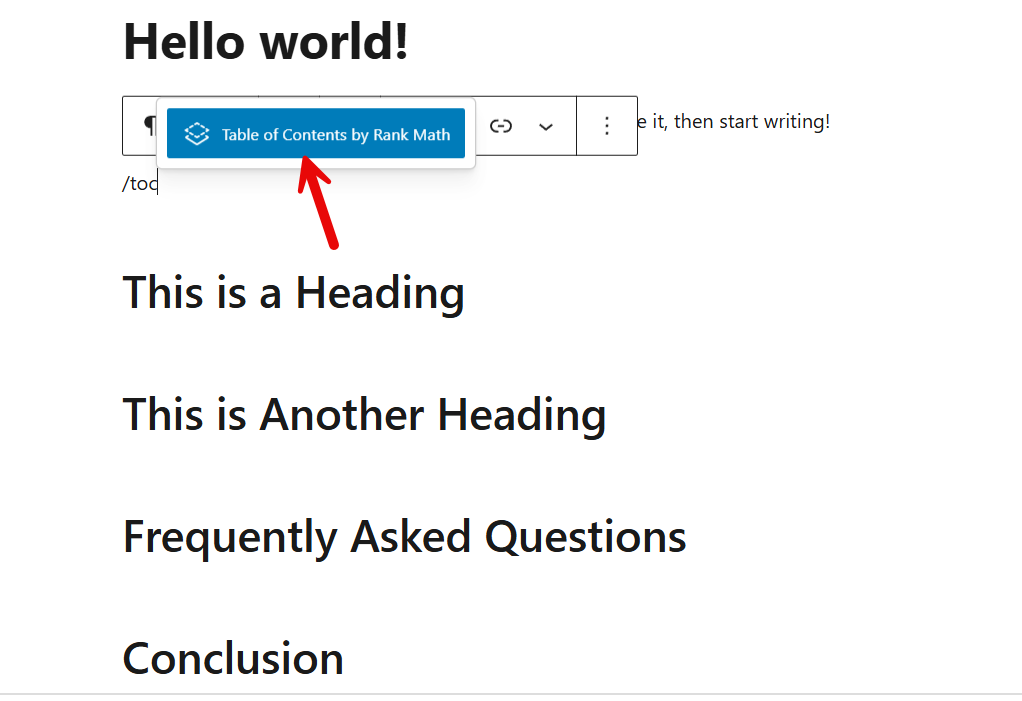
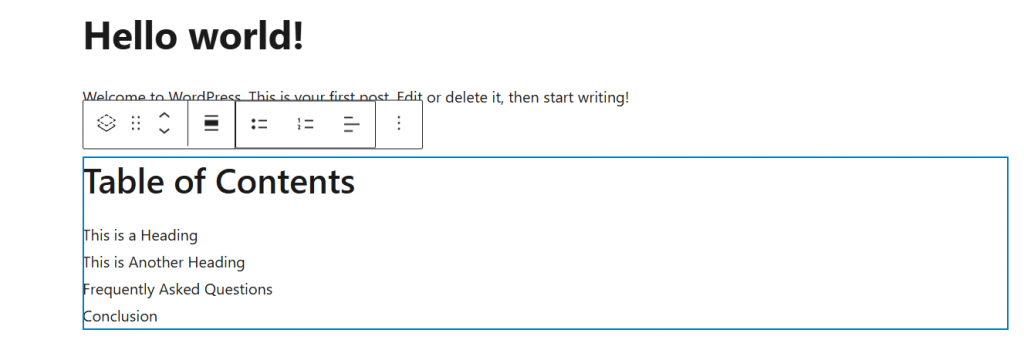
You can see the headings then.
On the right-hand side, you will also see the ToC block settings.
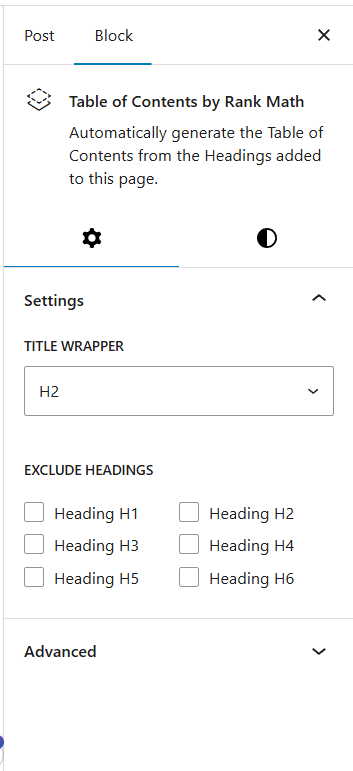
From there, you can choose the title wrapper, exclude specific headings, and so on from the Toc section.
Yoast offers ToC as a premium feature. You need access to the Yoast Premium version to use that feature.
When using this method, you do not need to rely on a third-party plugin. On the other hand, if you are ok with using a dedicated table of contents plugin, check out the next section.
2. Using a Dedicated ToC Plugin
There are several table of contents plugins available for WordPress. Some of the best ones are:
- Easy Table of Contents
- SimpleTOC
- Joli Table Of Contents
- Heroic Table of Contents
- LuckyWP Table of Contents
For this tutorial, we will use the Easy Table of Contents plugin. First, install and activate the plugin on your website.
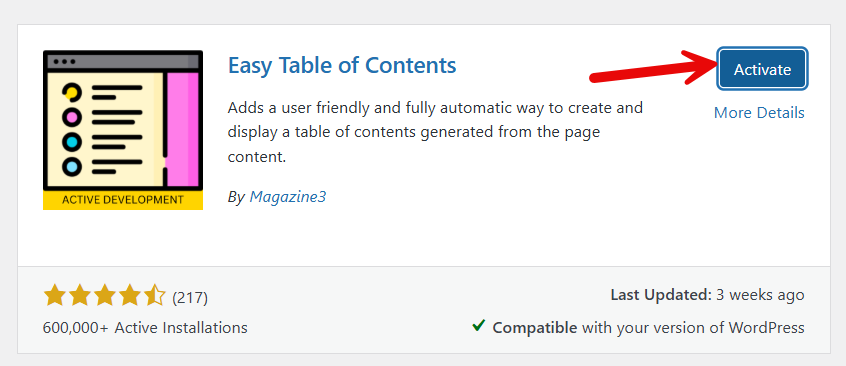
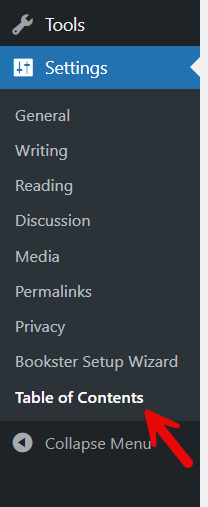
After activation, you can see the plugin’s settings under WordPress settings.
From there, you can configure the custom post types, appearances, shortcodes, sticky ToC, and so on.
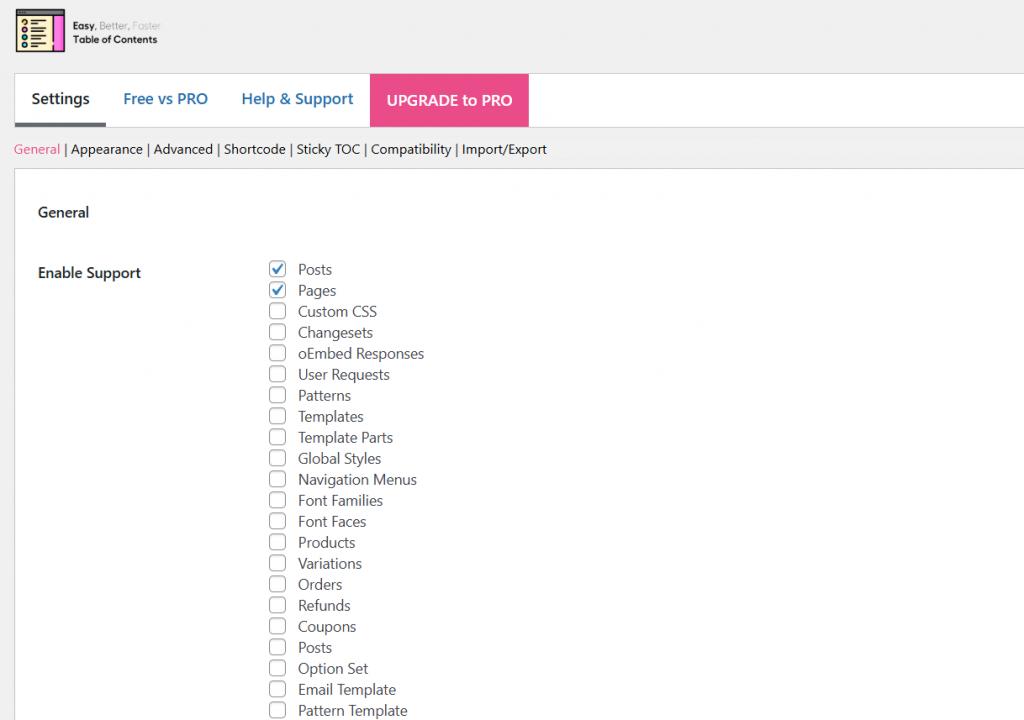
Once you are done, save the settings and go to the post or page where you need to add the ToC box. If you enable the auto-insert feature, the ToC box will be added to the post automatically.
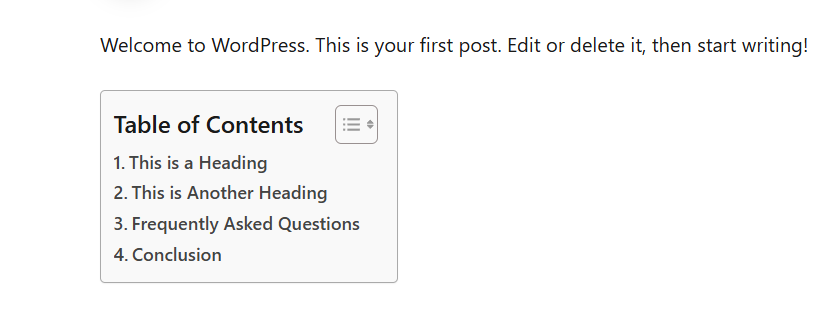
If you are not using the auto-insert function, you can manually add the box with the Gutenberg block.
That’s it!
This is how you can add a table of contents in WordPress.
Here are a few articles you should look into:
- What Is ‘Buffer Time,’ and Why Your Calendar Probably Needs More of It
- 920+ Reiki and Energy Healing Business Name Ideas
- 850+ Advertising Agency Name Ideas That Actually Stand Out
- What’s New in Bookster 3.3.0
- 720 Yoga Studio Name Ideas for a Calm, Memorable Brand
Frequently Asked Questions
Now, let’s take a look at some frequently asked questions and answers about this topic.
What is a WordPress table of contents plugin?
A WordPress table of contents plugin helps automatically generate a table of contents based on the heading structure of your post. The plugin scans heading tags and creates a clickable list so readers can jump to different sections. Many plugins also allow you to configure settings, exclude specific headings, and control where the table appears.
How do plugins help create a table of contents in WordPress?
Plugins simplify adding a table of contents in WordPress. Instead of manually writing HTML, a plugin can automatically insert a table of contents and organize your content’s headings. This improves user experience and helps readers navigate long posts easily.
Can I add a table of contents using the Gutenberg editor?
Yes, the Gutenberg editor allows you to insert a table of contents block if your plugin supports it. In the WordPress block editor, you can add the block to your post, and the system will generate a list of headings from the content automatically.
How does the Easy Table of Contents plugin work?
The Easy Table of Contents plugin creates a WordPress table of contents by scanning heading tags within your content. It can auto-insert the TOC in your posts and lets you configure display options such as font, heading levels, and post types.
Can I create a table of contents manually in WordPress?
Yes, you can create a table of contents manually by adding HTML anchor links to your headings. This method requires more setup but allows you to control how readers jump from the table to each section of your post.
What is Table of Contents Plus, and how is it used?
Table of Contents Plus is a popular WordPress plugin for creating a TOC for long articles. It generates a table of contents based on headings and can automatically add it to your WordPress posts or custom post content types.
Is it possible to add a table of contents in WordPress without a plugin?
Yes, you can add a table of contents without a plugin by creating anchor links for your headings. This method works well if you want to avoid installing extra plugins, but it requires manually linking each section so readers can navigate the content.
Conclusion
Adding a table of contents in WordPress is a simple way to organize content and improve the overall reading experience.
When blog posts contain multiple sections and headings, a WordPress table of contents helps readers quickly navigate the article and find the information they need. It also makes long-form content easier to scan, which improves user engagement and keeps visitors on your site longer.
For blogs and WooCommerce store blogs that publish detailed guides, tutorials, or product-related content, a WordPress table of contents helps structure information clearly. This organized layout not only improves the user experience but also supports search engine optimization by helping search engines understand your content’s structure.
We hope you found this article helpful and enjoyed reading it. If you did, feel free to check out our blog archive for more useful guides and tips. Also, check out our YouTube channel, X, and Facebook page to get the latest news.
Do you know any other methods for adding the table of contents box?
Let us know in the comments.

