

Do you want to embed Google Maps in WordPress? If you are looking for a simple method, keep reading this article.
Adding a Google map in WordPress is one of the easiest ways to help visitors find your business and interact with your location directly on your website.
You can embed Google Maps on any post or page using the block editor, a simple embed code, or a dedicated WordPress plugin, depending on how much control and customization you need.
From creating a basic map to using a Google Maps API key for advanced features, WordPress gives you multiple options to add Google Maps to WordPress without touching complex code.
In this guide, you’ll learn how to add a Google map to your WordPress site both with and without a plugin, so you can display an interactive map that fits perfectly into your design and improves user experience.
First, let’s see when you need to embed Google Maps in WordPress.
Table of Contents
When Do You Need to Embed Google Maps in WordPress
You should embed Google Maps in WordPress whenever showing a location can improve usability, trust, or navigation on your WordPress site.
In many cases, adding a Google map in WordPress helps visitors quickly understand where your business or service is located and how to reach you. You need to add Google Maps to WordPress when you run a local business and want to show a map on your site for directions using the block editor or a maps plugin.
It is also useful if you manage events, offices, or service areas and want to add a Google map to your WordPress website with a custom view created using Google My Maps or a Google Maps API key. It also makes sense to embed a Google map when your content depends on location context, such as travel guides, store locators, or contact pages.
You can add Google Maps to WordPress using a Google Maps plugin, a maps widget, or an embed code, depending on whether you want a simple map block or a fully interactive map.
In short, whenever visitors need visual location data, it’s the right time to add Google Maps to your WordPress site and improve navigation and user experience.
How to Embed Google Maps in WordPress
There are two methods you can use to embed Google Maps in WordPress:
- Using a plugin
- Manually
We will show you both methods below. Based on your preferred requirements, you can pick an option.
Without any further ado, let’s get into the tutorial.
1. Plugin Method
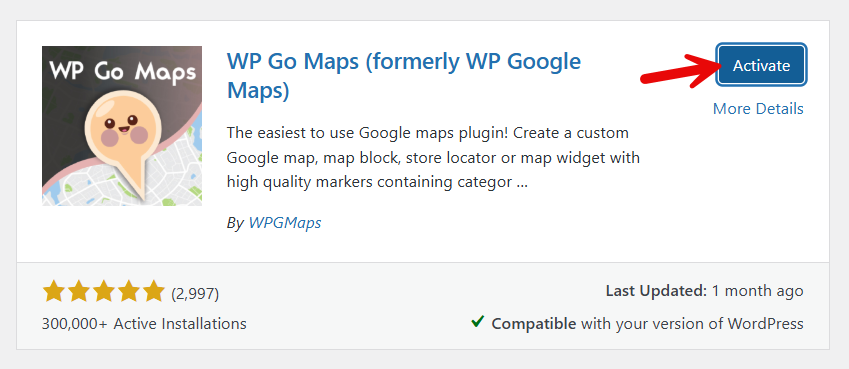
If you are looking for a simple method, you should use a dedicated plugin for the task. The plugin we are going to use is WP Go Maps. So you need to install and activate it on your WordPress website.
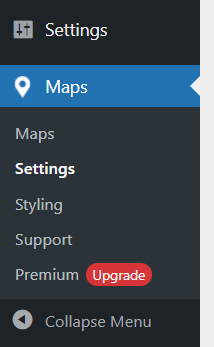
On the left-hand side, you can see the plugin’s settings.
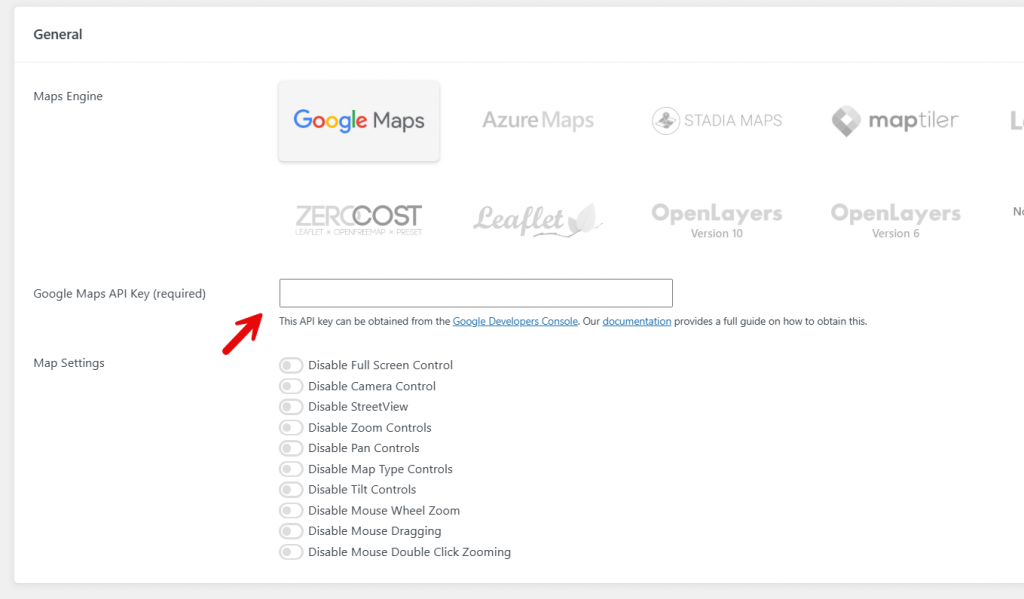
If you go to the settings page, you can see all the map engines. From there, you can choose Google Maps. The next thing you need to do is enter a valid API key.
You can generate an API key from here.
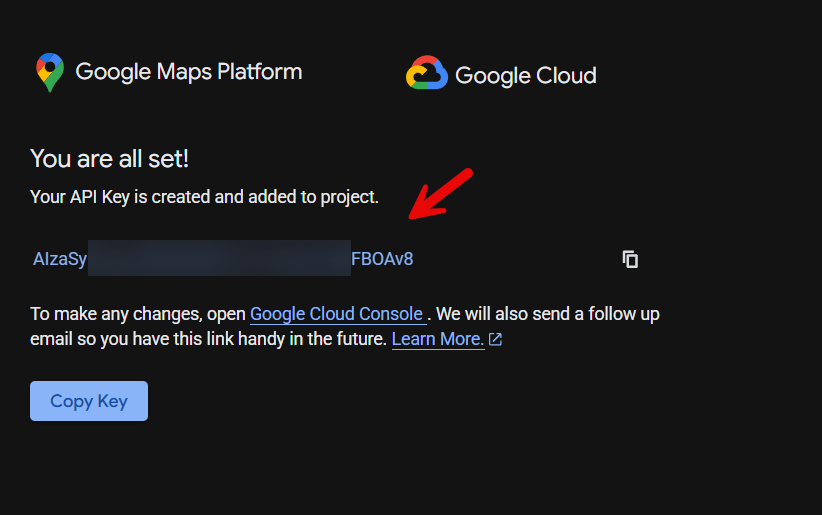
Paste the API key in the settings and save it. From now on, you can start creating maps. By default, the plugin comes with a map. We need to edit it.
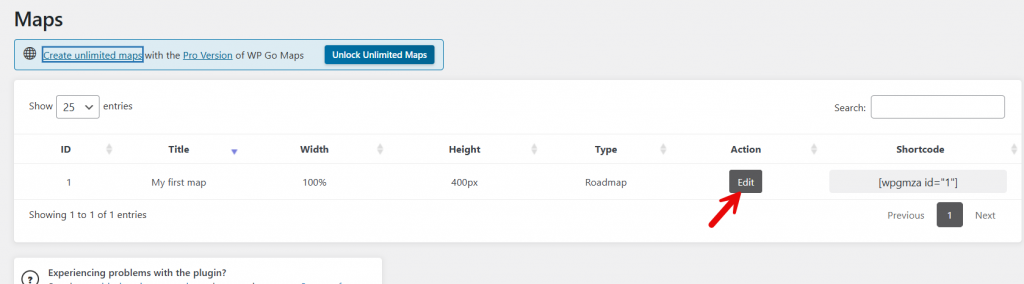
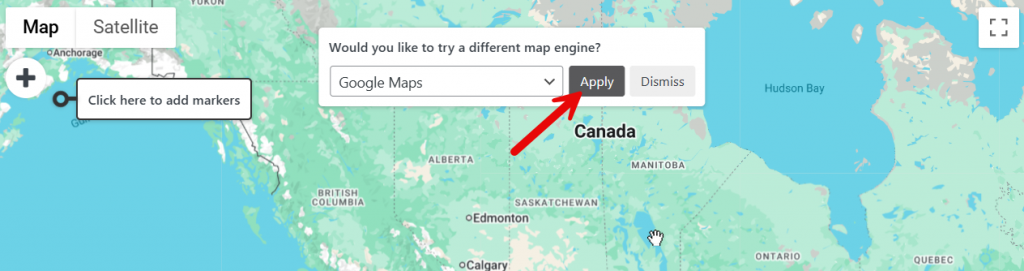
First, select Google Maps as the engine.
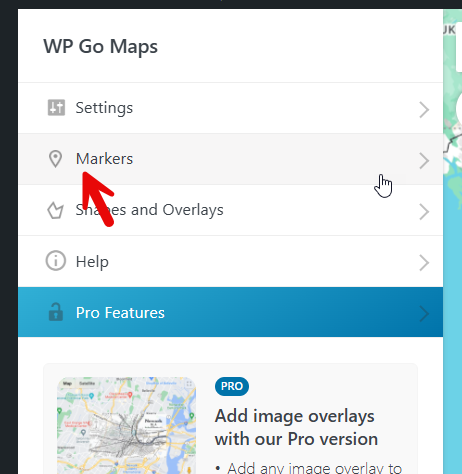
Now go to the markers option.
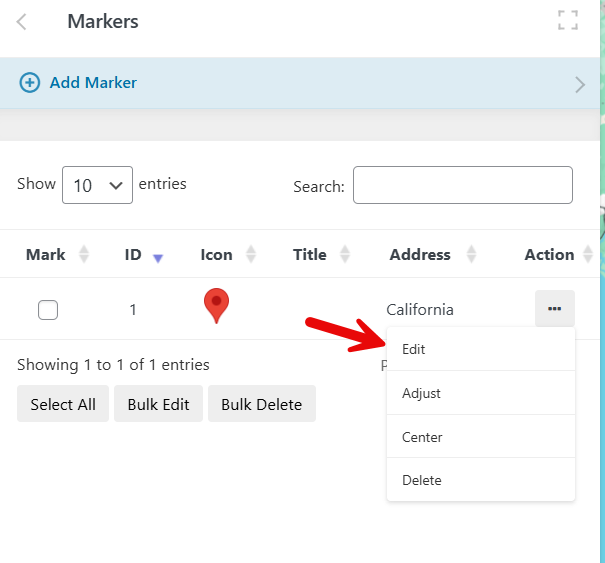
Now choose edit.
Next, you have to choose the marker location.
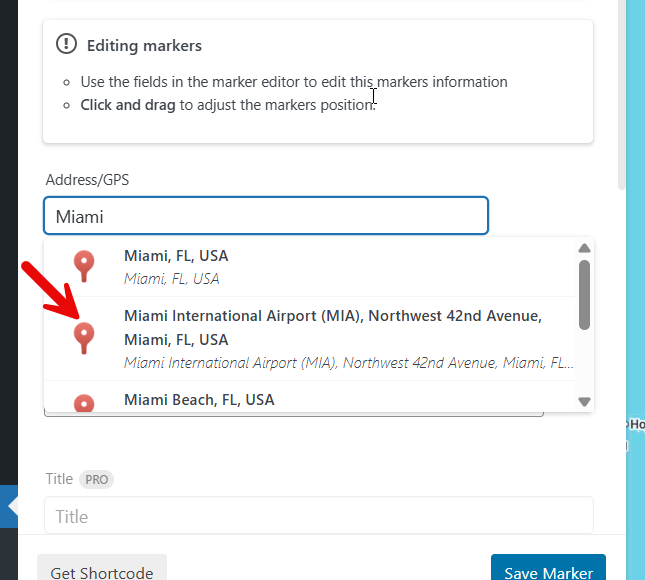
You can also drag and drop the marker to set the location.
Once you have done that, save the marker. Now, it is time to check the general settings. You can customize options such as map name, theme name, and so on from there.
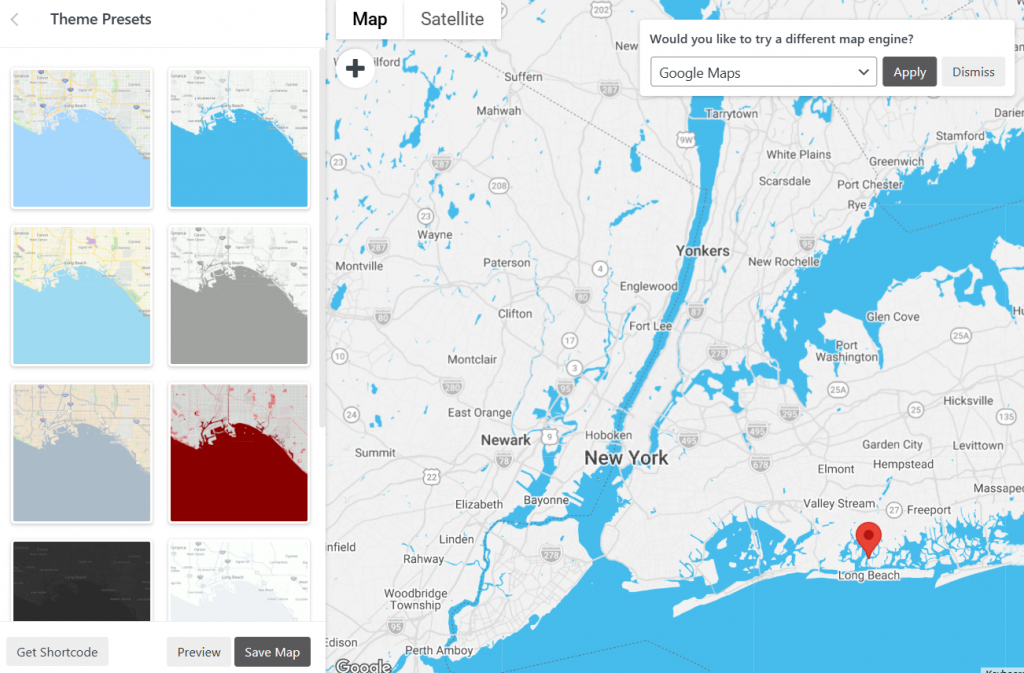
Finally, save the map. You need to hit the get shortcode button next.
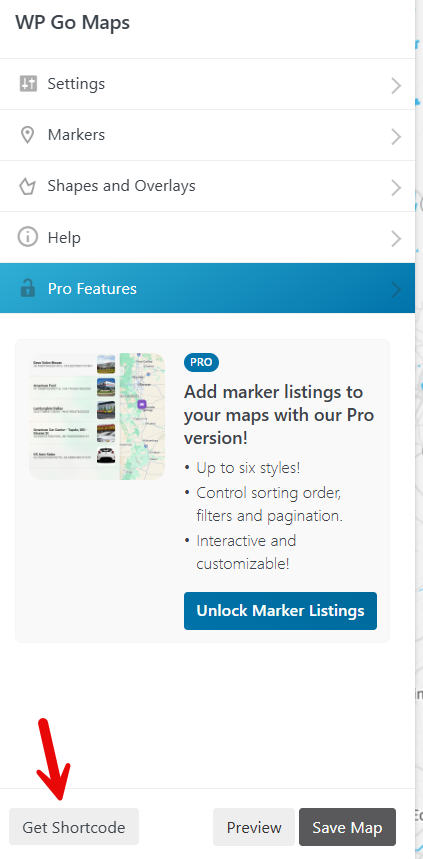
The shortcode will be copied to the clipboard. Now we need to embed it on a page. Add the shortcode block and insert the shortcode.
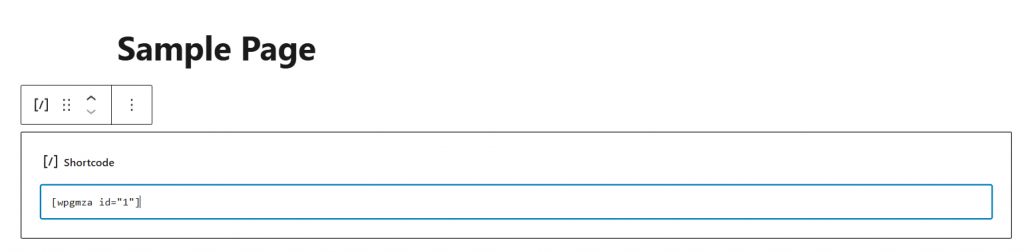
Publish (or update) the page. Now, you will see the map on the front end of the website.
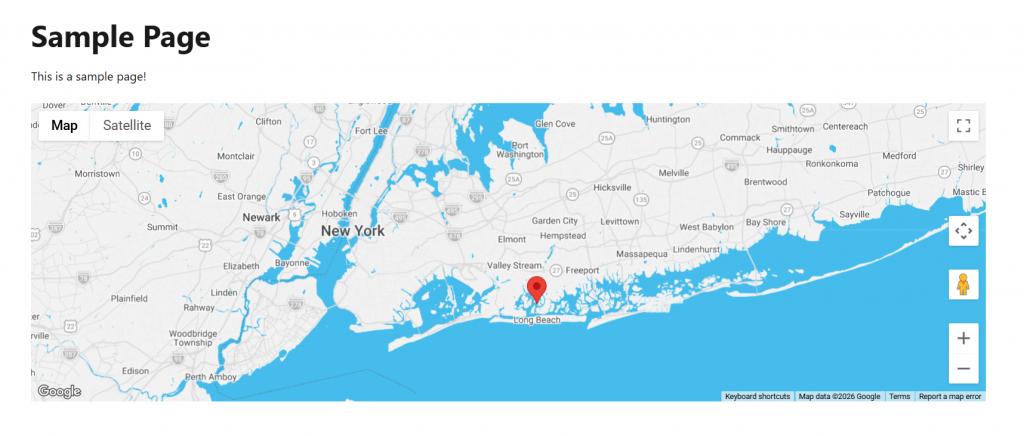
Next, let’s see how to embed Google Maps without a plugin.
2. Without a Plugin
If you do not need to use a dedicated styling, follow this method. Open Google Maps and visit the business or place you need to embed. Next, click the share button.
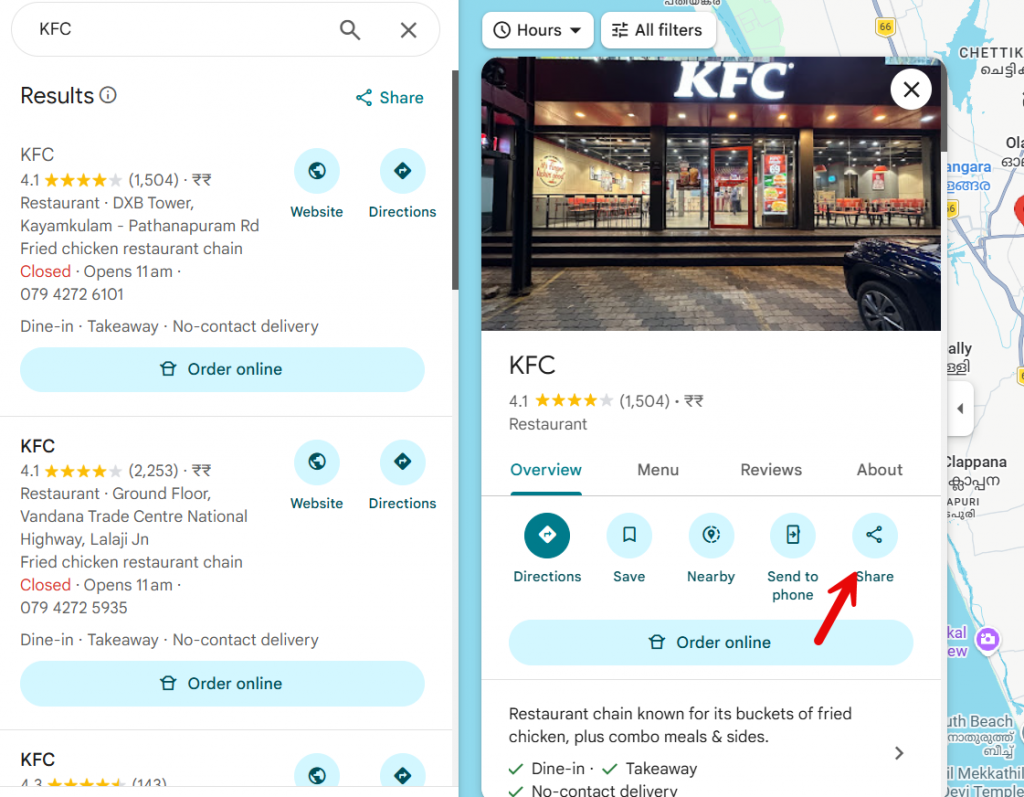
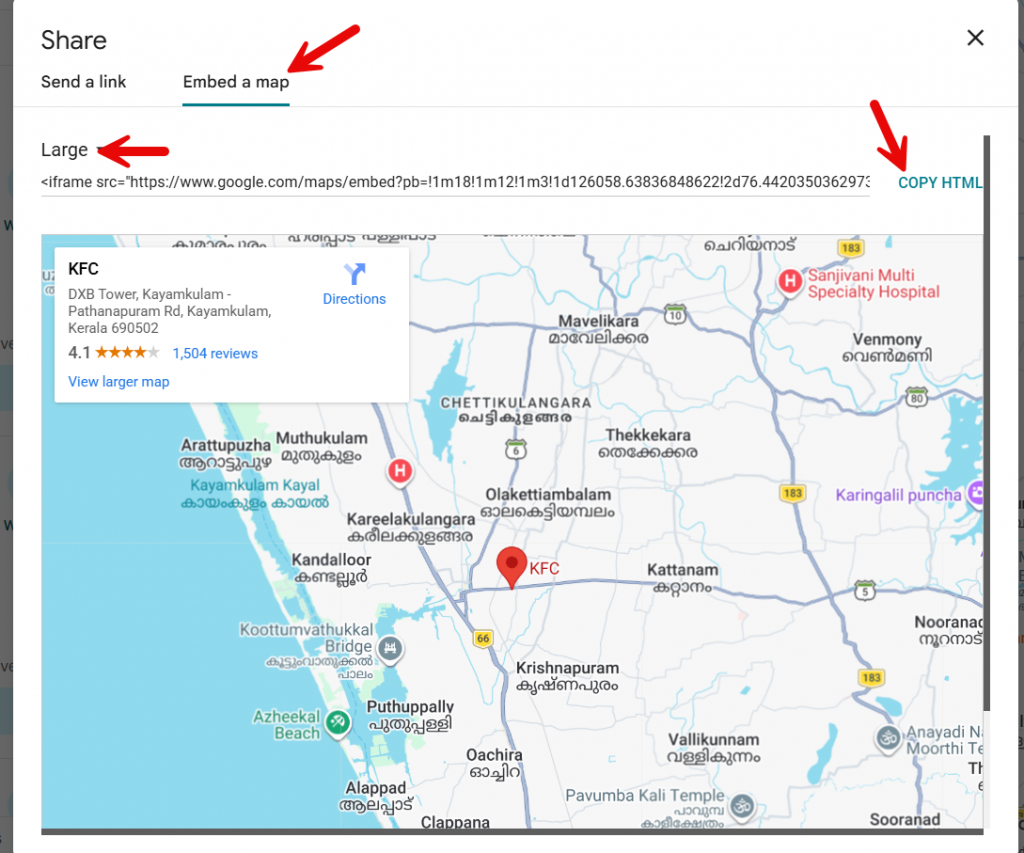
Choose embed a map, select the size you need, and copy the iframe code.
Open the Gutenberg editor and insert the HTML block.
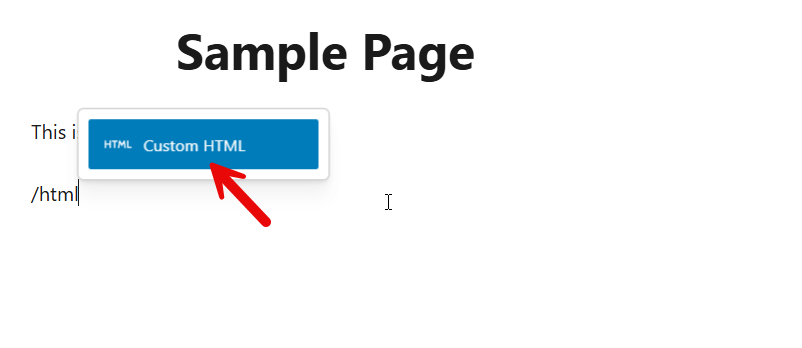
Paste the HTML code and save the page.
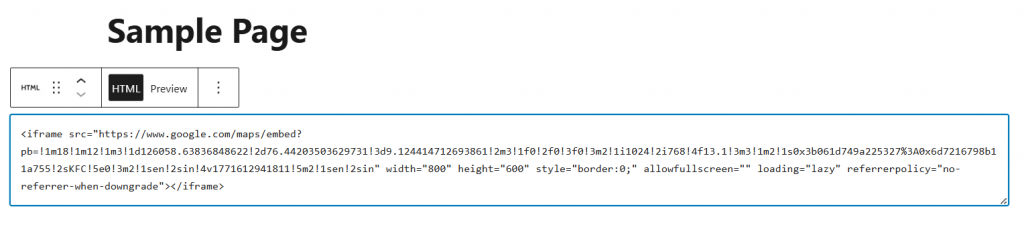
Update the page and check it from the front end. You can see the map is embedded.
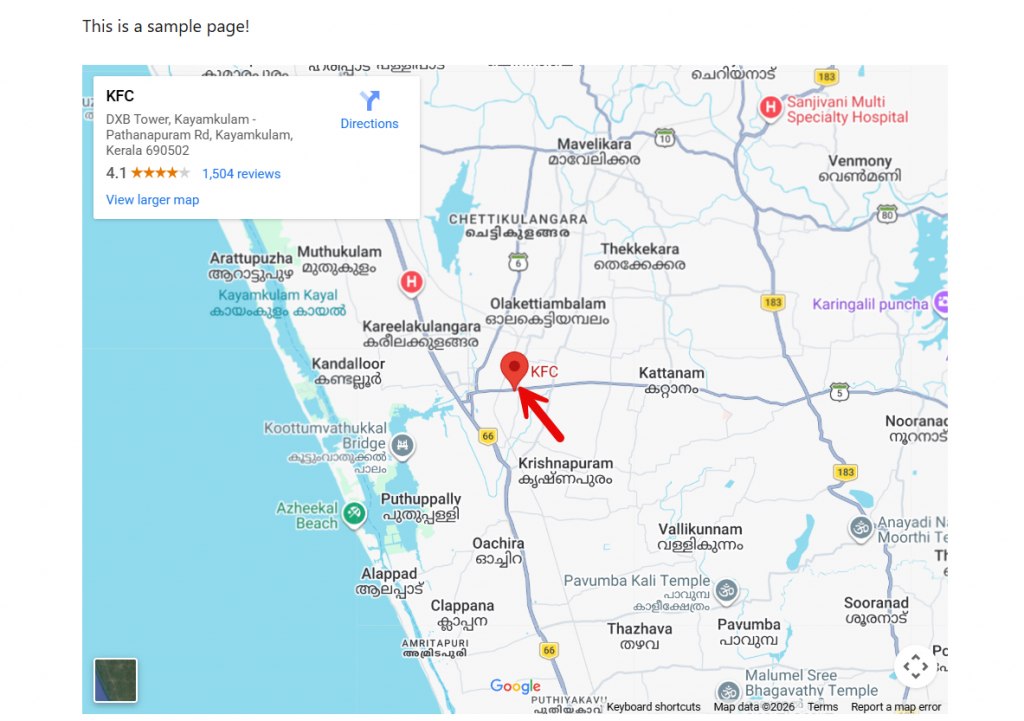
That’s it!
This is how you can embed Google Maps without a plugin.
Plugin Method vs Non-Plugin Method
| Feature | Plugin Method (Google Maps Plugin) | Non-Plugin Method (Embed Code / HTML) |
|---|---|---|
| Ease of use | Very easy, works inside the WordPress dashboard with visual controls | Simple but manual, requires copying and pasting the embed code |
| Customization | Offers advanced map settings like zoom level, markers, styles, and multiple locations | Limited to the basic options provided by Google Maps embed |
| Multiple locations | Supports adding multiple maps and locations easily | Each location must be embedded separately |
| Google Maps API key | Usually required and managed by the plugin | Not required when using basic embed code |
| Performance | Slightly heavier because it loads plugin assets | Lightweight since it only loads the embedded map |
| Best for | Business sites, stores, and websites that need custom maps or location management | Simple sites that only need to embed a single map |
| Maintenance | Needs plugin updates and compatibility with WordPress versions | No maintenance once the map is embedded |
| Flexibility | Can integrate with widgets, blocks, and shortcodes | Works only where the embed code is placed |
Here are some articles you would be interested in:
- 850+ Advertising Agency Name Ideas That Actually Stand Out
- What’s New in Bookster 3.3.0
- 720 Yoga Studio Name Ideas for a Calm, Memorable Brand
- 7 Best WP Simple Pay Alternatives & Payment Gateway Options
- 7 Best Google Calendar Alternatives for Your Calendar Needs
Frequently Asked Questions
Now, let’s take a look at some of the frequently asked questions and answers regarding this topic.
How do I add Google Maps in WordPress without a plugin?
You can add Google Maps in WordPress without a plugin by using the Google Maps embed code. Go to Google Maps, find your location, click Share, choose Embed a map, and copy the iframe code. Then paste it into a Custom HTML block in the WordPress block editor on any post or page. This method works on any WordPress site without using a WordPress plugin and is ideal for displaying a simple map on your WordPress website.
Do I need a Google Maps API key to embed a map in WordPress?
You do not need a Google Maps API key if you only want to embed a map using the standard embed a map option from Google. An API key is required when you use a Google Maps plugin, a custom map, or advanced features like multiple locations and map settings. To create a google maps api, go to the Google Cloud dashboard and generate a free api key for your WordPress site.
What is the easiest way to add a Google map in WordPress?
The easiest way to add a Google map in WordPress is by using the WordPress block editor with the embed option or a maps plugin. You can paste the Google Maps embed code into a block or install and activate the plugin from the WordPress dashboard. Both options make it easy to display Google Maps on your website without editing code.
Can I add multiple locations to Google Maps on my WordPress site?
Yes, you can add multiple locations by using Google My Maps and create a custom map with several markers. After you make your map public, you can embed the map using the Google Maps embed code in any WordPress post or page. Many Google Maps plugins also allow you to add multiple locations using a maps widget or map block.
Why is my Google map not showing on my WordPress page?
A Google map may not display if the embed code is placed in the wrong block, the map is not public, or the google maps api key is missing when required. Make sure you use the WordPress block editor correctly, check your map settings, and confirm that the map is visible to the public. Also, verify that your theme supports iframe content on your WordPress page.
Is it better to use a Google Maps plugin or embed code?
Using a Google Maps plugin is better if you want more control over map settings, design, and multiple locations. Embed code is best for a simple Google map on your WordPress site without extra features. Plugins like Google Maps plugins or maps plugin tools allow you to integrate Google Maps on your website with widgets, shortcodes, and interactive options.
Can I embed Google Maps on any WordPress post or page?
Yes, you can embed Google Maps on any WordPress post or page by using the block editor, a widget, or a plugin for WordPress. You can add the map to your WordPress site using a map block, Google Maps widget, or embed a map using code. This allows you to display Google Maps on your website wherever location information is needed.
Conclusion
Embedding Google Maps in WordPress is a simple yet powerful way to enhance navigation, build trust, and improve the user experience on your website.
You can add Google Maps in WordPress using the block editor, embed code, or a Google Maps plugin, depending on how much control and customization you need.
For a quick setup, embedding a map works well, while plugins are ideal for advanced features like multiple locations and custom map settings. No matter the method you choose, adding a Google map to your WordPress site helps visitors find your location easily and interact with your content more effectively.
With the right approach, you can display Google Maps on your website that fits your site’s design and goals.
We hope you found this article helpful and enjoyed reading it. If you did, feel free to check out our blog archive for more useful guides and tips. Also, check out our YouTube channel, X, and Facebook page to get the latest news.
Which method are you going to pick?
Let us know in the comments.

