

Do you want to create a WordPress child theme? If you are looking for a simple guide, read on.
When customizing a WordPress website, making changes directly to a theme can cause problems during a theme update.
This is where child themes become essential. A WordPress child theme allows you to modify a design while keeping the original theme intact.
When you create a child theme, it inherits styles and functionality from the parent theme, but stores your custom changes separately. This approach ensures updates do not overwrite your work.
In this guide, you will learn how to create a WordPress child theme, understand how a child theme in WordPress works, and explore different ways to set up a child theme folder so you can confidently customize your site without altering the parent theme.
But before going further, let’s see why you should create a WordPress child theme.
Table of Contents
Why You Should Create a WordPress Child Theme
Creating a WordPress child theme is the safest and most efficient way to customize a WordPress theme without risking your changes during updates.
When you create a child theme, it inherits the parent theme’s design and functionality while allowing you to modify theme files independently.
This setup is ideal for anyone who wants to customize a WordPress site, experiment with new features, or maintain long-term stability while working with child themes.
- A child theme lets you use it instead of editing the parent theme’s files directly, protecting your customizations when the parent theme is updated.
- When you create a WordPress child theme, your changes are stored in a separate child theme folder inside the theme directory, keeping parent and child theme files organized.
- A child theme in WordPress inherits styles from the parent theme stylesheet, making it easy to override or extend the design without altering the parent theme files.
- Using a child theme ensures theme updates do not overwrite custom code, as updates only affect the parent theme folder.
- You can safely customize your child theme by adding or modifying files in the child theme directory, such as the child theme’s style.css or creating a functions.php file.
- A child theme is well-suited for developers and beginners who want to manually create custom features or use a child theme generator in the WordPress admin.
- Activating the child theme from Appearance → Themes in the WordPress dashboard lets you switch designs without losing any site content.
- Working with child themes makes it easier to test changes, create a backup, and roll back to the parent theme if something breaks.
- A child theme is a must when you want to customize a theme without altering the parent theme, especially on a live WordPress website.
Child Theme vs Parent Theme
| Aspect | Parent Theme | Child Theme |
|---|---|---|
| Definition | The main WordPress theme that contains the original design, layout, and core theme files | A WordPress child theme that inherits functionality and styles from the parent theme |
| Customization | Customizing the parent theme directly can overwrite changes during a new update to the theme | You can customize a child theme safely without affecting the parent theme |
| Theme Updates | When you update the parent theme, all direct changes are lost | Changes remain intact because the child theme doesn’t get overwritten |
| Theme Files | Stores all core theme files, templates, and styles | Uses a separate child theme’s folder with its own style.css and optional functions.php file |
| Stylesheets | Uses its own primary stylesheet | Can import the parent theme stylesheet or enqueue parent and child theme stylesheets |
| Flexibility | Limited flexibility for long-term customization | Ideal for working with child themes and advanced customization |
| Risk Level | High risk if edited directly | Low risk, as the child theme works independently |
| Usage Scenario | Best for users who do not need customization | Best when you want to create and customize WordPress child themes |
| File Structure | Located in the main theme directory | Requires a new folder for your child theme inside the theme directory |
How to Create a WordPress Child Theme
There are two ways to create a WordPress child theme.
- Using a dedicated WordPress plugin
- Manually
We will outline both methods below so you can choose your preferred option. Without any further ado, let’s get into the list.
1. Plugin Method
If you need a simple method, use a child theme plugin. There are many child theme plugins available in the WordPress plugins repository. You can use any of them. In this case, we will use the WP Child Theme Generator.
It is a free plugin you can use to create a child theme. First, install and activate the plugin on your website.
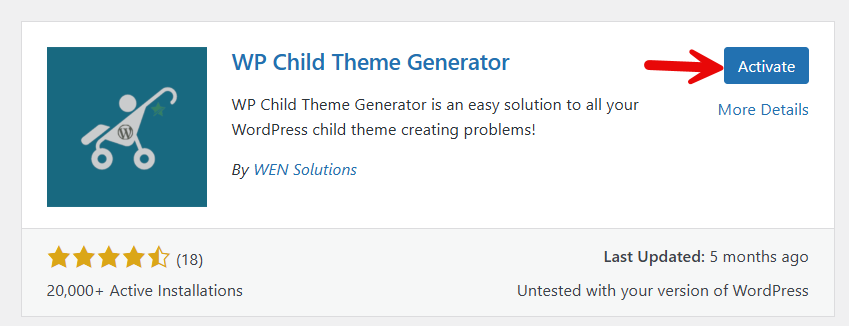
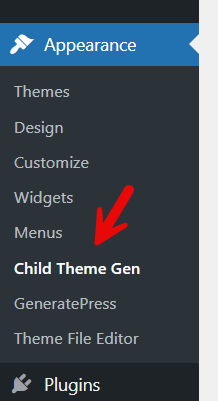
After activation, you can see the plugin settings under the WordPress Appearance section.
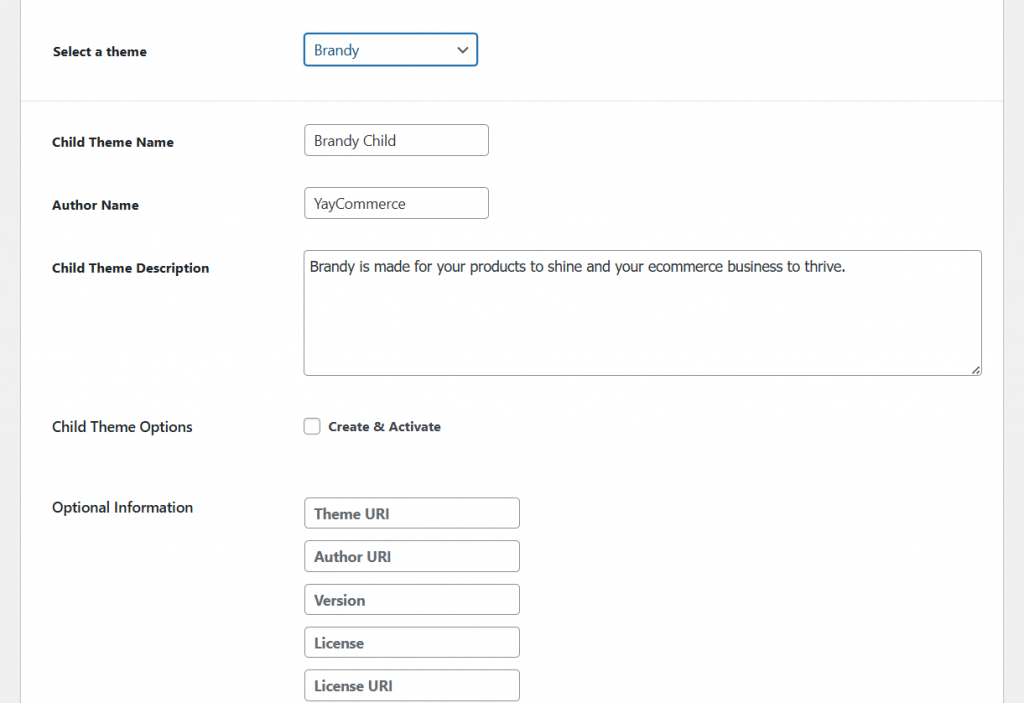
From the dropdown, select the theme you need to create as a parent. You can also update the child theme name, author, description, optional information, and more.
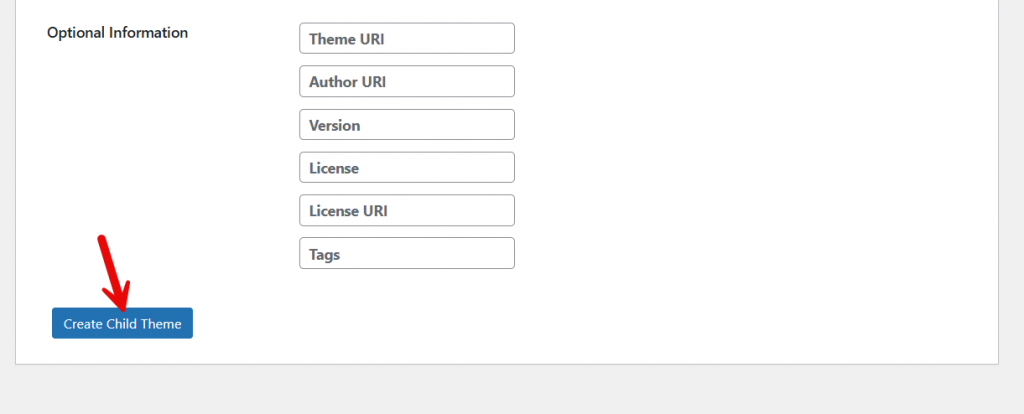
Now, hit the Create a child theme button.
You can visit the themes section to see the newly created child theme.
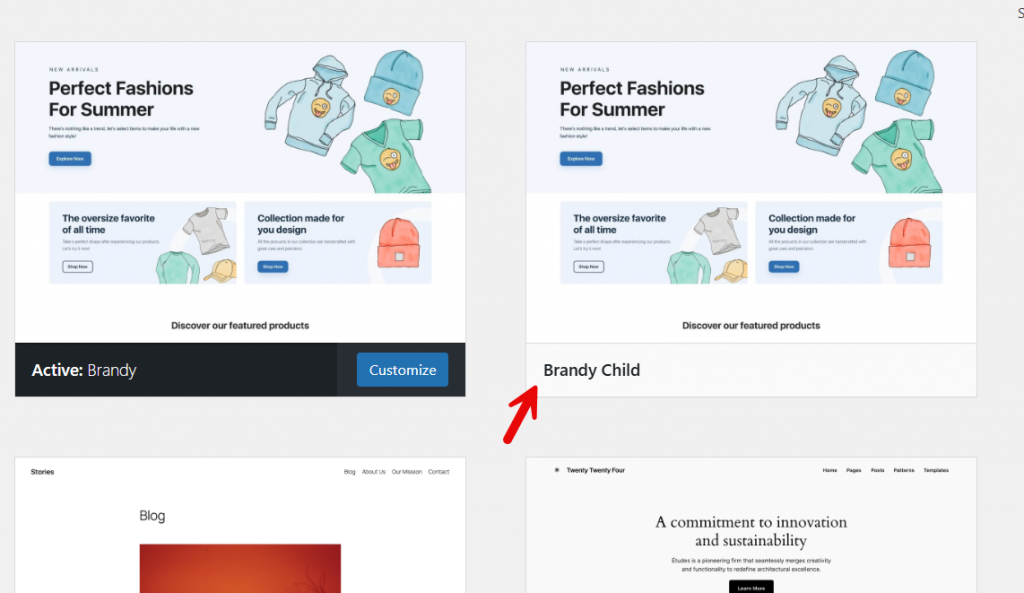
You can proceed to activate the theme.
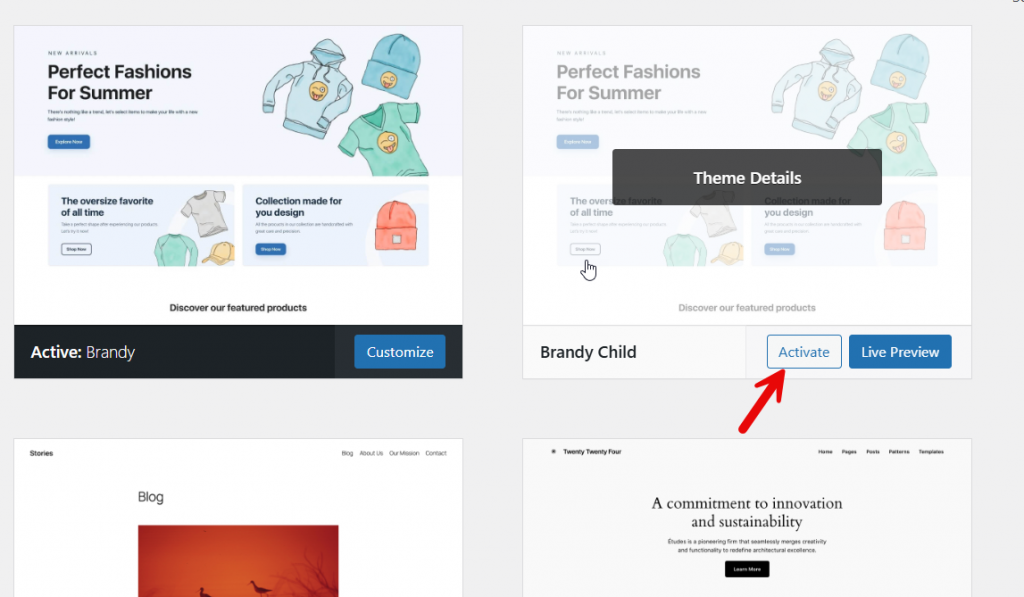
Next, let’s see how to do it manually.
2. Manual Method
If you do not need to use a dedicated plugin for this task, you can manually create a child theme. You need to use an FTP client such as FileZilla or a dedicated file manager plugin. For this tutorial, we will use Filester.
Install and activate the plugin on your website.
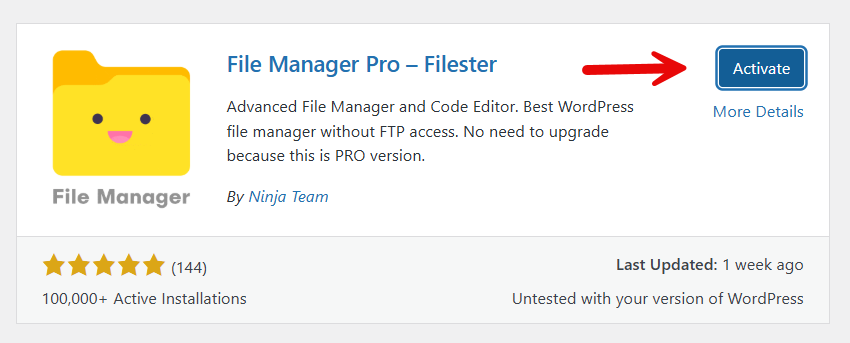
Go to the themes folder and create a new folder there for your child theme.
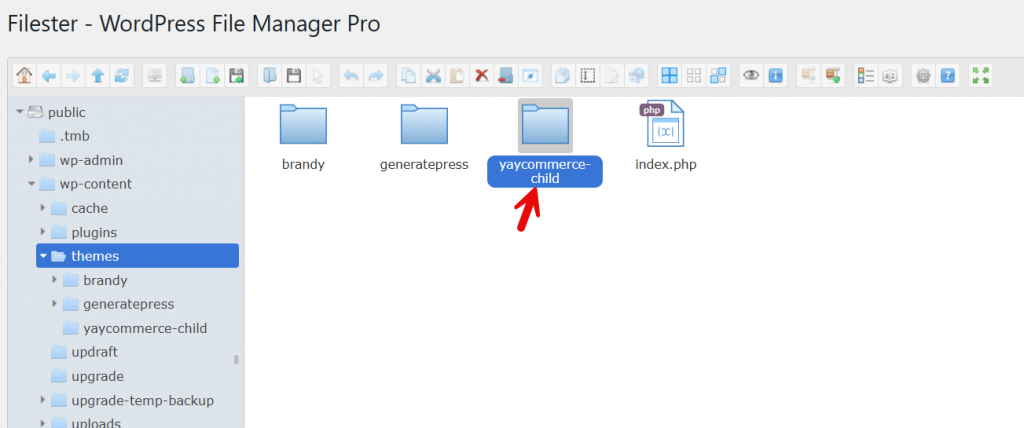
Inside the child theme folder, create a file named style.css. This file contains essential information about the child theme, including the theme name, theme URI, author, and parent theme reference.
The Template value must match the parent theme’s folder name exactly, or WordPress will show the “the parent theme is missing” error.
Here is an example code you can use:
/*
Theme Name: Your Theme Child
Theme URI: https://example.com/your-theme-child
Description: A child theme created to customize the parent theme safely.
Author: Your Name
Author URI: https://example.com
Template: parent-theme-folder-name
Version: 1.0.0
Text Domain: your-theme-child
*/

/* Add your custom CSS below this line */
Make sure you replaced the appropriate things. The next thing you need to do is create a function.php file inside the child theme folder.
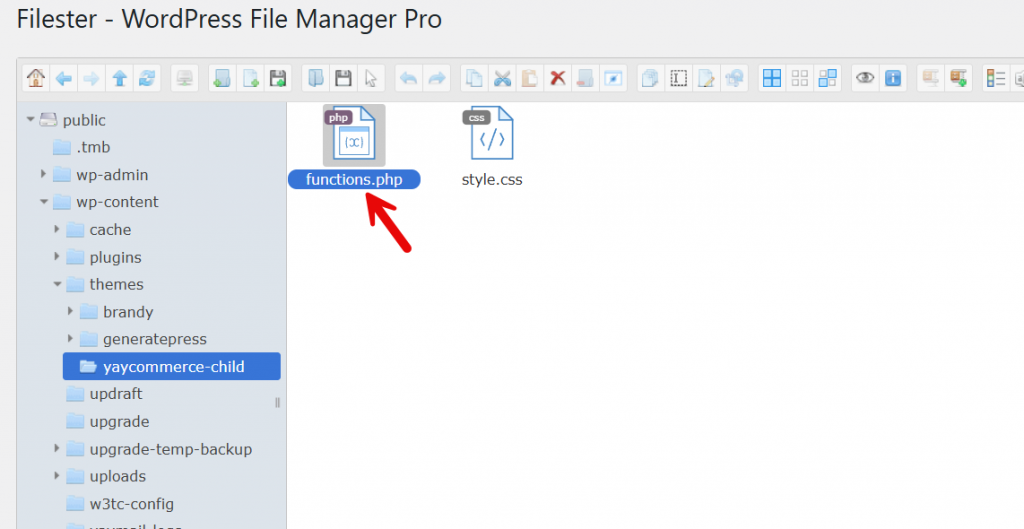
Now paste this code inside the functions file.
<?php
/**
 * Enqueue parent and child theme styles
 */
function my_child_theme_enqueue_styles() {
    wp_enqueue_style(
        'parent-style',
        get_template_directory_uri() . '/style.css'
    );
    wp_enqueue_style(
        'child-style',
        get_stylesheet_directory_uri() . '/style.css',
        array('parent-style'),
        wp_get_theme()->get('Version')
    );
}
add_action('wp_enqueue_scripts', 'my_child_theme_enqueue_styles');
Update the file and check the themes section. You will see the child theme there.
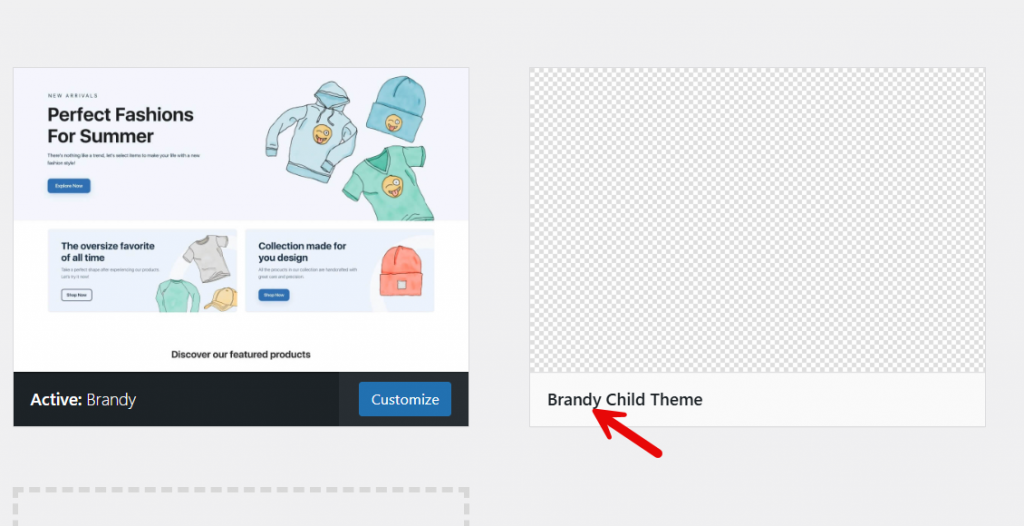
Activate it, and you are ready to proceed.
That’s it!
This is how you can create a WordPress child theme.
Frequently Asked Questions
Now, let’s take a look at some of the frequently asked questions and answers regarding this topic.
What happens if I see the error “the parent theme is missing”?
This error occurs when the child theme’s parent theme is not installed or activated. A child theme isn’t able to work independently because the child theme inherits functionality and styling from the parent theme. To resolve this, install the correct parent theme and ensure that the child theme’s style.css file matches the parent theme exactly in theme name and theme URI.
What is the purpose of the child theme’s functions.php file?
The child theme’s functions.php file allows you to add or modify functionality without editing the parent theme files. It is commonly used to enqueue your parent and child stylesheets, add custom hooks, or extend features. Unlike the parent file, this file does not override everything; it loads alongside the parent theme’s functions.
Do changes in the parent theme affect the child theme?
Yes, changes to the parent theme can affect the child theme, mainly when the parent theme updates its layout or core functionality. However, your customizations in the child theme remain safe. This is why using a child theme is recommended when you need to create custom features while still updating the parent theme without losing changes.
What are the different ways to create a child theme in WordPress?
There are several ways to create a child theme: you can create a child theme manually by creating a new folder and adding the style.css and functions.php files, use a child theme generator, or rely on a child theme configurator plugin. Each method helps create a new child theme based on an existing WordPress theme.
How do I correctly set up the style.css of the child theme?
The style.css of the child theme must include required header information such as the theme name, child theme URI, theme author, and the parent theme reference. This file also contains your custom CSS. Without proper information about the child theme, WordPress will not recognize or list it correctly.
Can I use a child theme without modifying the parent theme at all?
Yes, you can use a child theme without editing the parent theme files. This approach is ideal when you want to customize a theme safely. You only need access to your WordPress files to create a new folder for the child theme and add your custom code, keeping the parent theme untouched.
How do I know if my child theme is working correctly?
After activation, you should see your child theme listed in the WordPress dashboard under Appearance → Themes. If the child theme is active and the site layout matches the parent theme with your custom changes applied, the setup is correct. If not, review the child theme folder and the theme file editor entries, and ensure the parent theme is installed and active.
Conclusion
Creating a WordPress child theme is a best practice for anyone who wants to customize a website safely and professionally.
By using a child theme in WordPress, you can modify styles, add new functionality, and tailor your site’s layout without directly changing the parent theme files. This approach ensures that your custom work remains intact even when the parent theme is updated, making long-term maintenance much easier.
Whether you manually create a child theme, use a child theme generator, or rely on a configurator plugin, the process is straightforward and beginner-friendly. Once set up, a child theme gives you complete control over customization while preserving the original theme’s stability.
If you plan to make ongoing design or functional changes to your WordPress site, creating a child theme is not just recommended, it is essential.

