

Do you want to install WordPress plugins and activate them on your website? If you are looking for a simple guide, keep reading this article.
Installing WordPress plugins correctly is one of the most important skills for anyone managing a WordPress site.
A WordPress plugin adds features and functionality that do not exist in the core installation, and WordPress allows you to install plugins in several ways depending on your needs. You can install a plugin directly from the WordPress plugin repository, upload a plugin ZIP file from your computer, or use FTP for custom plugins or premium plugins.
Understanding the right way to install a WordPress plugin helps you avoid errors, outdated plugins, and compatibility issues that may affect your website.
In this guide, we will show you how to install WordPress plugins using three different methods so you can install and activate any plugin safely and confidently.
Table of Contents
What Are WordPress Plugins?
WordPress plugins are software add-ons that extend the functionality of WordPress and help you add new features to your site without touching code.
They are created by WordPress developers and are available through the WordPress plugin directory, premium marketplaces, or private plugin developers.
Every plugin you install adds specific functionality to your WordPress website, and you can manage them within your WordPress dashboard.
Each plugin you want to install has its own features, requirements, and a specific version of the plugin that determines compatibility with your version of WordPress. You can find the plugin you want using the plugin search tool or download the plugin as a zip file and upload the plugin manually.
Once the plugin is installed, you can activate the plugin and configure the plugin settings depending on the plugin and your use case. Plugins in WordPress allow you to add new features, improve performance, and enhance the overall functionality of WordPress.
Many plugins come with free versions, while others are premium plugins that offer advanced options. Plugins may require updates over time to stay secure and compatible with your WordPress installations.
Before You Install a WordPress Plugin
Before installing a WordPress plugin, review a few essential factors to ensure it is compatible with your site and ready to use.
- Check the plugin in the WordPress repository to confirm its name, developer, and latest version.
- Review plugin ratings and popular plugins in the WordPress community to determine if it is the best plugin for your needs.
- Confirm that the plugin is compatible with your WordPress version to avoid issues after installation.
- Evaluate the plugins and themes already active on your site to avoid conflicts with the new plugin you want to use.
- If you plan to upload a plugin manually, verify the zip file and ensure the plugin folder is complete and safe to upload to your WordPress.
- For premium plugin purchases, make sure your license is valid and that the plugin developer offers support.
- Check whether the new plugin requires additional configuration after activation.
- Review instructions provided by the developer for installing new or custom plugins, including steps for installing a WordPress plugin using ftp if you plan to use an ftp client.
- If you are new to WordPress, ensure you understand how to navigate to the plugins page and use plugin add-ons in your WordPress admin.
How to Install WordPress Plugins the Right Way
There are three main ways to install WordPress plugins:
- Directly installing the plugin file
- Upload method
- FTP method
We will show you all the methods below.
1. Direct Install
This is the simplest method for adding new plugins to a WordPress website. Here, you will be going to the Add New Plugins section.
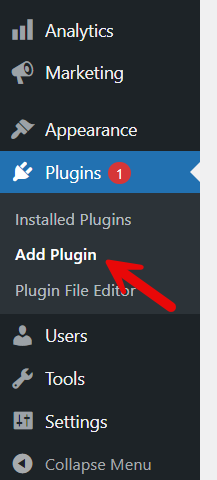
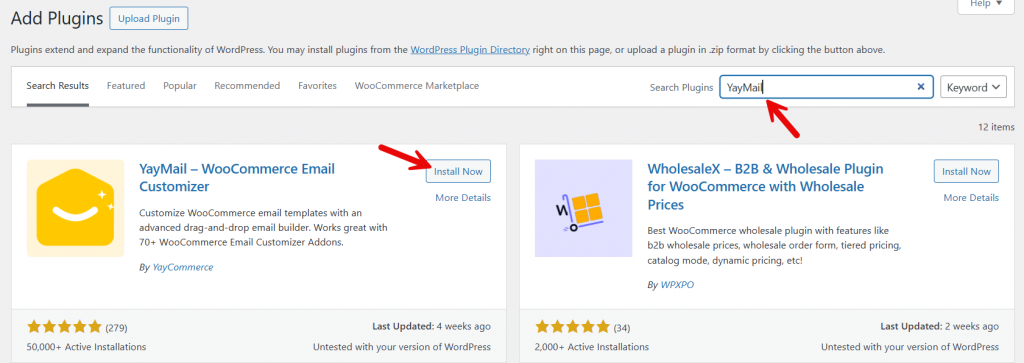
And search for the right plugin and install it.
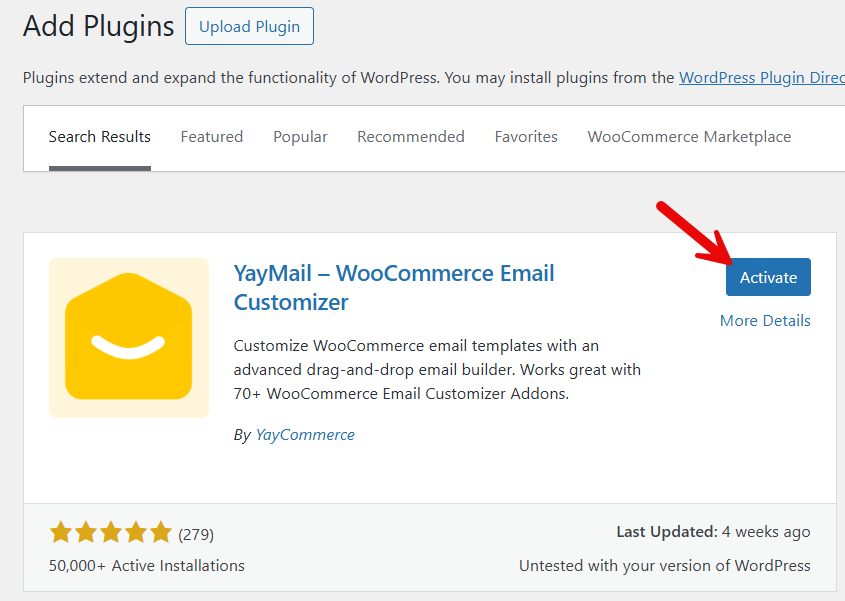
Once installation is complete, activate the plugin.
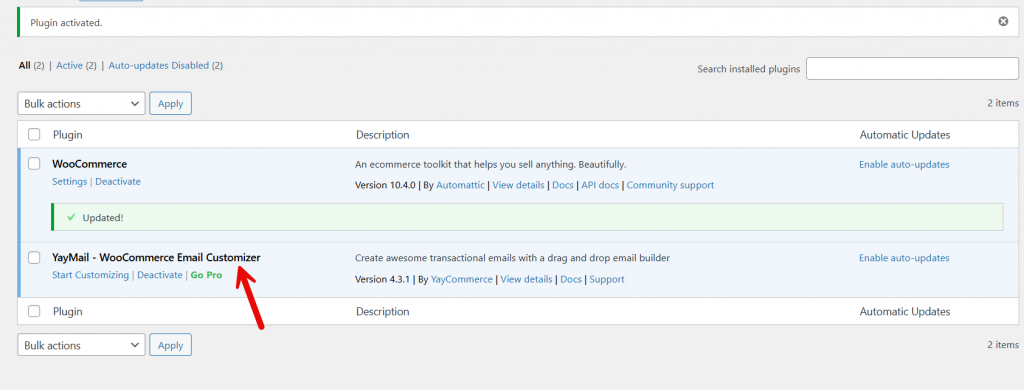
You can now start using the plugin.
Next, let’s see another method.
2. Upload Method
If you have purchased a plugin from a third-party site or created a custom plugin, you can’t use the method mentioned above. In this case, you need to upload the plugin to the website manually.
To do this, visit the Add New Plugins page and, at the top, select Upload Plugin.
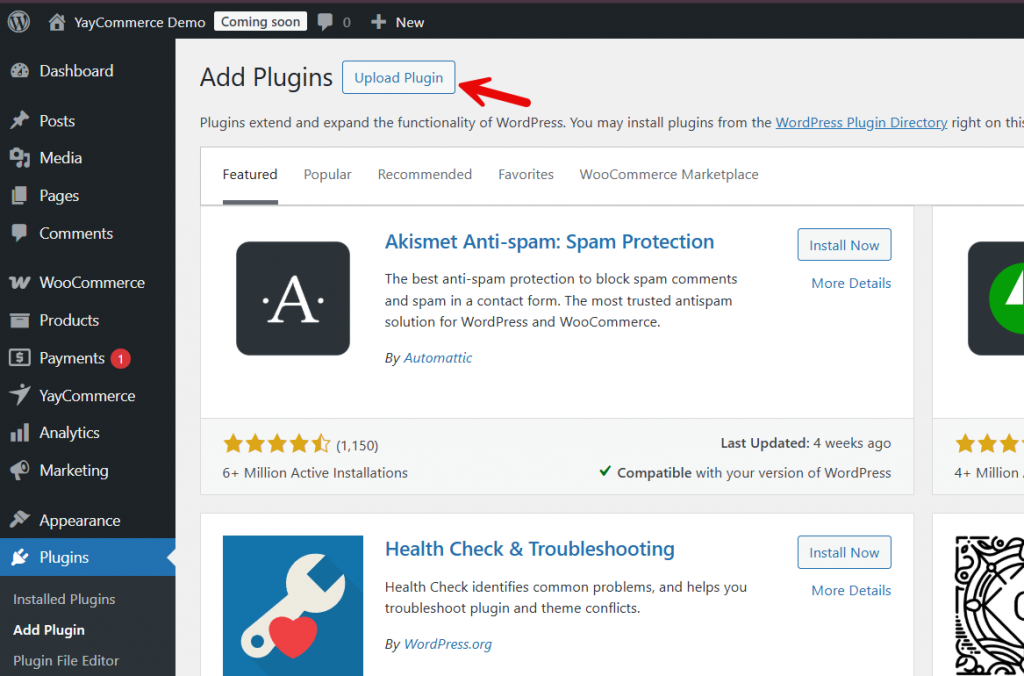
Now, choose the plugin file from your local storage and install it.
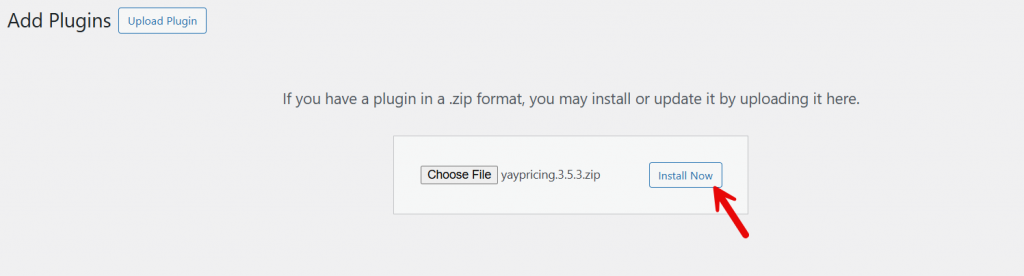
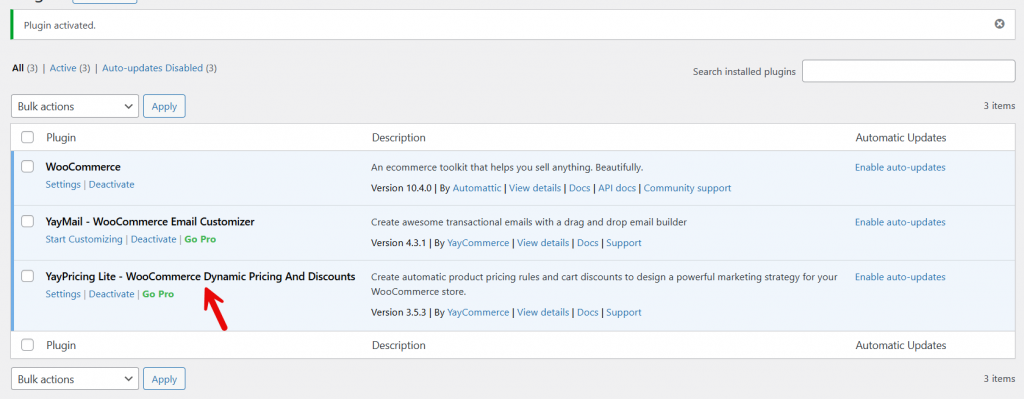
After installation, you can activate the plugin.

You can now start using the plugin.
3. FTP Method
The final method we have for you is using an FTP client. The popular FTP client out there is FileZilla. You can get it from their official website.
Now, open your cPanel and check the FTP account credentials.
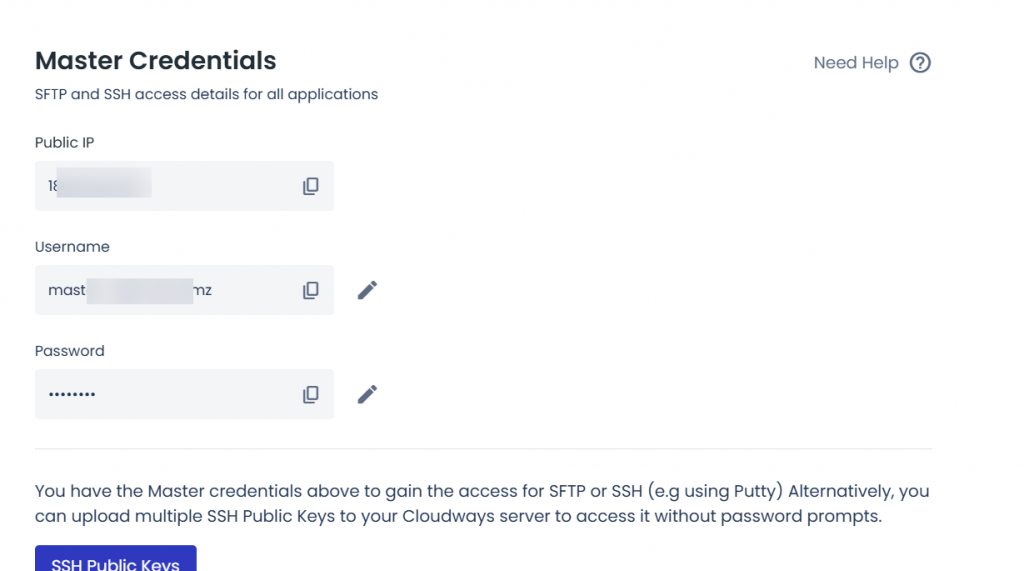
If you do not know the credentials, contact your web hosting support team. They can help you with it.
Using your credentials, connect to the website.
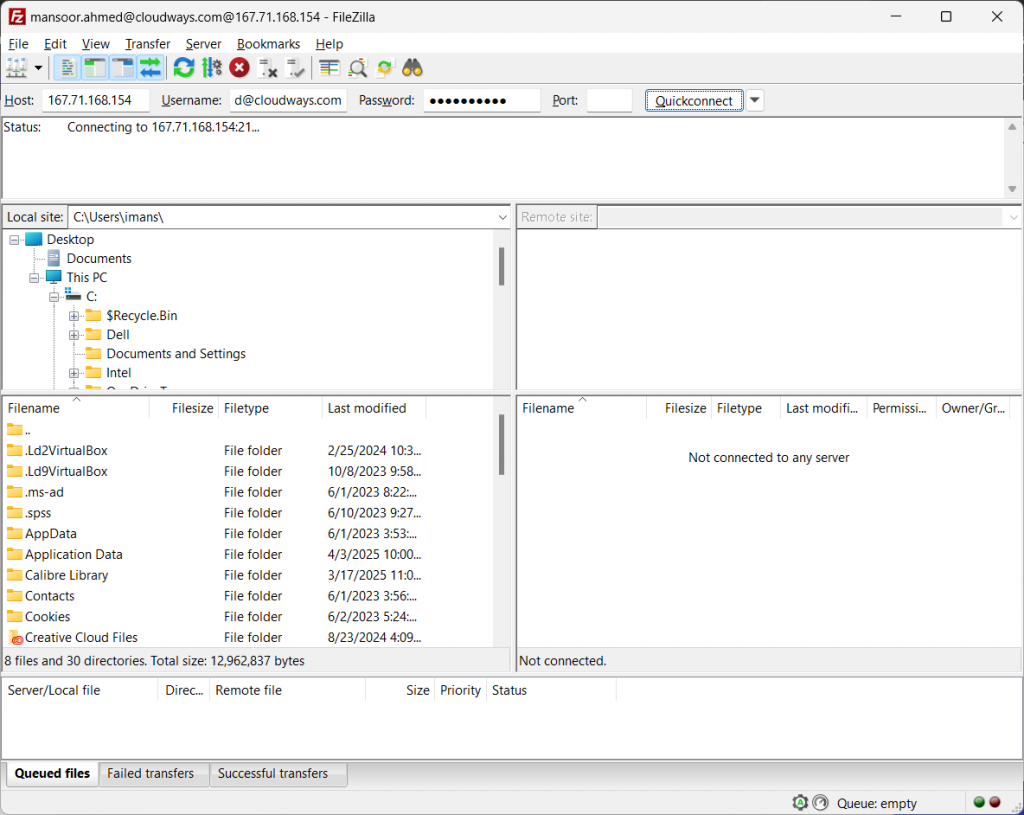
Next, go to the server’s plugins folder and upload the plugin folder there. Once you have finished uploading all the files, return to the website’s front end, and you will see the plugin there.
All that is left is to make it active.
This way, you can use FTP to install and activate plugins.
Common Plugin Installation Errors (And How to Fix Them)
When installing new WordPress plugins, you may encounter common issues that prevent proper installation or activation.
- Installation failed: Could not create directory: This usually means file permission issues on your hosting server. Update your folder permissions or contact hosting support so the WordPress plugin can be installed successfully.
- The package could not be installed. No valid plugins were found: This occurs when the zip file does not contain a proper plugin folder. Re-download the plugin from the repository or the developer, and upload it with the correct structure.
- Destination folder already exists: The plugin folder already exists from an older installation. Delete the old plugin from your site using Plugins > Add New or via FTP, then reinstall it.
- Plugin upload size limit error: Some hosts prevent large zip files from uploading. Increase the upload limit, or install a WordPress plugin that uses FTP instead of the uploader.
- The plugin causes your site to break after activation; it may be incompatible with your WordPress version or conflict with other plugins on your site. Disable the plugin via ftp if you lose dashboard access.
- You need a plugin to perform this action. This can occur when the installed plugin is incomplete or corrupted. Re-upload the plugin you just uploaded using ftp or download a fresh copy.
- Settings not saving or plugin not working correctly: The plugin may need to be configured with additional settings or updated. Navigate to Plugins, update your plugins, and ensure you are using versions supported by the plugin developer.
- Unable to find the plugin after installation: Go to Plugins in your WordPress dashboard and click the Plugins page to confirm the name of the plugin. If it still does not appear, the folder may have been placed incorrectly during WordPress plugin installation via FTP.
- Conflict after installing new or custom plugins: Disable one plugin at a time to identify issues. Some free plugins, or plugins from older custom builds, may interfere with your site’s functionality.
How Many Plugins Should You Install?
Determining the correct number of WordPress plugins depends on what you need to use on your site and how each plugin affects performance and stability.
A typical WordPress website can run smoothly with 15 to 30 plugins installed, provided each WordPress plugin is well-coded, updated regularly, and compatible with your setup. The number itself is less important than the quality of the plugin on your site.
Some plugins, such as security suites or SEO tools, handle multiple tasks, allowing you to install fewer tools overall, while others offer highly specialized functionality for your site. Focus on installing new plugins only when necessary and avoid adding tools that duplicate features. Before you install a plugin, verify its reviews, support quality, and update frequency.
When using a plugin that adds heavy features, test performance to ensure your favorite plugin does not slow down your system. Even if you install plugins for advanced functionality, disable or uninstall anything you no longer need to prevent conflicts and reduce maintenance effort.
Frequently Asked Questions
Now, let’s take a look at some of the frequently asked questions and answers regarding this topic.
Can I install WordPress plugins without technical knowledge?
Yes, you can install a WordPress plugin directly from your WordPress dashboard using the Add New option, which requires no technical experience.
Do WordPress plugins slow down my website?
Some plugins can affect performance, but well-coded plugins typically do not; always test new plugins and keep only the ones you need.
How do I know if a plugin is safe to install?
Check reviews, active installations, update history, and whether the plugin developer provides regular maintenance and support.
Can I install a WordPress plugin using FTP?
Yes, you can upload a plugin via FTP by transferring the plugin folder into the wp-content/plugins directory and activating it in your dashboard.
What should I do if a plugin breaks my site?
Deactivate it from the Plugins page or disable it via FTP by renaming its folder, then troubleshoot or replace it.
Are premium plugins worth buying?
Premium plugins are often worth the cost because they offer advanced features, priority support, and more frequent updates than many free plugins.
How do I reduce plugin-related errors during installation?
Use the latest WordPress version, ensure the plugin is compatible with your setup, avoid outdated plugins, and verify file permissions before installing a WordPress plugin.
Conclusion
Installing WordPress plugins correctly helps ensure your WordPress site remains secure, stable, and fully optimized for long-term growth.
By understanding what plugins do, preparing your installation environment, and using reliable methods such as the WordPress dashboard, manual uploads, or FTP, you can add new features to your site with confidence.
Always keep your plugins up to date, remove anything you no longer use, and monitor performance after installing a plugin to maintain a smooth user experience.
With these practices in place, you can install plugins efficiently, avoid common errors, and choose the right tools to enhance your website.
Which method would you choose?
Let us know in the comments.

