

Do you want to set up a default featured image in WordPress? If you are looking for a simple guide, keep reading this article.
Featured images play a key role in how your WordPress posts look across your site, archives, and social media.
But forgetting to set one can leave your content looking incomplete or unprofessional. Manually adding a featured image every time is also time-consuming, especially for large blogs or multi-author sites.
A default featured image solves this problem by automatically assigning an image when none is selected.
In this guide, you’ll learn how to set a default featured image in WordPress easily using plugins and simple methods, so every post always has a consistent visual appearance.
But first, we will see why you should set a default featured image in WordPress.
Table of Contents
Why You Should Set a Default Featured Image in WordPress
A default featured image ensures that every post on your website has a visual representation, even when an author forgets to assign one manually.
This helps maintain design consistency, improves user experience, and prevents layout issues caused by missing thumbnails across your theme and content layouts.
- Keeps your blog layout visually consistent across archives, category pages, and widgets
- Prevents broken or empty image placeholders in themes that rely on featured images
- Saves time for multi-author and high-volume publishing websites
- Improves social media previews when posts are shared without a manually set image
- Helps maintain brand identity by using a standard fallback image
- Reduces the need to edit older posts just to add missing thumbnails
- Ensures better compatibility with themes and page builders that depend on featured images
How to Set a Default Featured Image in WordPress
Now let’s see how to set a default featured image in WordPress. There are two methods you can follow.
- Plugin method
- Coding method
We will show you both methods below.
1. Plugin Method
The plugin you need to be using is Default Featured Image. So install and activate the plugin on your website to set default featured image.
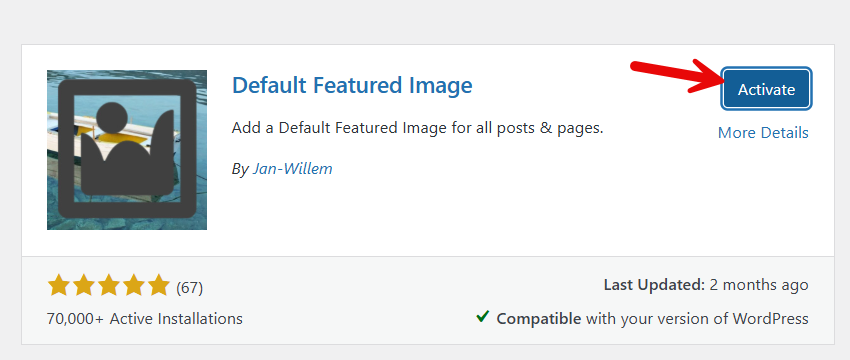
After activation, you can see the plugin’s settings under WordPress media settings.
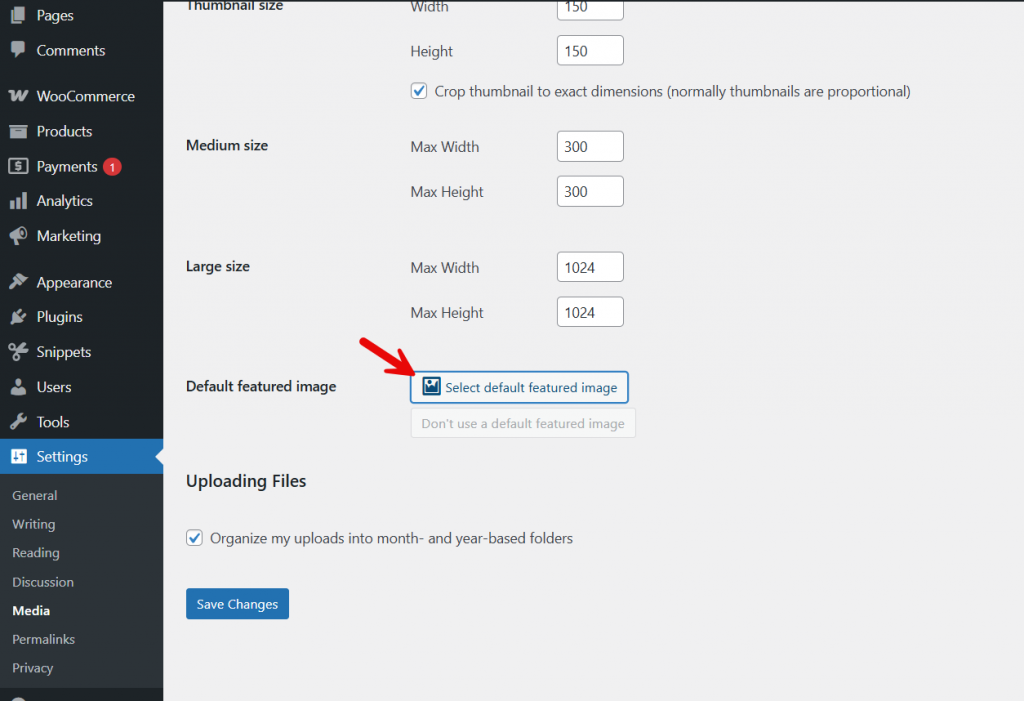
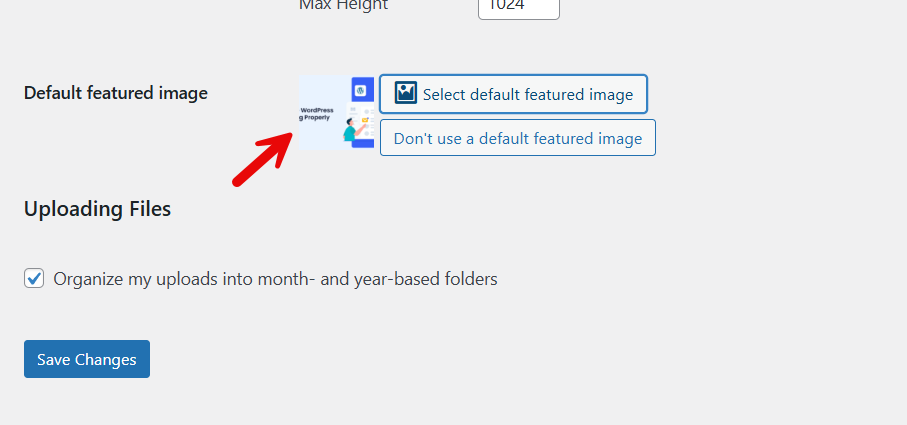
You can choose a default featured image from the library.
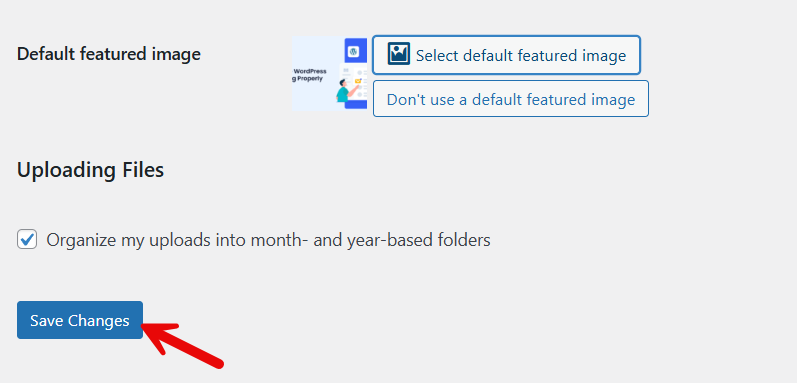
Once you have done that, save the changes.
Now you can check the posts from the front end. If any of your posts don’t have a featured image, the default one will be displayed.
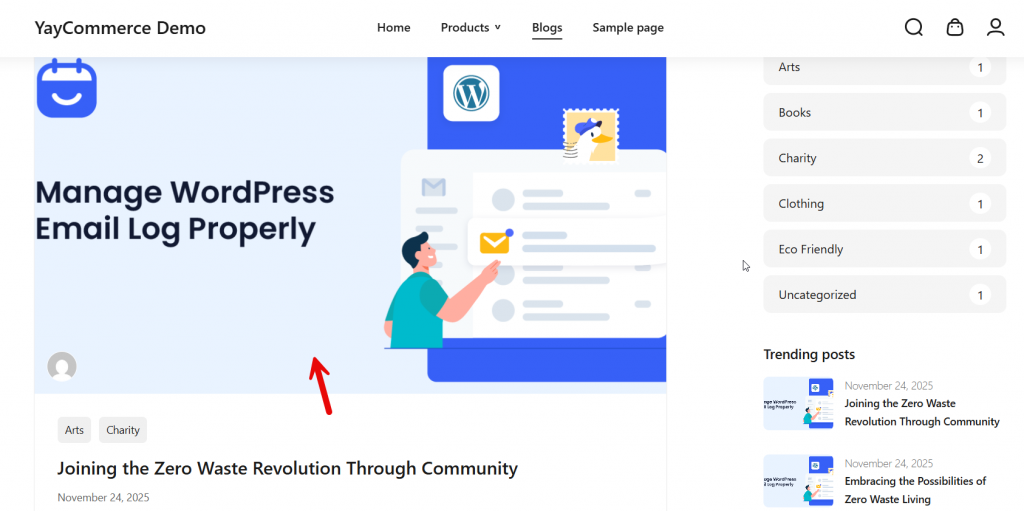
As you can see, using a plugin for this task is simpler. You do not need to add custom code or anything. On the other hand, if you are interested in a coding method, keep reading this post.
2. Coding Method
If you do not need to use a dedicated plugin for the task, feel free to go with the coding method. You can either add the following code to the functions.php file of your child theme or add it to a site-specific plugin.
In this case, we will use the Code Snippets plugin. You need to add a new snippet via the plugin settings.
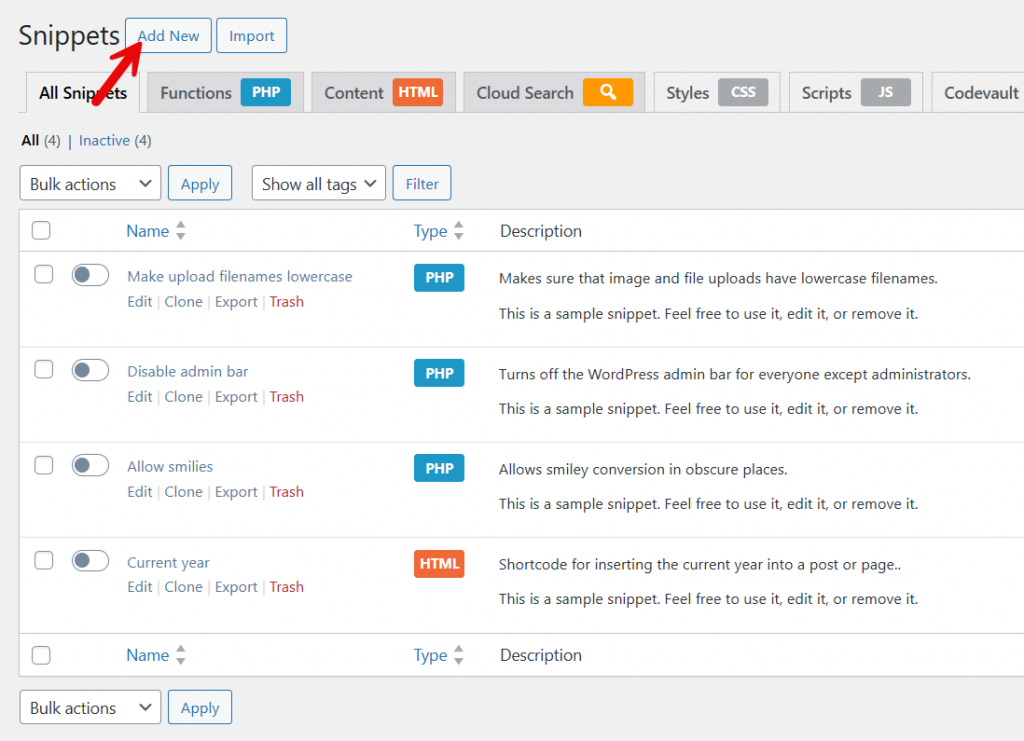
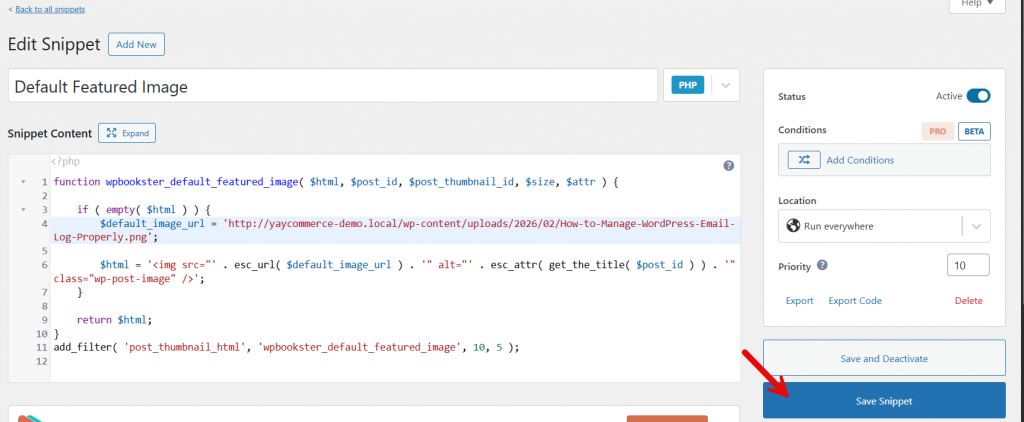
The code you need to be using is:
function wpbookster_default_featured_image( $html, $post_id, $post_thumbnail_id, $size, $attr ) {

    if ( empty( $html ) ) {
        $default_image_url = 'https://yourwebsite.com/wp-content/uploads/default-featured-image.jpg';

        $html = '<img src="' . esc_url( $default_image_url ) . '" alt="' . esc_attr( get_the_title( $post_id ) ) . '" class="wp-post-image" />';
    }

    return $html;
}
add_filter( 'post_thumbnail_html', 'wpbookster_default_featured_image', 10, 5 );
Make sure you have modified the link to the image in the code.
Now visit your blog archive from the front end. You will see the featured images there.
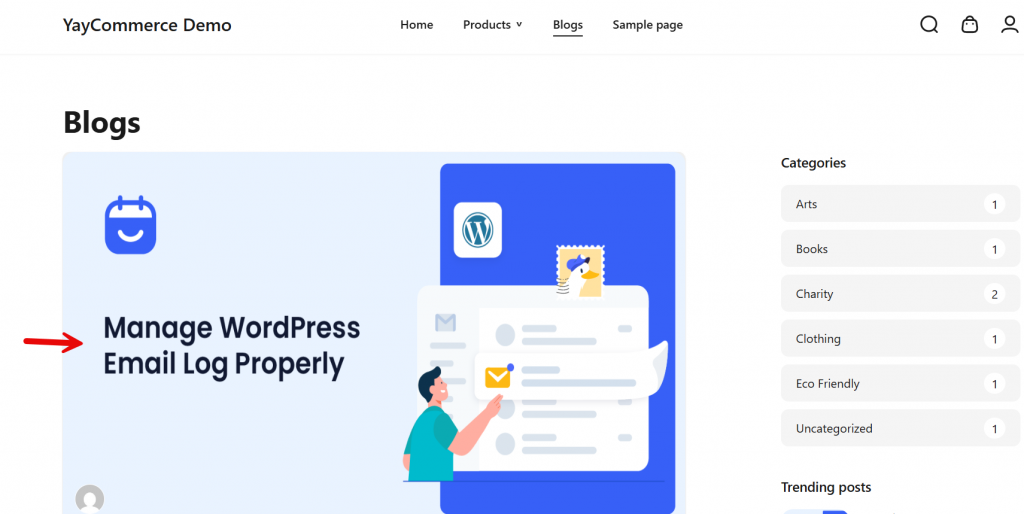
This is how you can set up a default featured image in WordPress.
Here are some more articles you would find interesting:
- 7 Imagify Alternatives: Best WordPress Image Optimizer Plugins
- WordPress Image SEO: 15 Best Practices to Optimize Images
- How to Automatically Convert Images to WebP on WordPress
- 8 Ways to Optimize Images in WordPress for Quick Load Time
- How to Enable Lazy Loading in WordPress with Minimal Effort
Frequently Asked Questions
Now, let’s take a look at some frequently asked questions and answers about this topic.
How can I set a default featured image in WordPress for posts without images?
You can set a default featured image in WordPress by using a WordPress plugin or by adding a small code snippet to your theme files. A default featured image plugin lets you choose an image from your Media Library and automatically display it as a fallback image for posts without a featured image, so your blog post layout stays consistent across your WordPress posts and homepage.
Will the default featured image replace existing featured images in WordPress posts?
No, a default image only applies to posts without a featured image. If a post already has featured images in WordPress, WordPress will continue to use the assigned thumbnail instead of the default fallback, so your custom image for WordPress remains unchanged.
Can I add a default featured image using code instead of a plugin?
Yes, you can add the code in functions.php or another theme file to check has_post_thumbnail and then use the_post_thumbnail with a fallback image URL. This method uses PHP to automatically display an image from your images folder or an image from your Media Library when WordPress posts don’t have a featured image.
Does a default featured image work with all WordPress themes?
Most WordPress themes support post thumbnails, so a default featured image usually works as long as the theme uses the_post_thumbnail in files like single.php or the homepage template. If the theme doesn’t support featured images, you may need to edit the theme’s template file to assign an image as the post thumbnail.
Can I use the first image in a post as the default featured image?
Yes, some plugins offer an option to set a featured image automatically by using the first image from your WordPress media inside the blog post. This is useful if you forget to add a featured image manually and still want an image available for posts or pages and social media platforms.
Will a default featured image show on social media and archive pages?
In most cases, yes. If a post doesn’t have a featured image, WordPress can use the default fallback image for thumbnails on archive pages and as the image for WordPress when shared on social media platforms, depending on your plugin and theme settings.
Can I change or remove the default featured image later?
Yes, you can change or remove the default featured image at any time from your WordPress plugin settings or by editing the code snippet in your theme files. Once removed, posts without a featured image will no longer display a fallback image unless you add a new default image or assign featured images manually.
Conclusion
Setting a default featured image in WordPress is a simple way to make sure every post looks complete, even when no image is manually selected.
It helps maintain a consistent design, improves content presentation, and prevents layout issues caused by missing thumbnails. With the right plugin or method, you can automate this process and save time when publishing new content.
Whether you manage a personal blog or a multi-author website, using a default featured image ensures your posts always have a visual identity, and your site maintains a professional appearance without extra manual work.
Would you be setting up a default featured image on your WordPress site?
Let us know what you think.
We hope you found this article helpful and enjoyed reading it. If you did, feel free to check out our blog archive for more useful guides and tips. Also, check out our YouTube channel, X, and Facebook page to get the latest news.
