

Do you want to duplicate a page or post in WordPress? If you are looking for a simple method, keep reading this article.
Learning how to duplicate a page or post in WordPress is a simple way to speed up content creation, reuse layouts, and maintain consistent formatting across your site.
Instead of recreating a design from scratch, you can duplicate a page in WordPress and instantly generate a new draft with the same structure and settings. This approach works well for pages and posts that use page builders, custom templates, or detailed formatting.
In this guide, you will learn how to duplicate a page or post in WordPress using built-in options and popular plugins that make the process quick and reliable.
Table of Contents
What Does It Mean to Duplicate a Page or Post in WordPress
Duplicating a page or post in WordPress means creating an exact copy of the existing content so you can reuse the layout, design, formatting, and settings without rebuilding everything from scratch.
This allows you to quickly replicate complex page structures, keep your style consistent, and speed up content production.
When you duplicate a page or post in WordPress, the cloned version typically includes the title, body content, featured image, SEO settings, custom fields, blocks, and templates, giving you a ready-to-edit version you can adjust and publish as needed.
Why You Might Want to Duplicate a Page in WordPress
Duplicating a page in WordPress is useful when you want to speed up your workflow and avoid rebuilding layouts from scratch.
Many users duplicate a page or post to reuse a proven design, keep the same page template, or maintain consistent formatting across their site.
It is also helpful when creating variations of an existing page for A/B testing, preparing drafts based on an original page, or replicating complex layouts built with a page builder.
By using a reliable way to duplicate a page, you save time, reduce errors, and maintain consistent branding across posts and pages in WordPress.
This approach is especially effective when you are working with custom post types or managing multiple pages that follow a similar structure.
How to Duplicate a Page or Post in WordPress
There are two ways to duplicate a page or post in WordPress:
- Using a dedicated plugin
- Manually duplicating
We will show you both methods below. So based on your preferences and requirements, you can pick an option.
Without any further ado, let’s get into the tutorial.
Method 1: Use a Plugin to Duplicate a Page
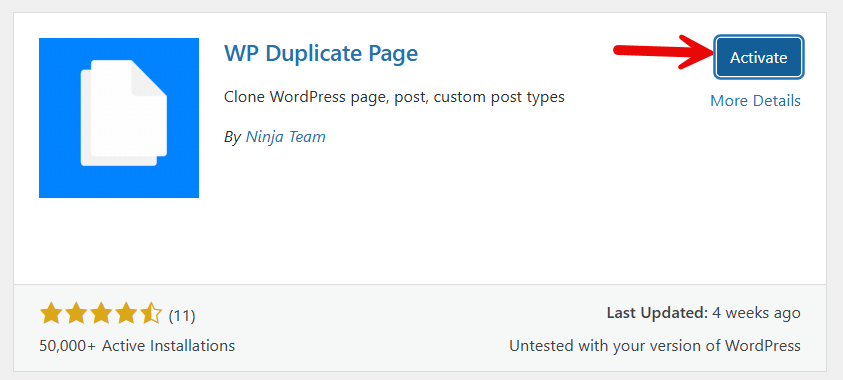
There are several plugins available to duplicate a page or post. For this tutorial, we will use the WP Duplicate Page plugin.
The first thing you need to do is install and activate the plugin on the website.
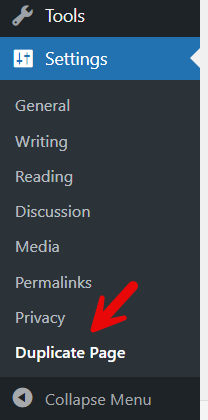
Now, under the WordPress settings, you can see the plugin’s configuration.
There, you can choose who can access the plugin, which post types are available for duplication, and so on.
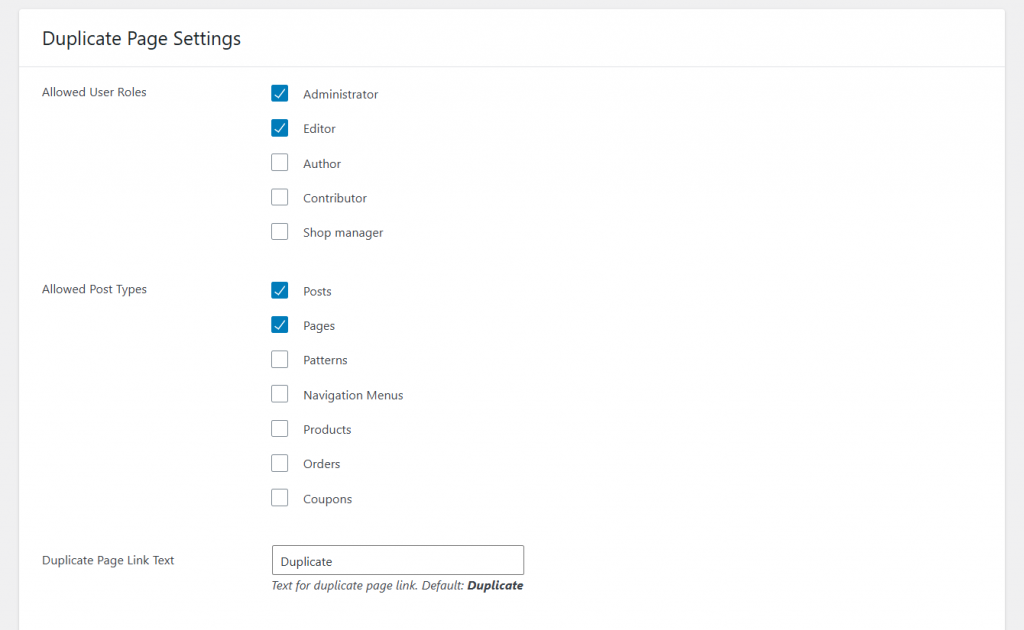
The default settings are ideal. But if you need to add more post types, add them and save the changes. Next, go to the post or page editor. You will see a new option called duplicate there.
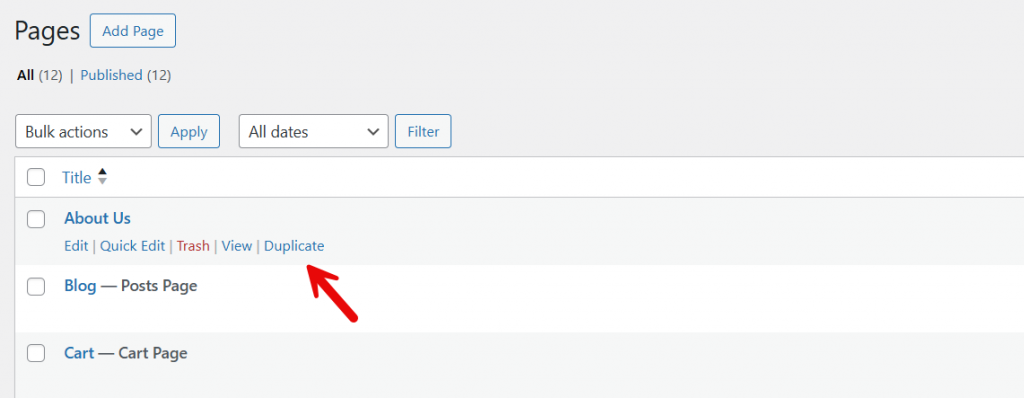
Clicking that will duplicate the selected page with all its contents.
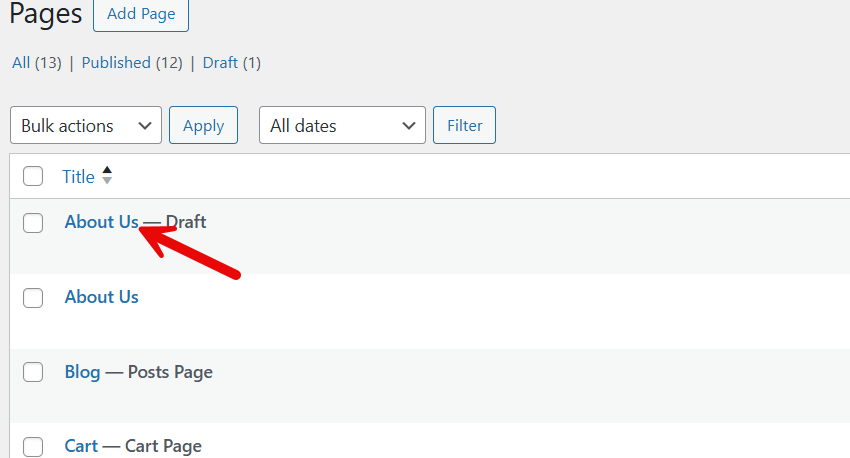
The duplicated page will be saved as a draft. So, if you need to modify the contents before publishing, it is possible. Just as we duplicated a page, you can duplicate posts.
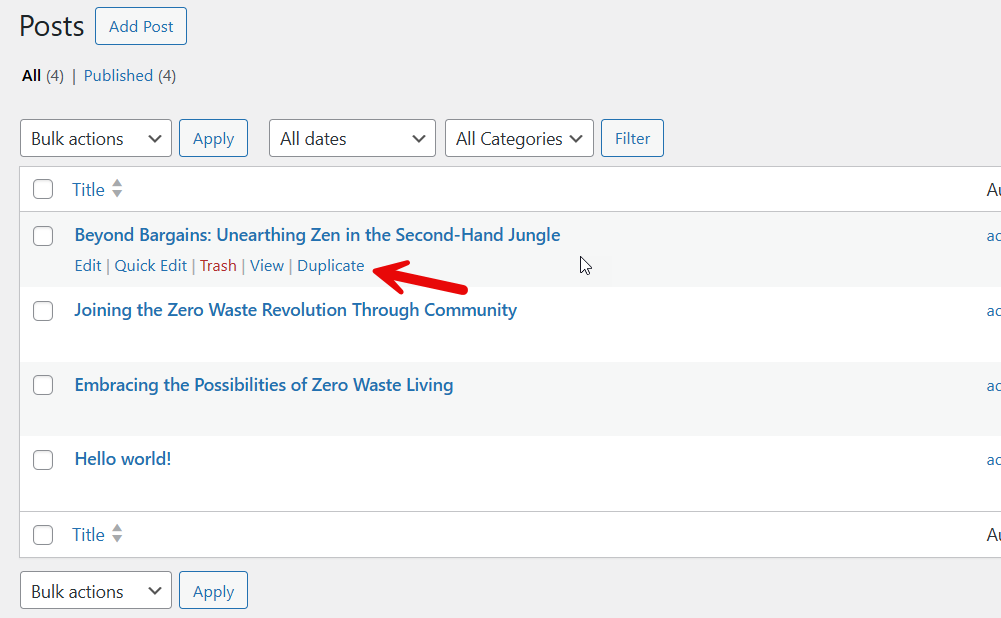
As you can see, with the WP Duplicate Page plugin, it is so simple to duplicate pages, posts, and also custom post types.
You can also use Minifly as a powerful alternative to the WP Duplicate Page plugin. It’s a complete site enhancement plugin that lets you duplicate any page or post with just one click. Along with this, Minifly includes 28+ essential features to help you control, optimize, and manage your website more efficiently.
If you do not need to use a dedicated plugin, check the next method we have.
Method 2: Duplicate a Page or Post in WordPress Using Copy and Paste
Here, you will manually copy the contents of a page or post and paste them into a new one. Here is how you can do it.
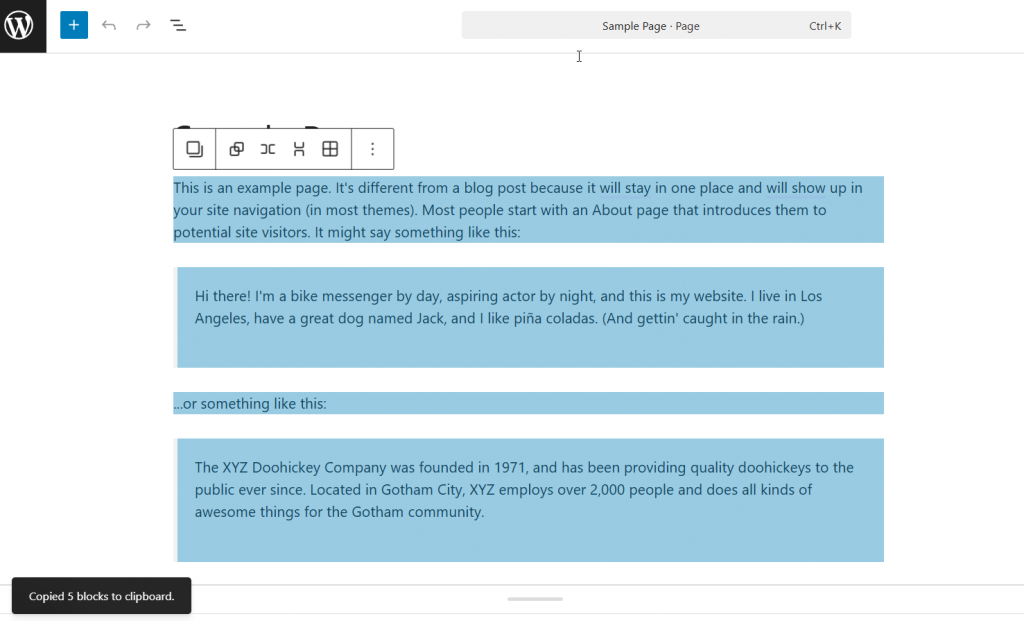
You have to open up the page or post in the Gutenberg editor. Once you have done that, select all the blocks and copy them.
Now, create a new page.
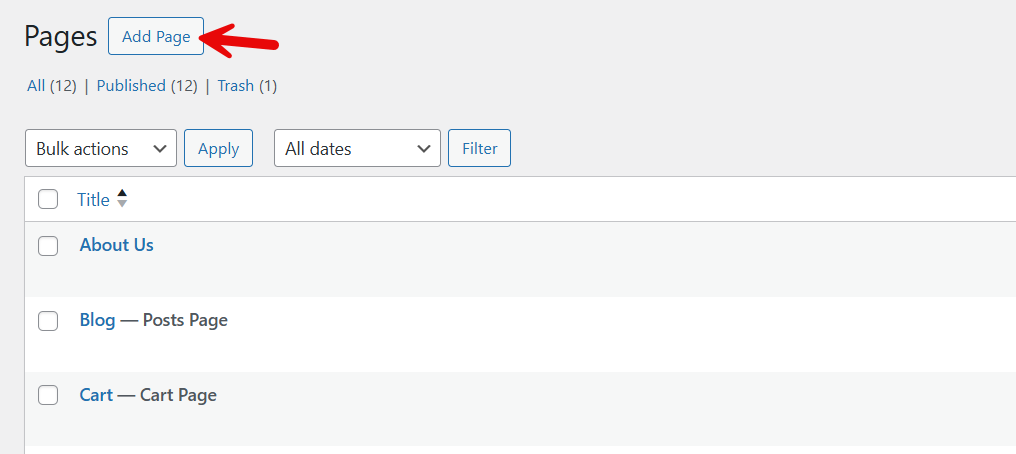
Name your page and paste the blocks in the editor.
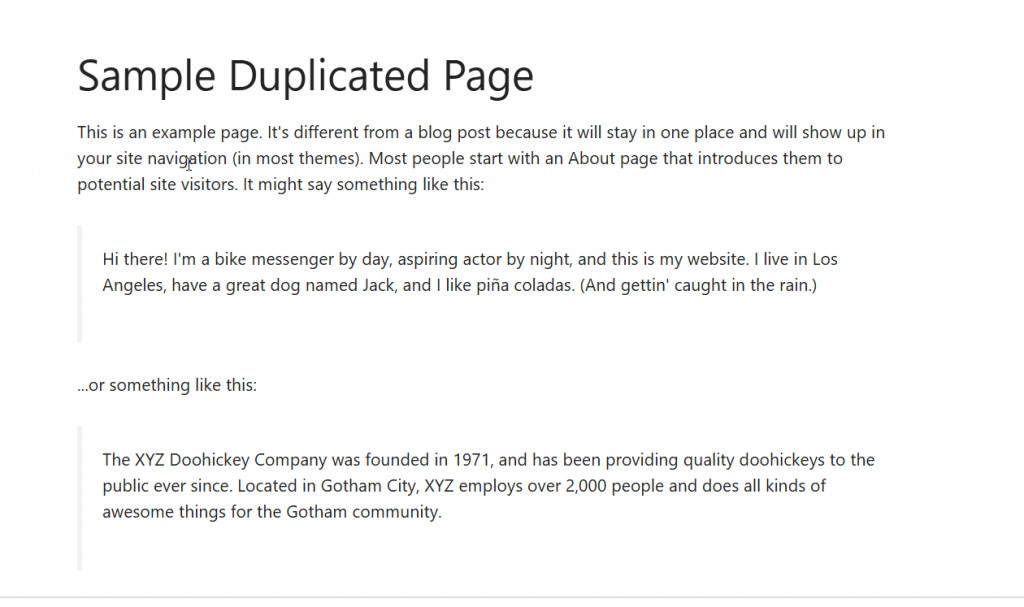
All content will be moved to the newly duplicated page or post.
As you can see in this tutorial, both methods seem simple. But if you have to pick one, we recommend the plugin method.
Best Plugins to Duplicate a Page or Post in WordPress
Using a plugin is the most efficient way to duplicate a page or post in WordPress, as it ensures that all post meta, templates, SEO settings, and formatting are copied accurately.
These tools make it easy to duplicate a WordPress page or post without manual copy-paste, helping maintain consistency across your site.
- Yoast Duplicate Post – Adds a Duplicate link to your action list and reliably clones posts or pages with all metadata.
- Duplicate Page Plugin – Allows you to quickly copy a page in WordPress and create a new page or post with one click.
- Post Duplicator – Clones pages and posts in WordPress while preserving original post ID references and custom fields.
- WP Duplicate Page – Provides a simple way to duplicate a post or page in WordPress from the WordPress admin screen.
Best Practices for Duplicating Pages and Posts in WordPress
When you duplicate a page or post in WordPress, following a structured approach helps maintain content quality and prevents issues across your WordPress site.
Whether you use a plugin like the Yoast Duplicate Post plugin or perform page duplication manually, keeping titles, URLs, and metadata organized ensures you avoid duplicate content and maintain clarity when managing posts and pages in WordPress.
- Always review the original page or post you want to duplicate to ensure it is fully updated before creating a clone.
- Rename the new page or post immediately to easily track changes and avoid confusion in the WordPress dashboard.
- Update the URL slug, SEO metadata, and page layout elements so the new page in WordPress does not compete with the original page in search results.
- If you use a duplicate page plugin, such as the Yoast Duplicate Post plugin, confirm that it copies all post meta, custom post types, and page templates you need.
- Check builder elements when cloning pages created with a page builder to ensure the duplicate page displays correctly.
- Review internal links so the new page does not point back to the original post unless intentionally required.
- For advanced setups, verify post ID references, dynamic fields, and layout modules when duplicating posts and pages in WordPress to avoid broken content.
Frequently Asked Questions
Now, let’s take a look at some of the frequently asked questions and answers regarding this topic.
How do I duplicate a page in WordPress without breaking the layout?
You can duplicate a page in WordPress using a plugin that supports full page duplication, including layout elements. Tools like the WordPress Duplicate Page plugin or Yoast Duplicate Post help copy a post or page with all post meta and templates intact. This ensures the page you want to duplicate keeps its structure, even if it was built with a page builder.
What is the easiest way to duplicate a page or post in WordPress?
The easiest way to duplicate a page or post is to use a WordPress plugin designed for this purpose. After you install and activate Duplicate Page or Yoast Duplicate Post, you will see a duplicate link in the action list inside your WordPress admin. This allows you to quickly clone a page or copy a post or page with one click.
Can I duplicate pages in WordPress without using a plugin?
Yes. You can duplicate a WordPress page without a plugin by manually copying the content, creating a new page, and pasting it in. However, this does not copy page templates, custom fields, or original post ID settings. Using a plugin is generally more reliable when you need to duplicate more than text.
How do I avoid duplicate content issues when duplicating posts?
When you duplicate posts and pages in WordPress, always update the title, URL slug, and metadata. This prevents search engines from viewing the duplicate page as duplicate content. Review internal links and replace references that still point to the original post.
Can I clone a page in WordPress if it includes custom post types?
Yes. Many WordPress plugins, including Post Duplicator and Yoast Duplicate Post, support custom post types. These tools duplicate all post meta, allowing you to clone a page in WordPress that uses advanced fields or templates.
Why would I need to duplicate a WordPress page or post?
You may need to duplicate a page in WordPress to reuse a page layout, copy an existing design, create a new post based on a previous one, or speed up content production. This process is especially useful when you’re looking to duplicate pages and posts that share similar structures.
Where can I find the duplicate link after installing a duplication plugin?
Once you install and activate Duplicate Page or a similar tool, the duplicate link is added under the title of the post or page you want to copy. Inside the WordPress admin, this appears alongside Edit and Trash. You can then duplicate a WordPress page or post and begin making changes to the duplicate immediately.
Conclusion
Duplicating a page or post in WordPress is one of the simplest ways to streamline your workflow, speed up content production, and maintain consistent layouts across your site.
Using a plugin is often the most reliable way to duplicate a page in WordPress because it preserves templates, metadata, and formatting, allowing you to easily duplicate posts and pages without manual work.
Whether you want to recreate an existing page layout, build a new page based on proven designs, or copy a post or page for faster publishing, the right approach ensures accuracy and saves time.
By following the best practices outlined above, you can manage any WordPress page or post duplication task efficiently while keeping your content structure clean and organized.
