

Are you looking for the best ways to optimize images in WordPress to improve website load times? If so, keep reading this article.
Images are essential for creating an engaging WordPress website, but unoptimized images are often the main reason a WordPress site fails to load faster.
Large image files, improper image size, and poor image compression can significantly increase page load and negatively impact WordPress speed, Core Web Vitals, and overall speed and performance.
When you optimize images for the web, you reduce image load times, improve image loading, and ensure your site delivers content quickly to visitors without sacrificing quality.
From uploaded images and PNG formats to responsive images and WordPress plugins, image optimization plays a critical role in WordPress performance.
Using best practices such as image optimization plugins for WordPress, resizing images, and converting images to WebP helps optimize your site and reduce server load on your WordPress hosting.
In this guide, you will learn how to optimize images for the web, improve loading speed, and follow the best way to optimize WordPress images so they load faster on your WordPress site.
First, let’s see why you should optimize images in WordPress.
Table of Contents
Why You Should Optimize Images in WordPress
Optimizing images in WordPress is one of the most effective ways to improve load time, image loading, and overall speed and performance without losing quality.
- Improve WordPress speed and load faster: When you optimize images for the web, you reduce image load times and ensure your WordPress site loads faster for users across devices.
- Prevent images from slowing your site: Large PNG files, unoptimized images, and images uploaded without compression can slow your WordPress site and degrade user experience.
- Enhance speed and performance without sacrificing quality: Modern image optimization techniques let you compress WordPress images without loss of quality, preserving visual appeal.
- Reduce file size and hosting resource usage: Optimized images use less space on your WordPress hosting, helping managed WordPress hosting environments handle traffic more efficiently.
- Support WordPress speed optimization best practices: Optimizing images improves site performance and helps your site meet performance benchmarks.
- Improve image handling during uploads: Use an image optimizer or a WordPress plugin to compress images when uploading to WordPress automatically.
- Ensure images display correctly across themes and devices: Properly resized images work better with your WordPress theme and help keep images on your site consistent.
- Deliver images efficiently to visitors: Optimizing images on your WordPress site ensures they are served quickly, improving engagement and reducing bounce rates.
8 Ways to Optimize Images in WordPress
The best eight methods are:
- Choosing the correct image format
- Compressing the image before uploading
- Using a WordPress image optimization plugin
- Enabling lazy loading
- Resizing images based on the dimensions you have
- Serving images in the next-gen format
- Using a CDN
- Cleaning up the WordPress media library
Below, we will show you how each of these options can help you with better image delivery.
1. Choose the Best Image Format for the Web
Choosing the right image format is a key step in optimizing images for the web and improving load times on your WordPress site.
Using the wrong format can result in larger image file sizes, slower image loading, and reduced WordPress speed, even if you already compress images or use an image optimization plugin. For most photos, JPEG is the best choice because it provides efficient compression and a smaller file size without noticeable quality loss.
PNG images are well-suited for logos, icons, and graphics that require transparency, but they often result in larger files and can slow your site if overused.
For modern WordPress websites, converting images to WebP is a best practice for optimizing images on the web, as WebP delivers high-quality visuals with significantly smaller file sizes.
Many WordPress plugins, such as ShortPixel, Imagify, Smush, and Optimole, automatically convert images to WebP when you upload them, ensuring faster load times without manual effort.
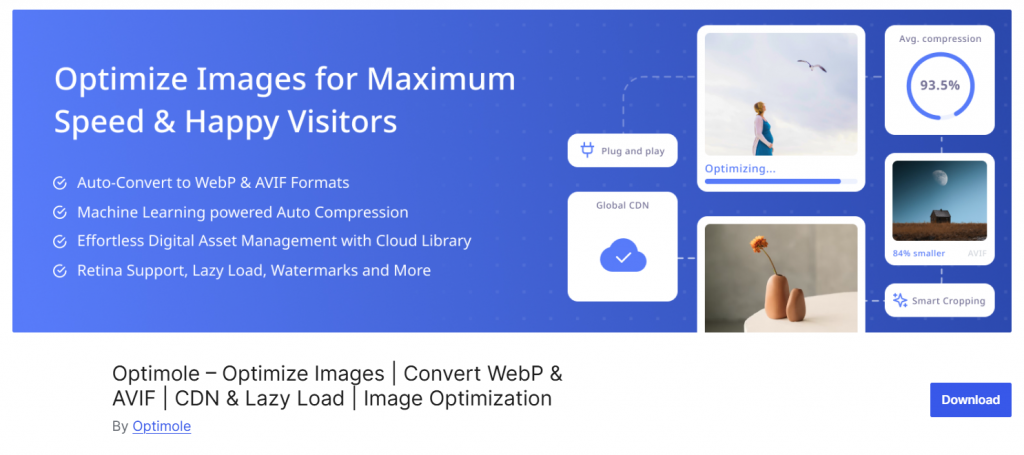
Using the correct image format helps reduce load times, improve performance, and ensure images load faster for visitors across all devices. Selecting the best image format makes it easier to optimize your WordPress images without sacrificing quality and delivers a faster, more efficient browsing experience.
2. Compress Images Before Uploading
Compressing images before uploading them to WordPress is a simple yet highly effective way to optimize images for the web and reduce overall load time.
Large, uncompressed image files can significantly slow your WordPress site, increase image load times, and degrade overall performance. Compressing images before uploading to WordPress reduces file size without compromising visual quality.
This ensures faster image loading, improves page load speed, and helps your site load faster on both desktop and mobile devices. Pre-compressed images also use less storage on your WordPress hosting, which is especially important for sites with many images.
You can use desktop tools and online services like TinyPNG, ImageOptim, Squoosh, or Photoshop’s image compression settings to optimize images for the web before uploading them. These tools let you compress PNG and JPEG files, resize images to appropriate dimensions, and optimize them without sacrificing quality.
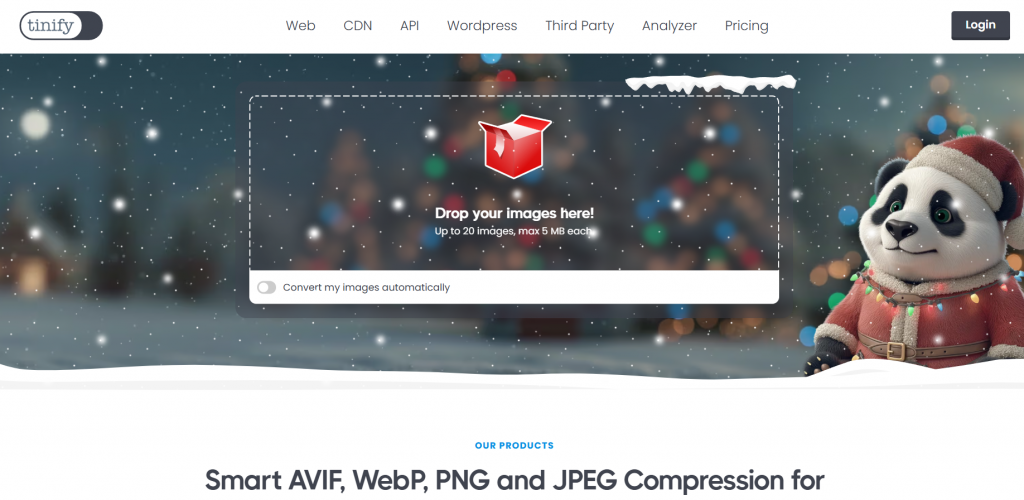
Following this best practice helps avoid unoptimized images, reduces server load, improves core web vitals, and ensures your images are optimized the moment they are added to your WordPress website.
3. Use a WordPress Image Optimization Plugin
Using a WordPress image optimization plugin is one of the easiest and most effective ways to optimize images for web, reduce image load times, and make your WordPress site load faster without manual effort.
These plugins automatically optimize images, helping maintain strong WordPress performance. An image optimization plugin can compress images, reduce file size, convert to modern formats like WebP, and optimize them when you upload to WordPress.
This prevents unoptimized images from slowing down your site and improves image loading across your WordPress website. Many plugins also optimize existing images in your WordPress media library, making them ideal for improving loading speed on older content.
Popular WordPress plugins for image optimization include Smush, ShortPixel, Imagify, Optimole, and EWWW Image Optimizer. These plugins automatically compress images, resize large image files, and serve images efficiently without sacrificing visual quality.
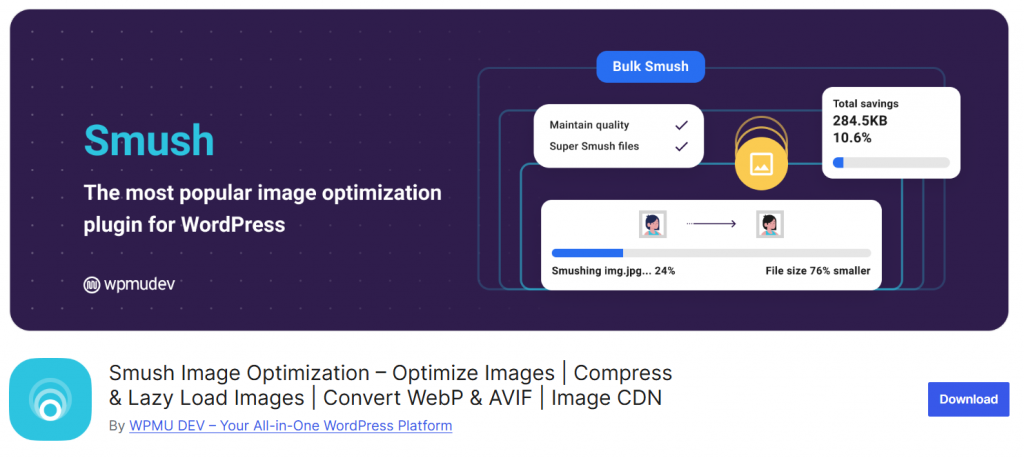
Some also integrate lazy loading, responsive images, and CDN delivery to improve WordPress performance further. Using a dedicated WordPress plugin ensures images load faster on your pages, reduces server load, supports core web vitals, and follows best practices for optimizing images for the web.
4. Enable Lazy Load for Faster Load Times
Lazy loading helps your WordPress site load faster by deferring image loading until they are needed on screen. Instead of loading all PNG images at once, images load automatically as users scroll, improving load times and overall WordPress performance.
This is a simple way to optimize images for the web without changing file size or affecting quality.
When you enable lazy loading, you ensure your images are delivered efficiently to visitors, optimizing WordPress image performance and improving speed and performance without sacrificing quality.
Lazy loading also works well alongside other best practices, such as resizing images, converting images to modern formats, and using the correct image compression method. You can enable lazy loading using WordPress core features or a plugin on your WordPress site.
Popular WordPress plugins for this include WP Rocket, FlyingPress, LiteSpeed Cache, and Optimole, all of which help compress your WordPress media, optimize your site, and ensure images load faster.
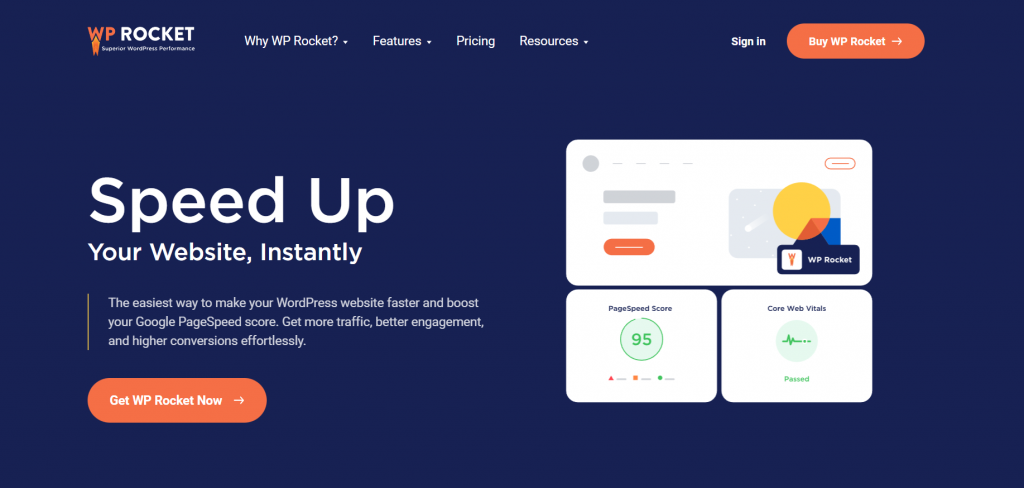
5. Resize Images to the Correct Dimensions
Resizing images to the correct dimensions helps optimize images for the web, reduce load time, and ensure images load faster on your WordPress site.
Uploading oversized images and scaling them down visually increases file size, slows image loading, and negatively affects WordPress performance. Serving images at their exact display size is a simple way to optimize your site without sacrificing quality.
WordPress core automatically creates multiple image sizes when you upload your images, but you can further optimize images by defining custom dimensions in your theme.
This allows WordPress to serve appropriately sized images across your WordPress website, improving image load times and reducing unnecessary data transfer. You can add the following PHP code to your theme’s functions.php file to create a custom image size:
add_image_size( 'optimized-image', 1200, 800, true );Once added, WordPress automatically generates resized images for new uploads.
This approach ensures images on your WordPress site are delivered in the correct dimensions, keeps file size without excess pixels, and helps images load faster on your WordPress pages.
6. Serve Images in Next-Gen Formats
Serving images in next-gen formats is one of the most effective ways to optimize images for the web and reduce load time on a WordPress site.
Traditional formats like JPEG and PNG create larger image files, which can slow image loading and negatively impact WordPress performance. Next-gen formats such as WebP and AVIF deliver the same visual quality while using much smaller file sizes.
When you convert images to WebP or AVIF, your WordPress website can load faster without sacrificing image quality. These formats are designed to improve image load times, reduce server load, and help meet Core Web Vitals requirements.
Many modern browsers support next-gen formats, making them a best practice for WordPress speed optimization.
You do not need to convert images in most cases manually. WordPress plugins such as ShortPixel, Imagify, Smush, Optimole, and EWWW Image Optimizer can automatically convert uploaded images to next-gen formats and serve them to compatible browsers.
Some managed WordPress hosting providers also support next-gen image delivery at the server level.
By serving images in next-gen formats, you ensure your WordPress site loads faster, uses less bandwidth, and delivers a smoother experience for visitors, while maintaining image quality.
7. Use a CDN to Deliver Images Faster
Using a CDN is a proven way to optimize images for the web and reduce load time on a WordPress site. A content delivery network stores copies of your images on multiple servers worldwide and serves them from the location closest to the visitor.
This reduces the distance data must travel, which helps images load faster and improves load times across your WordPress website. A CDN reduces server load on your WordPress hosting, speeds up page load times, and improves overall WordPress speed and performance.
This is especially useful for image-heavy pages, where large or poorly optimized images can slow your site and degrade Core Web Vitals. When images are delivered via a CDN, load times improve without sacrificing image quality.
Many WordPress plugins make CDN integration simple. Popular options include Cloudflare, Bunny.net, Jetpack CDN, WP Rocket, and FlyingPress, which can serve images automatically from CDN servers. Some image optimization plugins also combine CDN delivery with image compression and next-gen formats.

By using a CDN to deliver images, you ensure faster load times for visitors worldwide, improved WordPress performance, and a smoother browsing experience without sacrificing quality.
8. Clean Up Your WordPress Media Library
Cleaning up your WordPress media library is an often-overlooked way to optimize images and improve load time across your WordPress site.
Over time, unused images, duplicate files, and outdated uploads increase storage usage and can negatively affect WordPress performance. Every image stored in your WordPress website adds to database queries, backup size, and server load.
Large, unused image files or unoptimized images can slow your site indirectly by increasing load times. Removing these files helps your site load faster and keeps image load times under control. You can manually review and delete unused images from the WordPress media library, but this becomes difficult on large sites.
WordPress plugins such as Media Cleaner, WP-Optimize, and Optimole help identify images that are not attached to any page or post and safely remove them. Some image optimization plugins also clean existing images and automatically compress them.
By keeping your media library organized and eliminating unnecessary files, you reduce clutter, free up space on your WordPress hosting, and support better speed and performance. A clean media library ensures your images are optimized for the web and delivered efficiently to visitors.
Frequently Asked Questions
Now, let’s see some of the frequently asked questions and answers regarding this topic.
How does optimizing images in WordPress improve load time?
Optimizing images in WordPress reduces file size, improves load times, and helps your site load faster by delivering optimized images to visitors without slowing down your site.
What is the best way to optimize images for web in WordPress?
The best way to optimize images for the web is to compress and resize them before uploading to WordPress, or use WordPress plugins that automatically compress and optimize images without sacrificing quality.
Can unoptimized images slow down your WordPress website?
Yes, unoptimized images, such as large PNG files, can significantly slow your site, increase image load times, and negatively affect WordPress performance.
Should you optimize images before or after uploading them to WordPress?
You can do both. Optimizing images before you upload them to WordPress ensures better control over file size, while image optimization plugins can handle existing pictures and images when you upload them automatically.
Do image optimization plugins affect image quality?
Modern web image optimization plugins compress images without loss of quality, ensuring sharp visuals while improving load times and WordPress performance.
How does image optimization help WordPress hosting performance?
Optimized images use less space on your WordPress hosting, reduce server load, and ensure images are delivered efficiently to visitors, especially on shared or managed WordPress hosting.
Can you optimize images in WordPress without a plugin?
Yes, you can optimize images for WordPress without a plugin by resizing, converting to efficient formats, and manually compressing them before upload. However, image optimization plugins simplify processing for many image files.
Conclusion
Optimizing images is one of the most effective ways to improve WordPress speed and overall site performance.
By resizing and converting images to modern formats and optimizing WordPress images, you ensure they are delivered efficiently to your visitors without unnecessary delays.
Using the best WordPress image optimization approach lets you automatically compress images, manage existing images, and optimize WordPress media while preserving visual quality.
A reliable WordPress plugin can simplify the process by helping you upload images, optimize them within WordPress core, and apply the appropriate compression method without compromising quality.
When you optimize them for the web, you make your images lighter, faster, and more efficient.
If you want to maximize image performance over the long term, ensuring your images load quickly and maintain quality should be a standard part of your WordPress workflow.
Do you know any other methods to optimize the image delivery?
Let us know in the comments.

