

Do you want to enable lazy loading in WordPress? If you are looking for a simple guide, keep reading this article.
Enabling lazy load in WordPress is one of the most effective ways to improve website performance without changing your design or content workflow.
When images and videos are lazy loaded, they only appear as the visitor scrolls down the web page, which reduces unnecessary loading images at once and speeds up the initial page load.
Modern WordPress versions include built-in lazy loading for images by default, but you can implement WordPress lazy load more efficiently by using a plugin or adjusting how specific images and iframes load on your WordPress site.
This guide explains how lazy loading work, how to add lazy loading to your WordPress website with minimal effort, and why implementing lazy loading can help your overall load time, especially if you use a lot of images or host large media files.
Table of Contents
What Is Lazy Loading in WordPress?
Lazy loading in WordPress is a performance technique that delays loading images and videos until they appear on the user’s screen. Instead of forcing the browser to load all assets at once, WordPress lazy load focuses on loading images only when needed.
This helps your WordPress site reduce unnecessary requests, improve initial page load, and prevent large images or embedded media from slowing down the page.
Since the release of WordPress 5.5, the platform includes a native lazy loading feature using the loading attribute, which means many images in WordPress are lazy loaded by default.
You can still implement WordPress lazy load more efficiently by adding lazy loading to your site with a lightweight WordPress plugin or by adjusting how certain media files behave as the visitor scrolls down the page.
Benefits of Lazy Loading
Implementing WordPress lazy load helps your site deliver faster and more efficient page performance by loading images and videos only when needed.
- Improves overall load speed by preventing large assets from loading before they are visible on the web page.
- Reduces page load time on your WordPress website by lazy loading images and videos below the fold, allowing the browser to focus on images that are visible.
- Minimizes bandwidth usage, especially when your site contains high-resolution images or embedded YouTube videos that do not need to load immediately.
- Enhances user experience on your WordPress site by keeping the page responsive even when the number of images is high.
- Supports better performance across mobile devices where connections might be slower, making it easier to load videos and images on your website smoothly.
- Helps optimize images and other media when you use a lazy load plugin from the WordPress plugin directory, especially if you want to lazy load certain images or videos in WordPress.
- Reduces server strain on busy sites, as lazy loading can improve how assets are loaded while preventing unnecessary requests in WordPress core.
Native Lazy Loading in WordPress (Built-In Method)
Native lazy loading is a built-in functionality in WordPress that automatically adds the loading attribute to images on your website. Since the release of WordPress 5.5, the platform began to lazy-load images by default, allowing your WordPress site to improve load speed without needing a plugin.
This method tells the browser not to load images and videos until they are close to entering the visible area of the web page. The built-in feature adds lazy loading support to most images and other media elements, helping your WordPress website manage assets efficiently.
It helps reduce the time a page takes to load, especially when your site uses a lot of images or high-resolution files. WordPress using this native approach allows you to lazy load your images while avoiding unnecessary requests for content that doesn’t load until the visitor scrolls down the page.
This method works well for typical use cases, but certain images above the fold may not benefit from lazy loading, and WordPress sometimes adjusts how images are loaded based on updates in versions such as WordPress 5.9.
If your site is slow to load even with native lazy loading, you can explore ways to implement lazy loading using additional tools or lazy load plugins for WordPress, which provide more control over specific images you want to optimize.
How to Enable Lazy Loading in WordPress
There are mainly two ways you can enable lazy loading in WordPress
- Using a dedicated lazy loading plugin
- Using a cache plugin
We will show you both methods below and you can pick up a method based on your preferences and requirements.
1. Enable Lazy Loading Using a Dedicated Plugin
If you are looking for a dedicated plugin to handle lazy loading, you should check out a3 Lazy Load. It is a free plugin available in the WordPress repository.
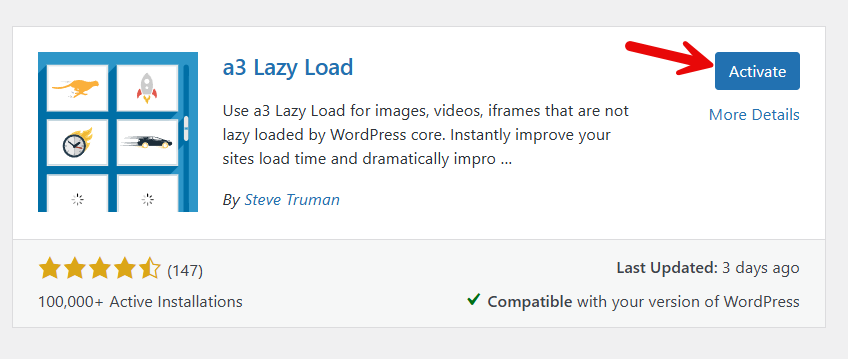
The first thing we need to do is install and activate the plugin on the website.
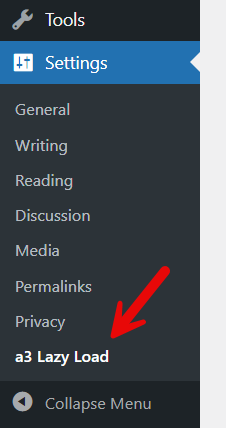
Under the WordPress settings, you can see the plugin’s configuration.
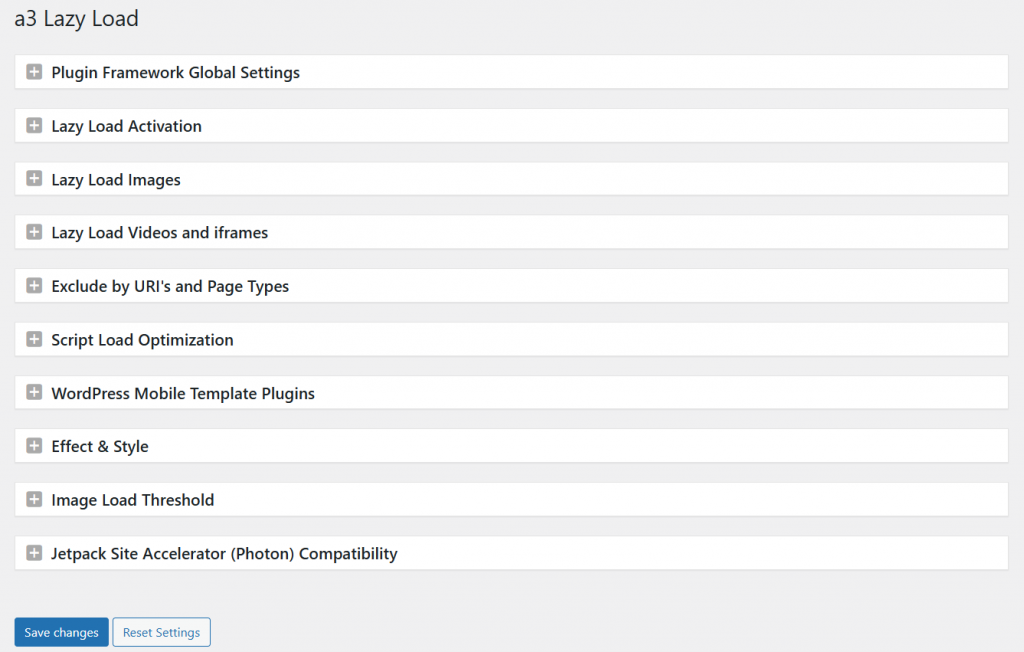
The plugin comes with minimal configuration options.
Under the lazy load activation, you can see the lazy load enabling option.
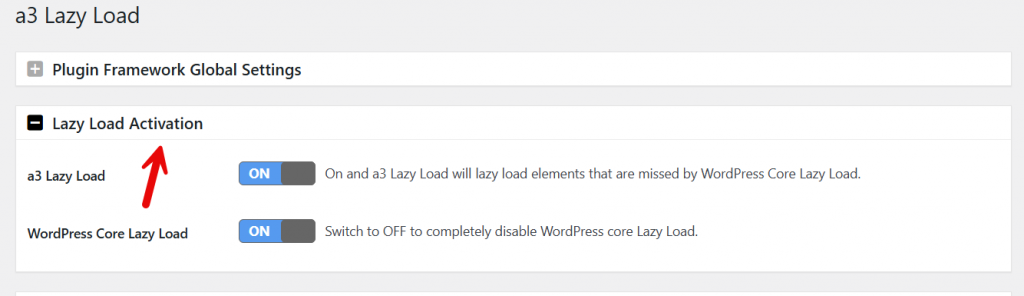
Next, check the image lazy load settings.
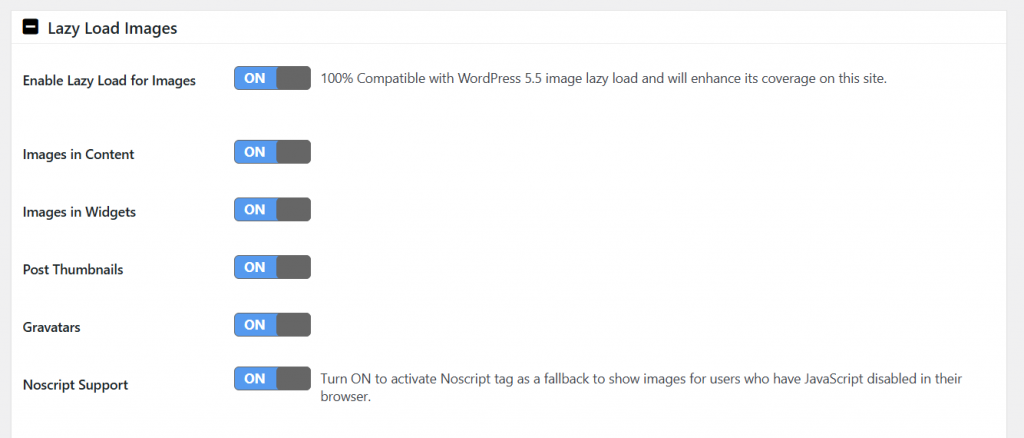
The default configuration options are fine. But if you are experiencing any issues, you can always tweak it.
Once you have finished with the configuration, save the changes. From now on, all your images and iFrames will be lazy loaded.
If you do not need to use a dedicated lazy-loading plugin, check out the next section.
2. Enable Lazy Loading Using a Cache Plugin
Caching plugins like WP Rocket, FlyingPress, and W3 Total Cache include built-in lazy-loading settings. If you are using any of those plugins, you do not need a dedicated lazy-loading plugin.
You can enable the lazy loading option in the cache settings, and you are done. Here, we will show you how to do it using various caching plugins.
2.1 FlyingPress
FlyingPress is one of the best WordPress caching plugins on the market. Here is how you can enable lazy loading with FlyingPress.
You can go to the optimization tab, and you will see the options there.
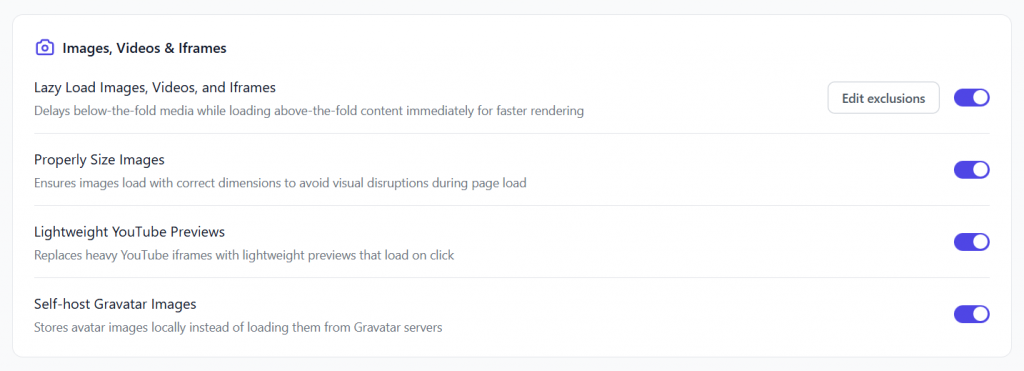
Make necessary changes and save the changes.
2.2 WP Rocket
The next plugin that offers lazy loading is WP Rocket. It comes with simple configuration options. You can go to media settings to see the lazy loading option.

Enable it and save the settings.
2.3 W3 Total Cache
If you are using the W3 Total Cache plugin, go to the General Settings.

Under the Basic Settings, you can see the Lazy Loading settings.
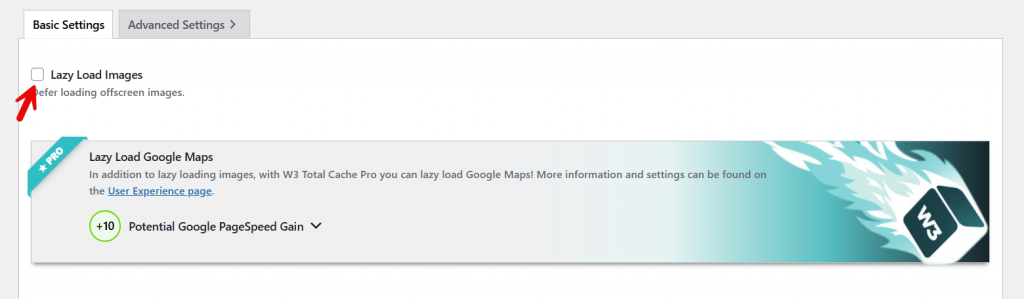
Enable it and save the settings.
Best Practices for Lazy Loading
A few practical steps can help you use lazy loading effectively across your WordPress site and avoid performance issues.
- Prioritize above-the-fold content by ensuring your main hero image and essential visuals load normally instead of being lazy loaded.
- Compress and optimize images before uploading to reduce load speed and support lazy loading across high-resolution media.
- Use a reliable lazy load plugin if you want more control over images and videos and need features beyond the native functionality.
- Test your pages after enabling lazy loading to confirm that all images and videos appear correctly as the visitor scrolls down the page.
- Combine lazy loading with a caching plugin to improve page load time and reduce the number of assets the browser needs to fetch.
- Avoid lazy loading background images that are crucial for layout stability, especially on the homepage.
- Regularly review your WordPress plugins and theme updates to maintain compatibility with lazy loading across your web page.
Common Mistakes to Avoid
When setting up WordPress lazy load, users often misconfigure key elements that affect how images and videos behave on the page.
Avoiding these mistakes ensures your WordPress website loads efficiently while keeping images and videos visually consistent across the web page.
One common issue is enabling multiple lazy load plugins at once, which can conflict with native lazy loading on your WordPress site.
Another mistake is applying lazy loading to images above the fold, which can slow the initial page load instead of improving it. Some users disable lazy load unintentionally through theme settings or custom scripts that override the default lazy loading functionality.
Problems also occur when large videos in WordPress are not configured properly, especially when lazy loading videos rely on iframes that need specific attributes. Failing to update themes, WordPress plugins, or even WordPress 5.4 and later versions can cause features to break, as lazy loading can cause unexpected behavior on outdated setups.
Poor hosting environments also slow down loading for images and videos, even if you use lazy loading correctly.
By avoiding these mistakes, you ensure fewer delays in page to load and maintain consistent performance across your WordPress website.
Frequently Asked Questions
Now, let’s take a look at some of the frequently asked questions and answers regarding this topic.
What is lazy loading in WordPress?
Lazy loading in WordPress is a performance technique that delays loading images and videos until they are needed on the screen. It reduces page load time, improves load speed, and helps your WordPress site load only the assets that users actually view.
Does WordPress have built-in lazy loading?
Yes. WordPress introduced native lazy loading in version 5.5, automatically adding the loading="lazy" attribute to images. This built-in feature ensures images are lazy loaded without requiring a plugin, though plugins can extend support to videos and background images.
Do I still need a lazy load plugin?
You may still want a plugin if you need additional lazy loading functionality, such as handling YouTube videos, background images, iframes, or optimizing large media-heavy pages. Plugins like a3 Lazy Load provide more control than the default WordPress lazy load system.
Can lazy loading cause issues on my site?
Lazy loading can cause problems when used incorrectly. Some images or videos may not load if there is a theme or plugin conflict. Enabling lazy loading for above-the-fold images may also affect initial rendering and page experience.
How do I disable lazy loading for specific images?
You can remove the loading="lazy" attribute manually from individual images or use a WordPress plugin that offers per-image lazy load settings. Many lazy load plugins allow disabling lazy loading for specific pages or media types as well.
Does lazy loading improve SEO?
Yes. Lazy load images help reduce page load time, improve website performance, and strengthen Core Web Vitals—all of which support better SEO. Faster loading pages are especially critical for mobile rankings and user experience.
Will lazy loading work for embedded YouTube videos?
Native lazy loading focuses on images, not videos. To lazy load YouTube videos or other iframes, you will need a WordPress plugin designed for lazy loading videos. These tools replace the heavy video embed with a lightweight preview until the user interacts with it.
Conclusion
Enabling lazy loading in WordPress is one of the simplest and most effective ways to improve load speed, especially for websites that rely heavily on images and videos.
With native lazy loading available in modern WordPress versions and a wide range of lazy load plugins for users who want additional control, you can implement WordPress lazy load with minimal effort.
This approach reduces unnecessary requests, keeps your web page lightweight, and ensures only the images that are visible are loaded when the visitor scrolls down the page. By using lazy loading consistently across your WordPress site, you enhance overall website performance, improve user experience, and support better search visibility.
Whether you rely on built-in functionality or use a dedicated plugin, lazy loading remains an essential optimization practice for every WordPress website focused on speed and efficiency.
