

Do you want to backup and restore a WordPress site? If you are looking for a simple way to generate backups of your website, read on.
Backing up your WordPress site is essential to protect your website from unexpected issues, such as hacks, failed updates, or server crashes.
Knowing how to backup and restore WordPress ensures you can quickly get your site back without losing content or settings.
Whether you want to restore WordPress manually from a backup or use a reliable plugin, this guide shows you how to back up your WordPress site, restore it with a plugin, and maintain your website’s integrity.
By following these steps, you can safeguard your WordPress files, database, and entire site, making it easy to restore them whenever needed.
First, let’s define a WordPress backup and explain why you should generate one.
Table of Contents
What Is a WordPress Backup and Why Does It Matter for Your WordPress Site
A WordPress backup is a copy of your WordPress site, including your database, files, themes, plugins, and settings, that allows you to restore your website if something goes wrong.
Backing up your WordPress site ensures you can restore WordPress from backup whenever needed, protecting your website from data loss, hacking, or accidental changes.
With a reliable backup plugin, you can set up automatic backups of your WordPress website so you always have a recent backup available. If your site experiences issues, you can quickly restore a WordPress website manually or using the backup file generated by the plugin.
Regular backups give you peace of mind, allowing you to get your site back to its previous state without losing important files or data.
Whether you are restoring your WordPress site from a backup due to a plugin conflict, failed update, or server issue, maintaining complete backups is a key part of protecting your site and ensuring its integrity.
Types of Backup for a WordPress Site
Backing up your WordPress site can be done in multiple ways, depending on what components you want to protect and how you want to restore your site. Understanding backup types helps ensure you can resolve WordPress issues efficiently.
- Full Backup: A complete backup of your WordPress site, including all files, themes, plugins, and database. This type allows you to restore a WordPress website to its original state fully.
- Database Backup: This backup only includes your WordPress database, which contains posts, pages, comments, and settings. It is helpful if you need to restore just the content without affecting your themes or plugins.
- Files Backup: This includes your WordPress files, themes, plugins, and media uploads, without the database. It’s helpful if you want to restore specific files manually or replace corrupted files on your WordPress site.
- Manual Backup: Back up your WordPress files and database manually via FTP or your hosting panel. You can manually restore your WordPress site from backup when needed.
- Automatic Backup: Use a reliable WordPress backup plugin to back up your entire site or selected components on a regular schedule. Automatic backups ensure that you always have a recent copy of your site and can restore WordPress from a backup without delay.
- Partial Backup: Backs up only certain parts of your WordPress website, such as themes, plugins, or media files. This is useful if you frequently update only specific parts of your site and want to maintain a quick restore process.
- Offsite Backup: Your backup is stored outside your WordPress root directory, such as in cloud storage. This ensures the integrity of your backup even if your live site encounters an issue.
Each backup type has its use case, and combining full, database, and automatic backups often provides the best protection for your WordPress website from data loss or corruption.
Best WordPress Backup Plugins for Backup and Restore
Choosing the right backup plugin is key when backing up a WordPress site and ensuring you can restore it from backup whenever necessary.
These reliable tools help you create site backups and get your site back quickly if something goes wrong.
- UpdraftPlus – One of the most popular backup plugins for WordPress, UpdraftPlus lets you schedule automatic backups of your files and database, store the backup file in remote locations, and restore your WordPress site with ease.
- BlogVault – A hosted backup service that backs up your entire WordPress website and offers a simple restore process, making it easy to restore WordPress from a backup even after major issues.
- All‑in‑One WP Migration – This plugin exports your entire WordPress site from backup to a file that you can download and then import to restore a WordPress website using a simple drag‑and‑drop restore interface.
- Solid Backups (formerly BackupBuddy) – Originally known as BackupBuddy, Solid Backups continues to serve as a comprehensive solution to back up your WordPress site, including database and site files, and restore WordPress as needed with flexible storage destinations.
- BackWPup – A free option that enables you to create full or partial backups of your WordPress database and files, and store them externally so you can restore your WordPress site manually or via the plugin interface.
These plugins give you multiple options for backing up and restoring your WordPress site, whether you want automatic backups, off-site storage, or a straightforward restore process.
Using one of the best WordPress backup plugins helps ensure your site backup is reliable and that you know how to restore WordPress when needed.
How to Backup and Restore a WordPress Site Using a Plugin
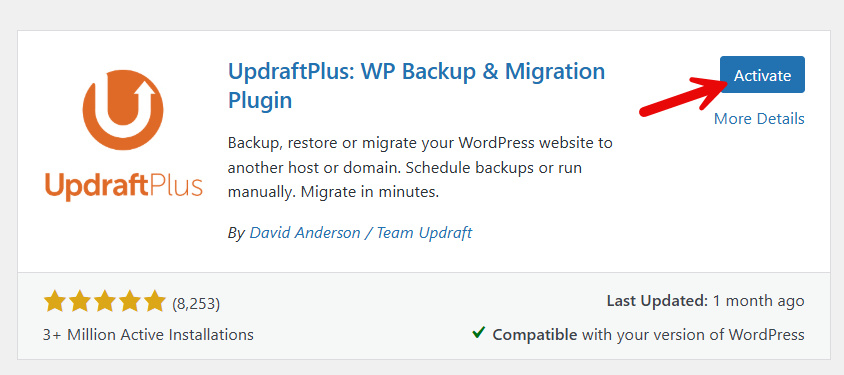
For this tutorial, we will be using the UpdraftPlus WordPress plugin. The first step is to install and activate the plugin on your website.
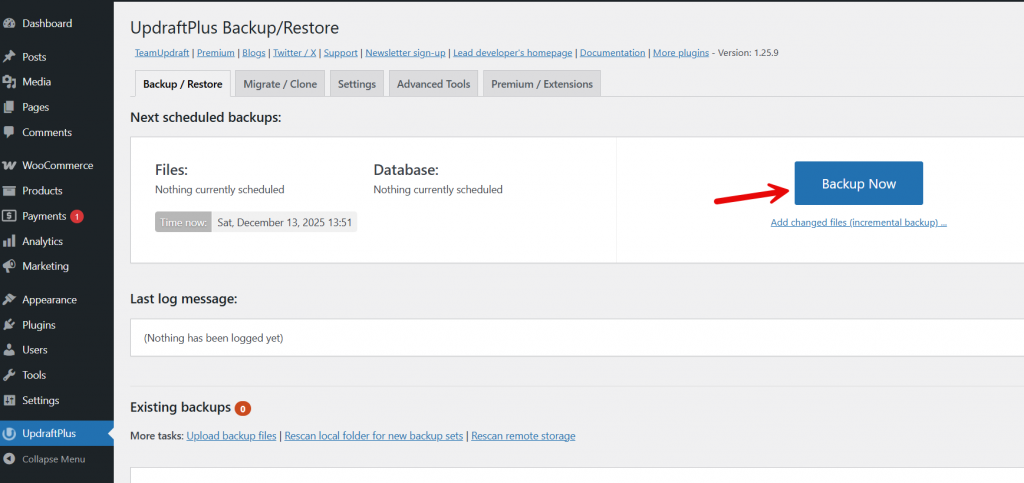
The plugin comes with minimal configuration options. If you open the plugin settings, you will see the option to start the backup process.
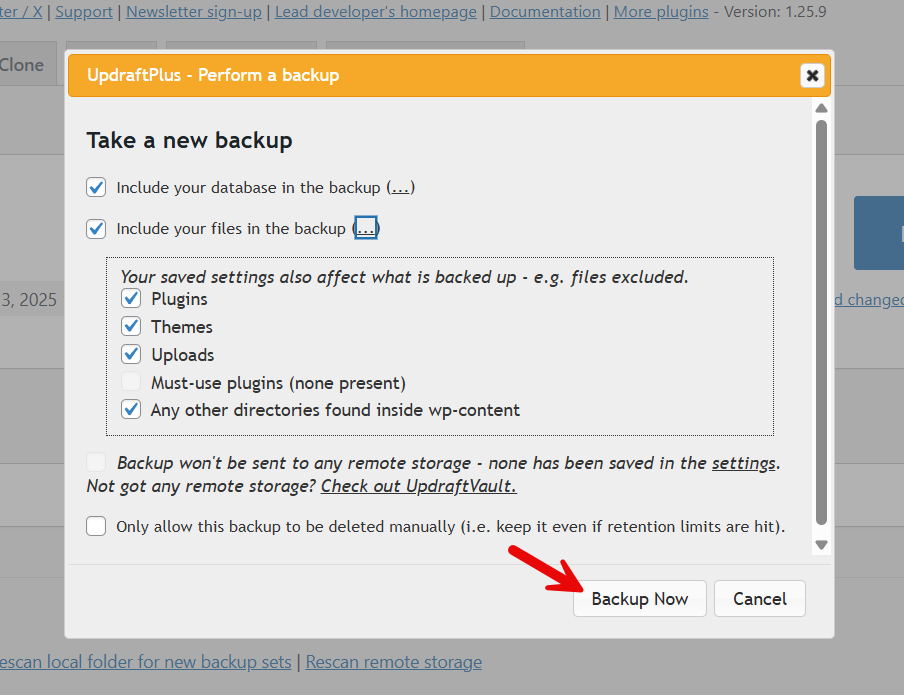
Now you can exclude/include folders from the backup. Once you choose that, you can start the backup process.
Depending on your website’s size, the process may take some time.
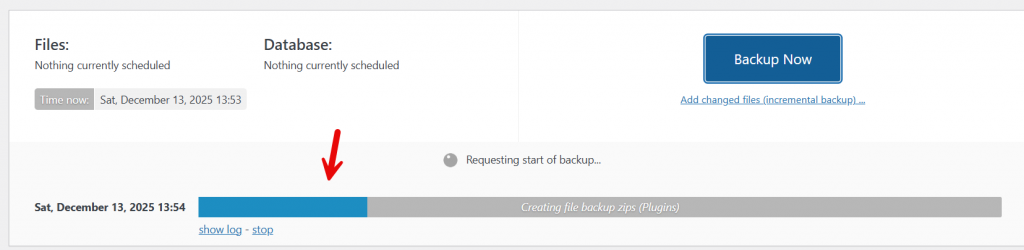
So, sit back and relax. Once the backup is finished, you will see it inside the existing backups section.
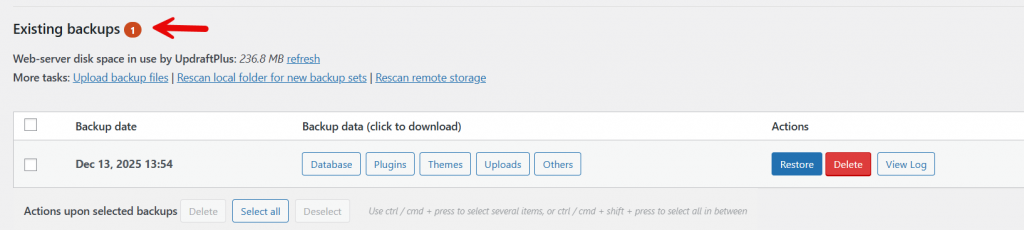
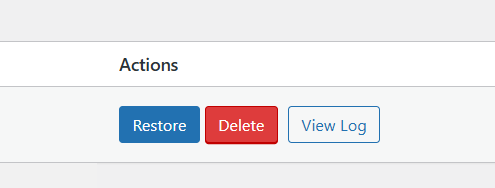
As shown on the right-hand side, you can restore or delete the backup file directly.
If you need to download the backup files to your local storage, click the individual options to download them.
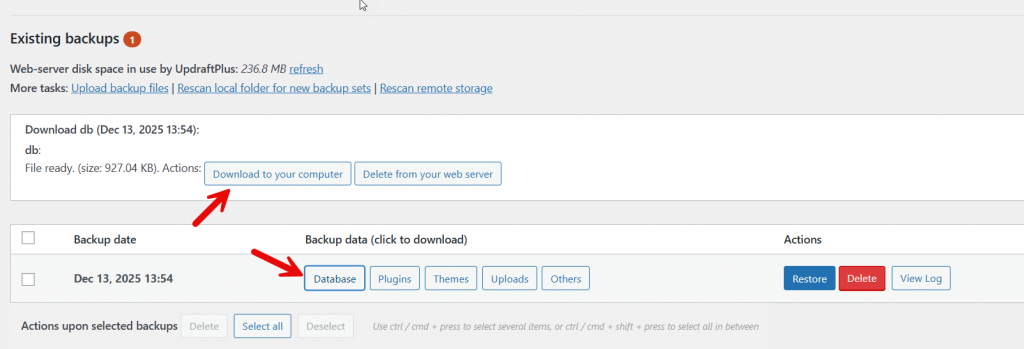
Keeping the backup on the server is not recommended. We recommend keeping it in cloud storage, such as Google Drive or Dropbox.
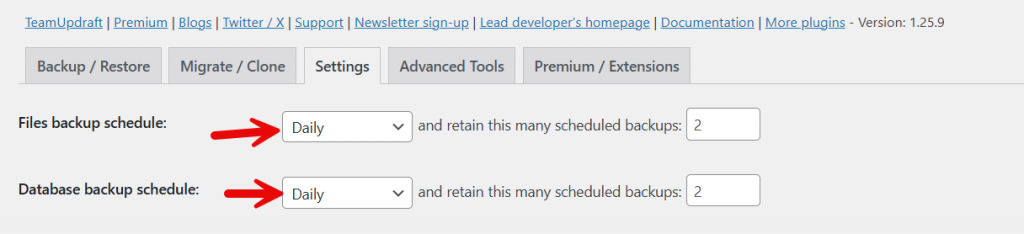
Also, if you run a website and regularly update content, schedule backups rather than relying on manual backups.
You can go to the settings and see the scheduling option. Based on your requirement, you can choose the backup frequency.
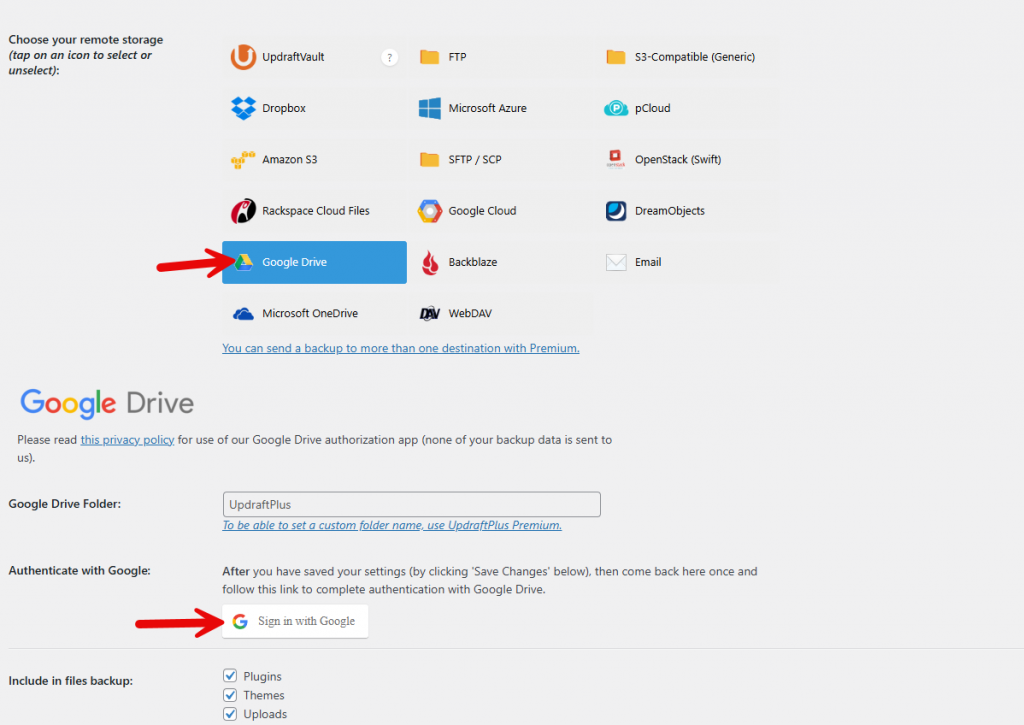
Another option you will love is the remote storage. Instead of keeping the backup on the server, the plugin can send it to any remote storage. In the settings, you will see the configuration.
All you need to do is select the remote storage you want and complete authentication.
To restore the website, click the restore button on the existing backups page. There are many other options for restoring the backup as well.
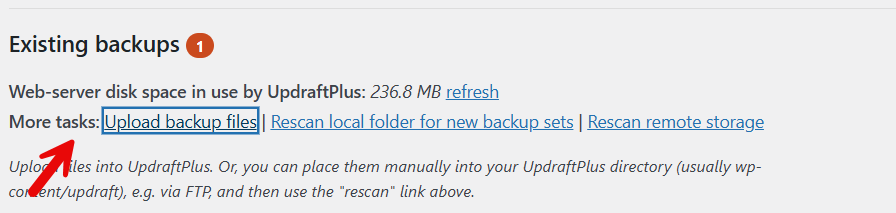
If you have downloaded a backup to your local storage and need to restore it, select the “Upload backup files” option.
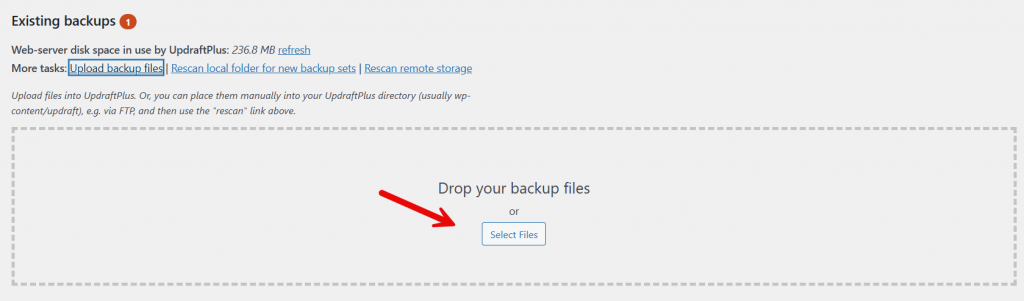
After uploading, you will see the backup file on the page and can restore it.

That’s it.
This is how you can backup and restore a WordPress site using a plugin.
Backup and Restore Best Practices for WordPress Website
Ensuring your WordPress site is backed up correctly and can be restored smoothly requires following best practices. Adopting these methods protects your website and helps you recover quickly if issues arise.
- Use a Reliable Backup Plugin: Always choose a trusted WordPress backup plugin to automate your backups and reduce the risk of errors. Plugins like UpdraftPlus are widely used to back up WordPress sites efficiently.
- Regular Backup Schedule: Set up automatic backups for both files and the database. This ensures you always have a recent backup of your WordPress website, so you can restore it if needed.
- Store Backups Offsite: Keep your backup files in a location separate from your WordPress installation. Options include cloud storage services or remote servers to ensure your site’s backups remain secure.
- Include All Components: Make sure your backups include the WordPress database, themes, plugins, and media files. These components are essential for restoring a full WordPress website from a backup.
- Test Restores Periodically: Learn how to restore your WordPress site on a staging environment to verify the integrity of your backup. Confidently restoring a backup is crucial for live sites.
- Maintain Multiple Backups: Keep multiple backups, including older versions, so you can restore your WordPress site to a previous state if needed.
- Document Your Process: Maintain a guide for backing up and restoring your WordPress site. This ensures you or your team can follow a reliable procedure during emergencies.
By following these best practices, you can ensure that your WordPress website, backed up regularly, remains safe, restorable, and protected from data loss.
Common Backup and Restore WordPress Mistakes to Avoid
Backing up and restoring your WordPress site is critical, but common mistakes can prevent a successful restore. Avoiding these mistakes helps ensure your website stays secure and that you can restore it quickly when needed.
- Not Creating Regular Backups: Failing to back up your WordPress site frequently can leave you vulnerable to data loss. Use a reliable plugin or backup method to maintain recent backups.
- Skipping Database Backups: Many users focus solely on files and forget to backup the WordPress database. Without the database backup, restoring your WordPress website will be incomplete.
- Storing Backups Only on the Same Server: Keeping backups only on your WordPress installation or root directory risks losing them if the server fails. Use off-site storage or cloud backup services.
- Not Testing Your Backups: A backup is useless if it cannot restore a WordPress site properly. Regularly test your backup by restoring a copy on a staging site to ensure it works.
- Ignoring Plugin Compatibility: Some backup plugins may not be compatible with specific WordPress themes or other plugins. Always verify that your chosen backup plugin is compatible with your setup.
- Manual Backup Mistakes: When manually backing up WordPress files using FTP or cPanel, missing important directories like
wp-contentorwp-config.phpcan prevent a full restore. - Delaying Restoration: Waiting too long to restore a WordPress site from backup after an issue can exacerbate the problem. Learn how to restore WordPress promptly to minimize downtime.
By avoiding these common mistakes, you can ensure a smooth, secure, and reliable restoration of your WordPress site from backup.
Frequently Asked Questions
Now let’s take a look at some of the frequently asked questions and answers regarding this topic.
What is a WordPress backup and why should I use it?
A WordPress backup is a complete copy of your WordPress site, including your database, files, themes, and plugins. Using a reliable backup plugin ensures you can restore WordPress from backups when your site experiences issues, protecting your site and enabling a quick recovery.
How can I restore a WordPress site from backup using a plugin?
You can restore your WordPress site using a backup plugin by uploading your backup file through the plugin interface. Most WordPress backup plugins allow you to restore a WordPress website automatically or manually, ensuring your site files and database are restored safely.
Can I manually restore my WordPress site without a plugin?
Yes, you can manually restore a WordPress site by using your WordPress database backup file and all site files. This involves uploading your files via FTP or your hosting panel and importing the database, but using a plugin is often faster and easier for most WordPress users.
How often should I back up my WordPress site?
It is recommended to back up your WordPress site regularly, especially before major updates or changes. Many backup plugins offer automatic backup solutions, helping you maintain recent backups and ensure that your WordPress website can be restored quickly if needed.
What components of my site are included in a WordPress backup?
A WordPress backup typically includes all your files, database, themes, plugins, and media uploads. Some backup plugins let you select specific components to restore, enabling you to recover only the necessary parts of your WordPress site.
What are the best plugins to back up and restore a WordPress website?
Some of the best WordPress backup plugins include UpdraftPlus, BackupBuddy, and All-in-One WP Migration. These plugins allow you to back up a WordPress site and restore it from backup safely, providing reliable backup services and protection for your site.
What should I do if I need to restore a WordPress site urgently?
If you need to restore your WordPress site immediately, use a backup plugin that allows one-click restore. Download your recent backup or access the backup stored by your plugin, then restore a WordPress website from backup to get your site back online with minimal downtime.
Conclusion
Backing up and restoring a WordPress site is not optional if you want long-term stability and protection for your website.
Using a reliable backup plugin like UpdraftPlus makes it easy to back up your WordPress site, secure both files and database, and restore WordPress from backup whenever an issue occurs.
A proper backup solution ensures you can restore your site quickly, avoid data loss, and recover from common WordPress issues without stress. By scheduling regular backups, storing a recent backup safely, and knowing how to restore your WordPress website using a plugin, you maintain full control over your site’s safety.
Taking the time to learn how to backup and restore WordPress properly helps protect your website, your content, and the integrity of your WordPress installation.
