

Do you need to automatically convert images to WebP on WordPress? If you are looking for a simple guide, keep reading this article.
Optimizing your website’s images is essential for improving WordPress performance and reducing page load times. Converting images to WebP automatically ensures that JPEG and PNG files are compressed without losing quality, making your website faster and more efficient.
By using the right WordPress plugin, you can automate the conversion process, manage your media library seamlessly, and deliver optimized images to your visitors in real time. In this article, we will explore the best WordPress plugin that allows you to automatically convert images to WebP.
First, let’s see what WebP images are.
Table of Contents
What Are WebP Images
A WebP image is a modern image format developed by Google’s web team to improve loading speed and overall WordPress performance.
It is designed to convert traditional JPEG images into compressed images that are much smaller in file size while still looking sharp. This reduction helps websites load faster, improves user experience, and supports better optimization compared to older image formats.
WebP supports both lossy and lossless compression, which means developers and site owners can choose between maximum size reduction or higher visual quality.
When you convert images to WebP on WordPress, the goal is to compare the original format with the new WebP format and achieve a significant reduction in image size without breaking the design.
Most modern browsers now provide full browser support for WebP, so images can be displayed correctly across devices and themes.
Why Should You Convert Images to WebP on WordPress
Converting images to WebP helps you optimize your site without touching the core design or layout. It is a simple option that works with most WordPress themes and plugins and can be enabled through a basic setting after you install an image optimization plugin.
Smaller image files mean your host uses fewer resources, which helps maintain site stability and improves real-time delivery of content to visitors.
Using WebP also makes it easier to measure performance improvements because reduced image size saves data and speeds up page loading. Faster pages work best for user experience and can help your site rank better in search results.
This matters for long-term growth because optimized images reduce traffic strain on your server and improve how browsers load CSS and other assets connected to your images. Another benefit is how practical the process is for everyday site management.
You can convert images with a single click from the dashboard, often using a clear button or tab inside the plugin interface.
Now you know why you should convert images to WebP on WordPress. Next, let’s see how to automatically do it.
How to Automatically Convert Images to WebP on WordPress
There are several plugins available to automatically convert images to WebP on WordPress. For this tutorial, we will be using the WebP Converter for Media plugin.
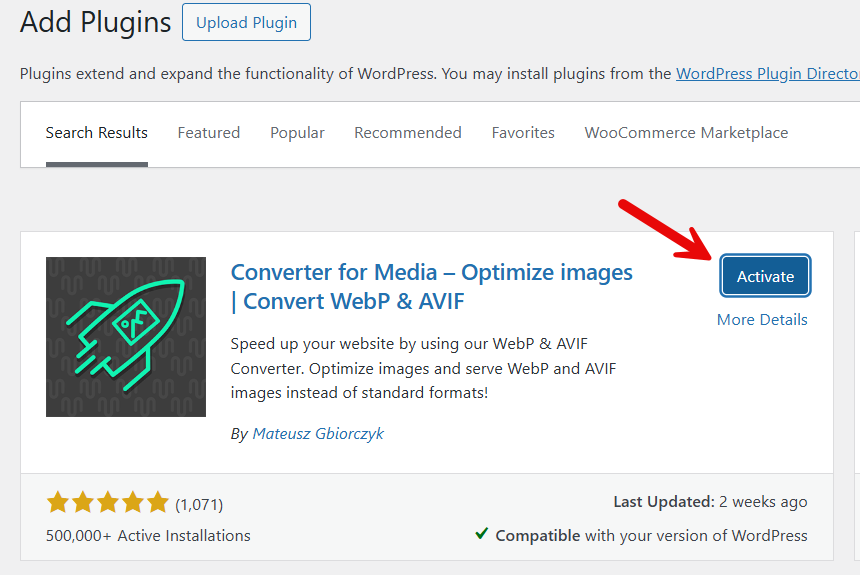
It is a free WordPress plugin that you can get from the repository. The first thing you need to do is install and activate the plugin.
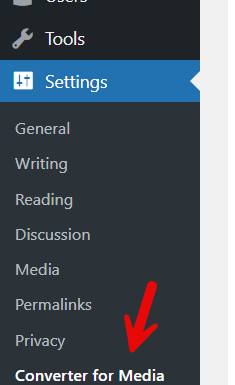
Once you have finished the activation, you can see the plugin’s settings under the WordPress settings section.
There, you can see three main configuration options.
- General settings
- Advanced settings
- CDN settings
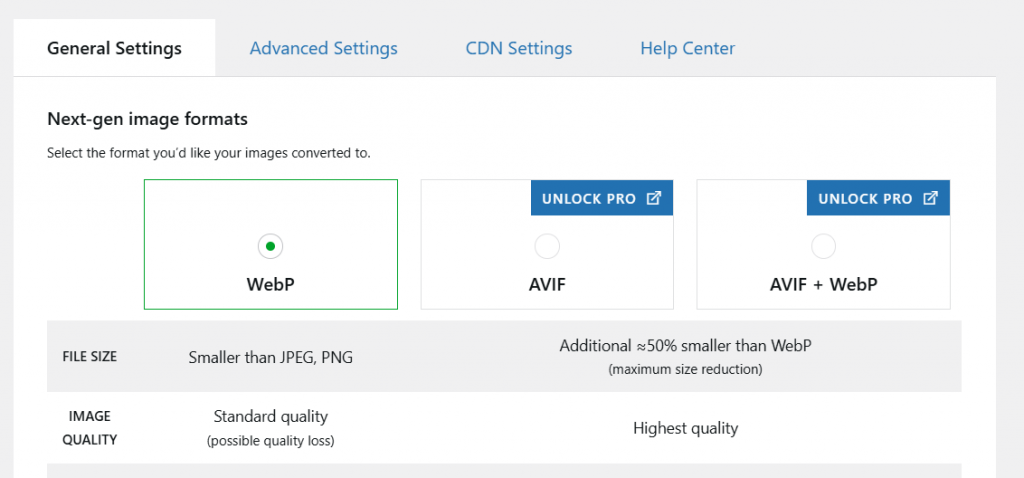
Let’s see what each option has to offer.
1. General Settings
If you are using the free version of the plugin, you can only convert the images to WebP. AVIF conversion is only possible in the premium version. Once you have done that, choose the conversion strategy and the directories you need to compress.
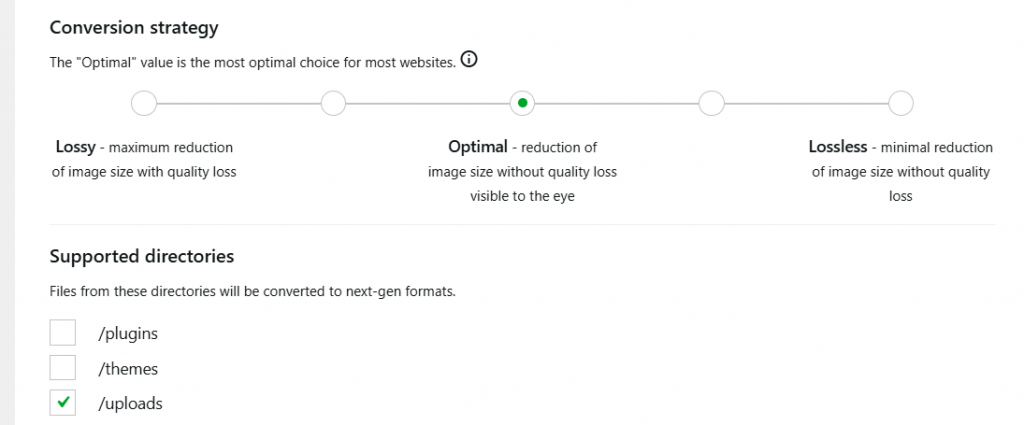
Now scroll down, and you can see the automatic conversion option.

2. Advanced Settings
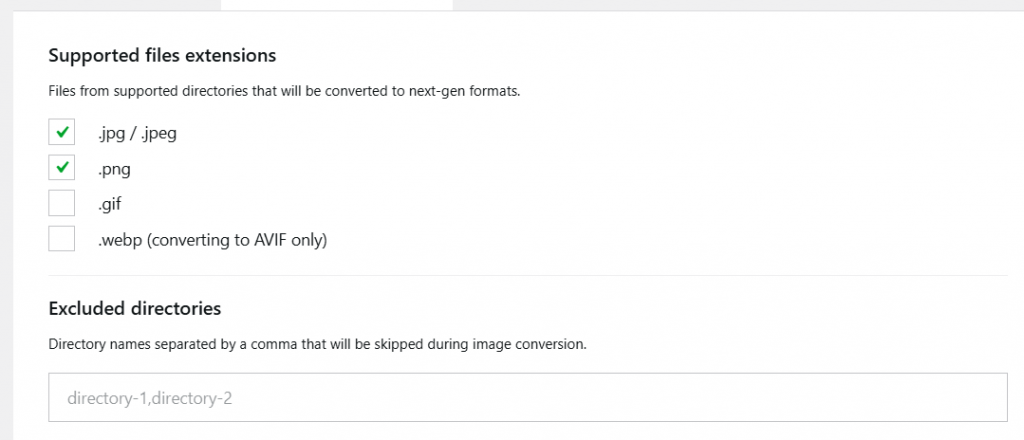
Here, you can choose the file extensions you need to convert. Also, you can see the option to exclude specific directories from optimization.
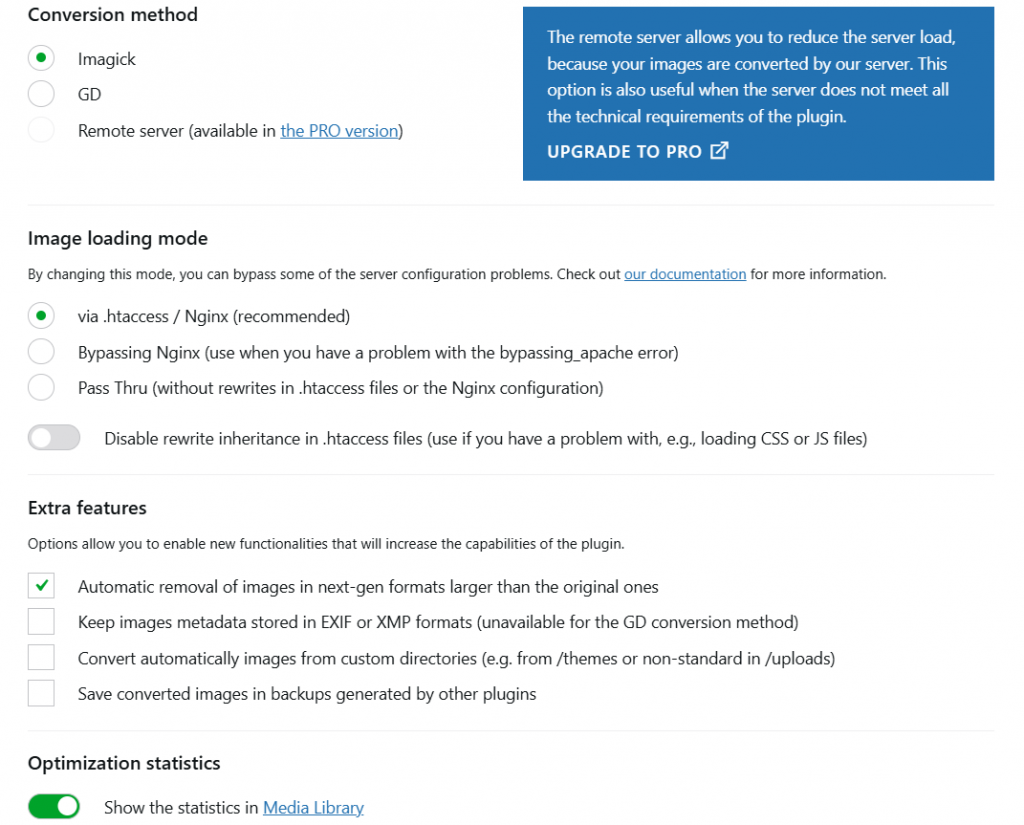
Now, you have to choose the conversion method, image loading mode, and extra features.
3. CDN Settings
Here, you can complete the Cloudflare integration.
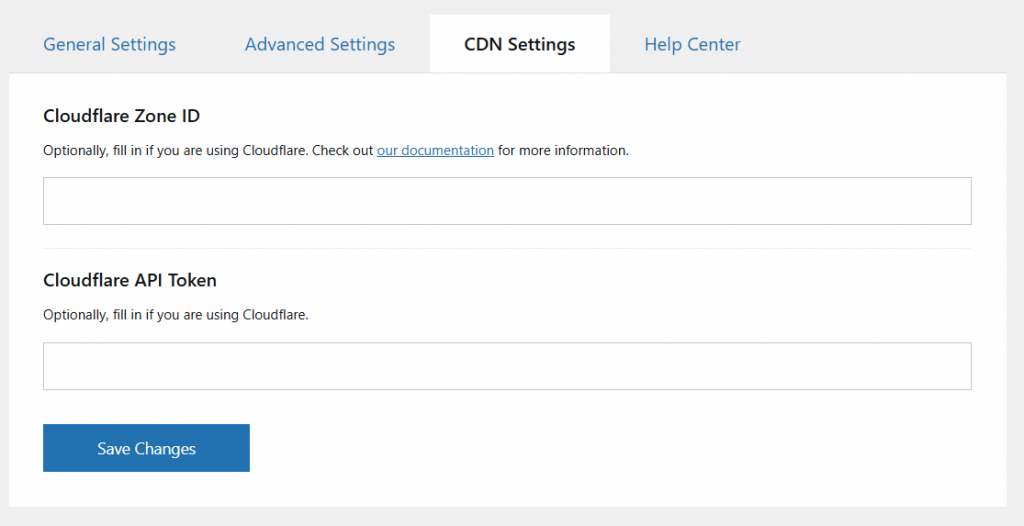
Save the changes once you are done with it.
From now on, all the new image uploads will be converted to WebP. You can also convert your existing images to WebP via the general settings page.
Here are a few other articles that will help you optimize your website further:
- WordPress Image SEO: 15 Best Practices to Optimize Images
- 7 Imagify Alternatives: Best WordPress Image Optimizer Plugins
- How to Reduce HTTP Requests in WordPress to Speed Up Your Site
- 8 Ways to Optimize Images in WordPress for Quick Load Time
- How to Enable Lazy Loading in WordPress with Minimal Effort
Best WordPress WebP Plugins Comparison
| Plugin Name | Best For | Pros | Cons | Link |
|---|---|---|---|---|
| Converter for Media | Simple automatic conversion to WebP & AVIF | One‑click optimization of the entire Media Library, automatic conversion of new uploads | AVIF support is only in the pro version; originals are stored separately | Visit Plugin |
| WebP Express | WordPress sites needing flexible conversion & delivery | Multiple methods to serve WebP images with fallback, work with many hosting types | Requires configuration, not fully automatic until settings are enabled | Visit Plugin |
| WebP Conversion | Unlimited free WebP conversion with restore options | Automatic conversion on upload, bulk convert/restore, no limits | UI is basic and may lack advanced settings | Visit Plugin |
| Soovex WebP Converter | Advanced conversion with quality control | Auto‑convert uploads, backup system, real‑time stats, lazy loading support | A feature-rich dashboard may be overwhelming for beginners | Visit Plugin |
| WebP Image Converter & Replacer | Lightweight conversion without duplicates | Replaces originals only when WebP is smaller, updates DB links | Auto‑conversion on upload & bulk features requires premium | Visit Plugin |
Frequently Asked Questions
Now, let’s take a look at some of the frequently asked questions and answers regarding this topic.
What is a WebP image, and how does it improve WordPress performance?
A WebP image is a modern image format from Google that uses advanced compression to create smaller files than JPEG images. Converting images to WebP on WordPress reduces image size, improves loading speed, and boosts overall WordPress performance.
How can you automatically convert images to WebP in WordPress?
You can automatically convert images to WebP using a WordPress plugin that handles conversion from JPEG and PNG images to WebP format. These tools work from the WordPress dashboard and manage to convert your images without manual effort.
Is using WebP with WordPress better than JPEG images?
Using WebP with WordPress is usually better than relying only on JPEG images because WebP files are smaller while keeping good visual quality. This helps your website load faster and reduces server load when serving images.
Can Jetpack convert and serve WebP images automatically?
Jetpack can serve WebP images automatically through its CDN by converting your original image format into WebP files. This improves load times and WordPress performance without changing your theme or manually switching formats.
Will WebP images work with my WordPress theme and pages?
Most WordPress themes support WebP images when they are delivered correctly by a plugin or CDN. Browsers that do not support WebP will still receive JPEG and PNG images, so your site remains compatible.
Do WebP images improve website speed for visitors and customers?
WebP images help visitors by reducing page load times and improving website speed. Faster pages create a better user experience and can help with rankings and customer retention.
Should you convert existing images to WebP or only new uploads?
You can convert both existing images and new uploads to WebP using an optimization plugin. This ensures consistent image compression and faster loading across your entire WordPress website.
Conclusion
Converting images to WebP helps you optimize your site without touching the core design or layout. It is a simple option that works with most WordPress themes and plugins and can be enabled through a basic setting after you install an image optimization plugin.
Smaller image files mean your host uses fewer resources, which helps maintain site stability and improves real-time delivery of content to visitors.
Using WebP also makes it easier to measure performance improvements because reduced image size saves data and speeds up page loading. Faster pages work best for user experience and can help your site rank better in search results.
This matters for long-term growth because optimized images reduce traffic strain on your server and improve how browsers load CSS and other assets connected to your images. Another benefit is how practical the process is for everyday site management.
You can convert images with a single click from the dashboard, often using a clear button or tab inside the plugin interface.
