

Do you want to display code in WordPress? If you are looking for a simple guide, keep reading this guide.
When displaying code in WordPress, using the correct method is essential for readability and accuracy. If you are into coding or running a WordPress website that shares tutorials, you often want to display code snippets without WordPress breaking the format.
Simply copying and pasting does not always work, especially when displaying HTML, PHP, or CSS code inside a WordPress post or page. Many users struggle to display code correctly in WordPress because the editor treats code as regular text.
This can hide formatting, remove line breaks, or execute the code instead of showing it. The good news is that WordPress provides multiple ways to display code on your WordPress site.
In this guide, you will learn three simple methods to display code in WordPress, with and without plugins, easily.
But before going further, let’s see why you should display code in WordPress.
Table of Contents
Why You Should Display Code in WordPress
Displaying code in WordPress is essential if your site involves coding tutorials, technical documentation, or developer-focused content.
When you correctly display code in WordPress, readers can clearly see the actual code without formatting issues or accidental execution.
If you paste HTML or PHP code into the WordPress editor, the editor may alter it, hide parts of it, or render it on the frontend instead of displaying the code. Using the right approach helps you display the code exactly as written, with correct formatting, line numbers, and readability.
Correctly displaying code snippets in WordPress also improves user experience. Visitors can easily copy the code they want, understand different types of code, and follow instructions without confusion.
Using block settings, shortcodes, or a WordPress plugin such as a syntax highlighter lets you customize how code appears on your WordPress site and maintain a clean, professional layout across posts and pages.
Common Issues When Displaying Code in WordPress
Displaying code in WordPress can be tricky if you are not using the correct method, especially when you want to display code snippets clearly and avoid formatting problems in a WordPress post or page.
- Code rendering instead of display: When you paste HTML code directly into the WordPress editor, the system may render it on the frontend instead of displaying it, making it difficult to render code correctly on your WordPress site.
- Formatting breaks in the editor: Using the classic editor or WordPress Classic setup can strip tags or change spacing, so the code you want to display no longer appears formatted.
- Missing syntax highlighting: Without a plugin to display code, such as a syntaxhighlighter plugin or SyntaxHighlighter Evolved plugin, the code display lacks color, line structure, and readability.
- Shortcode or block issues: Incorrect shortcode usage or block editor settings can prevent you from inserting the code correctly, even after activation.
- Limited customization options: Without using a plugin like a syntax highlighter, you may not have control over the design, code language, or formatted code output across your WordPress blog.
3 Methods to Display Code in WordPress
There are three primary methods to display code in WordPress
- Using the Gutenberg code block
- Using preformatting
- With a dedicated plugin
We will show you all the methods below. You can choose one method that suits you. Without any further ado, let’s get into the tutorial.
Method 1: Display Code in WordPress Using the Gutenberg Code Block
The first and simplest method you can use to display code in WordPress is using the default Gutenberg code block. Open the Gutenberg editor and search for the code block.
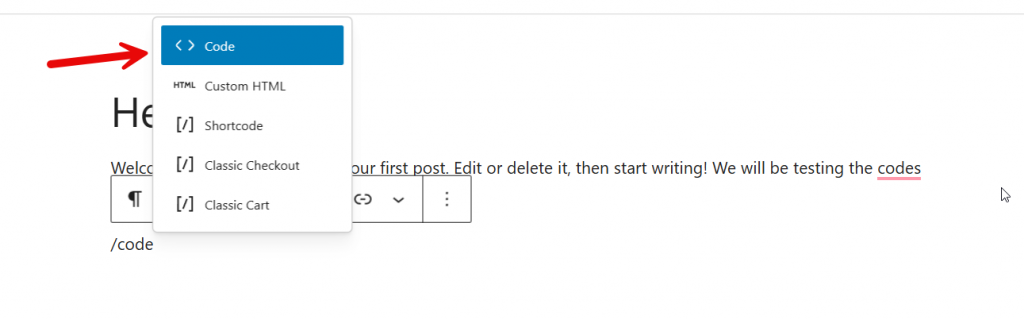
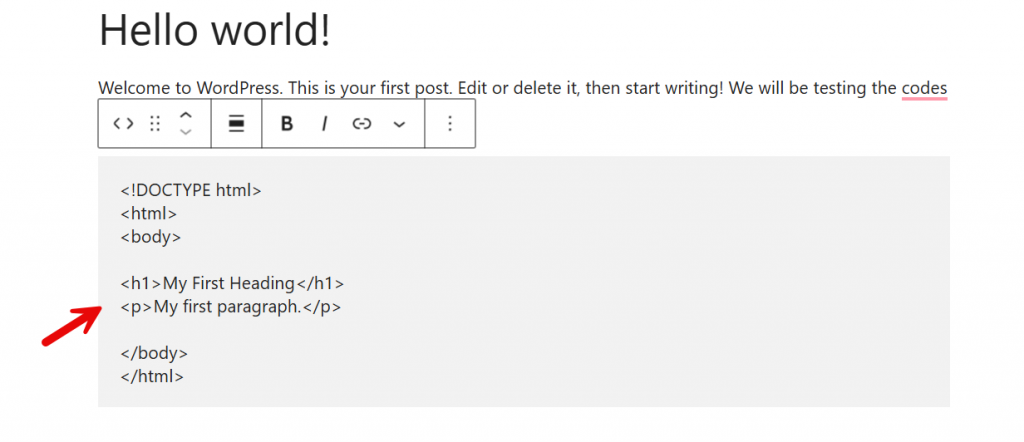
Once you have found it, add it to the editor. Now, paste the code you need to display, then update the post.
Check the post on the front end to see the result.
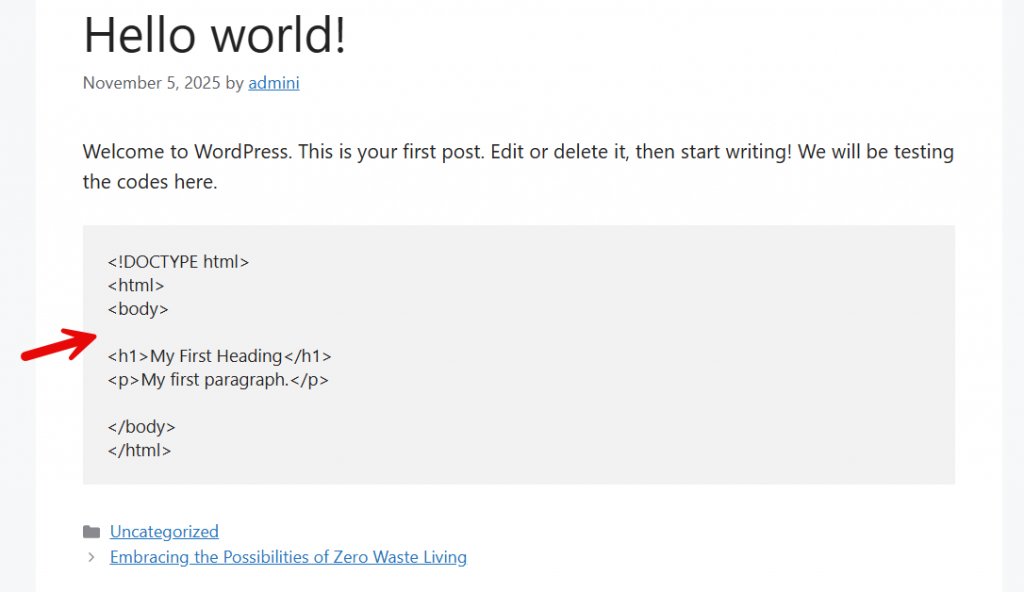
As you can see, it is pretty simple. Now let’s see how to use preformatting to display code.
Method 2: Display Code in WordPress Without a Plugin
This is the classic method.
Without using the dedicated code block or a plugin, you can still display the code. Here is how you can do it.
Paste the code in the paragraph block and select the entire code. Now, choose inline code from the More option.
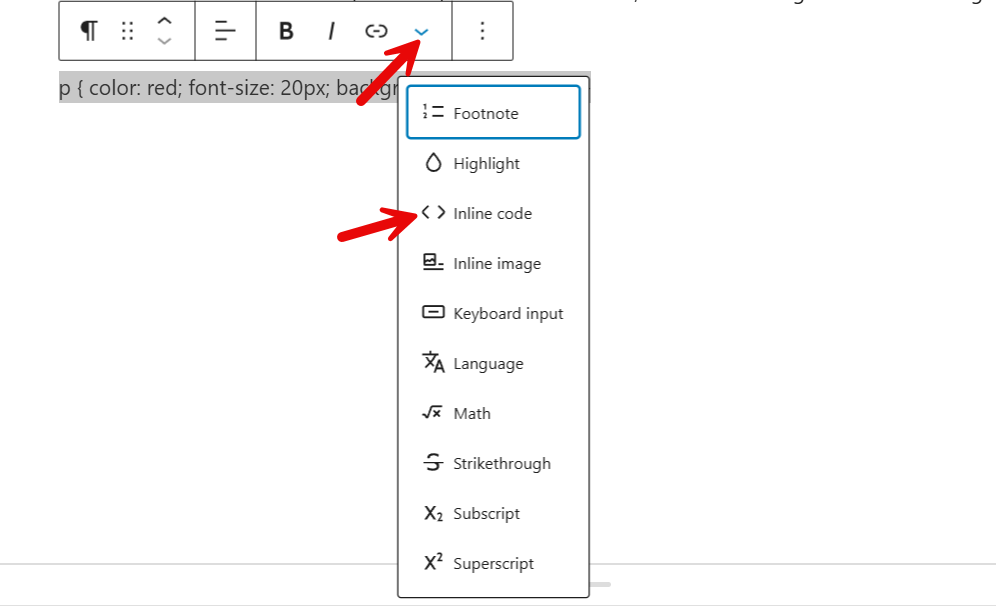
Now use SHIFT+ENTER to align the code. By the end, it would look something like this:
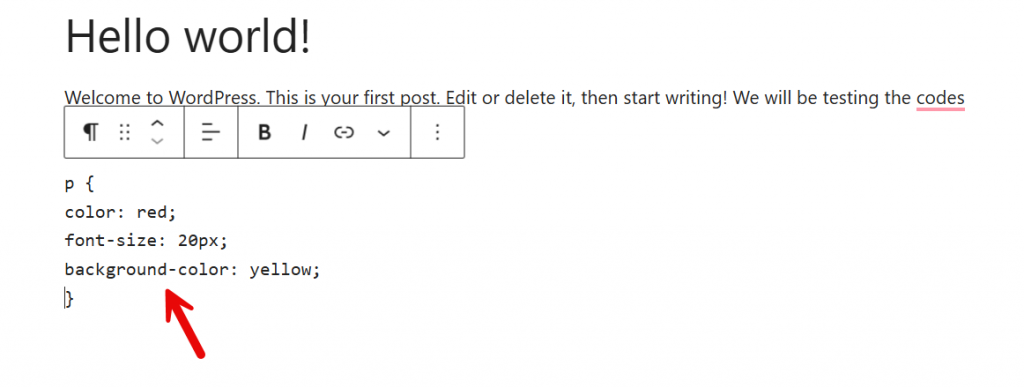
Update the post from the front end, and you will see the code there.
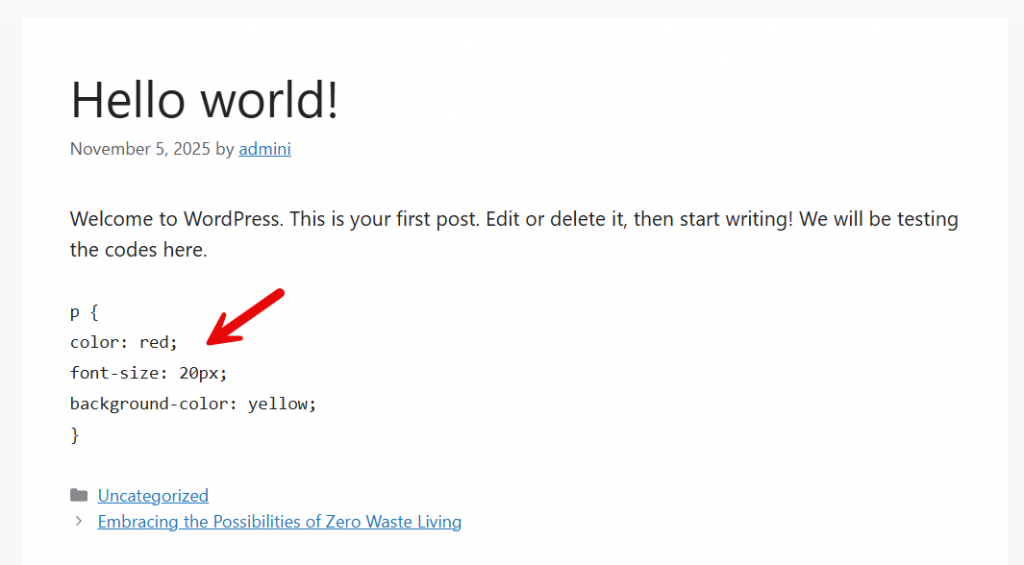
That is it. Next, let’s see how to display code in WordPress using a plugin.
Method 3: Display Code in WordPress Using a Plugin
If you plan to use a dedicated plugin to display the code, it is the most straightforward approach. There are several plugins available to show code in WordPress. One of the best ones we used is SyntaxHighlighter Evolved.
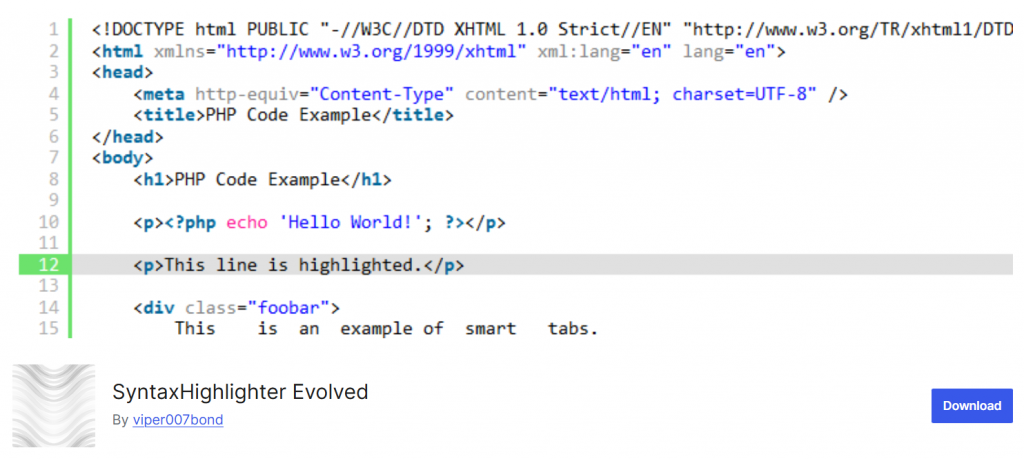
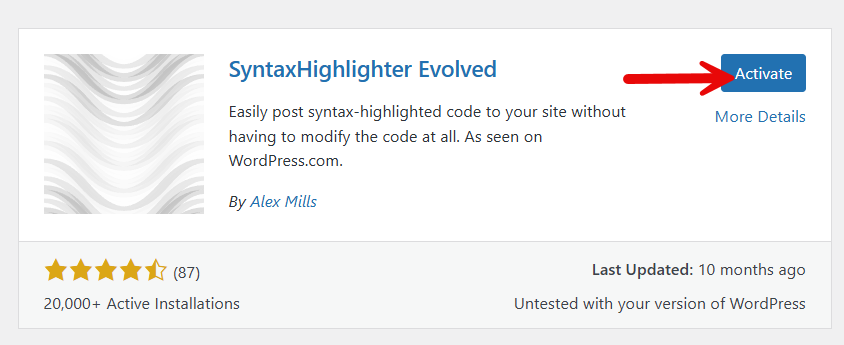
The first step is to install and activate the plugin on your website.
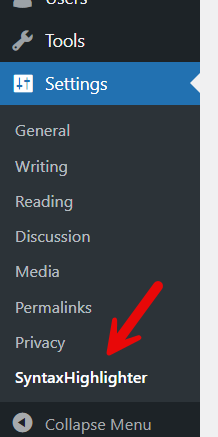
Once you have activated it, you will see the plugin’s configuration options under WordPress settings.
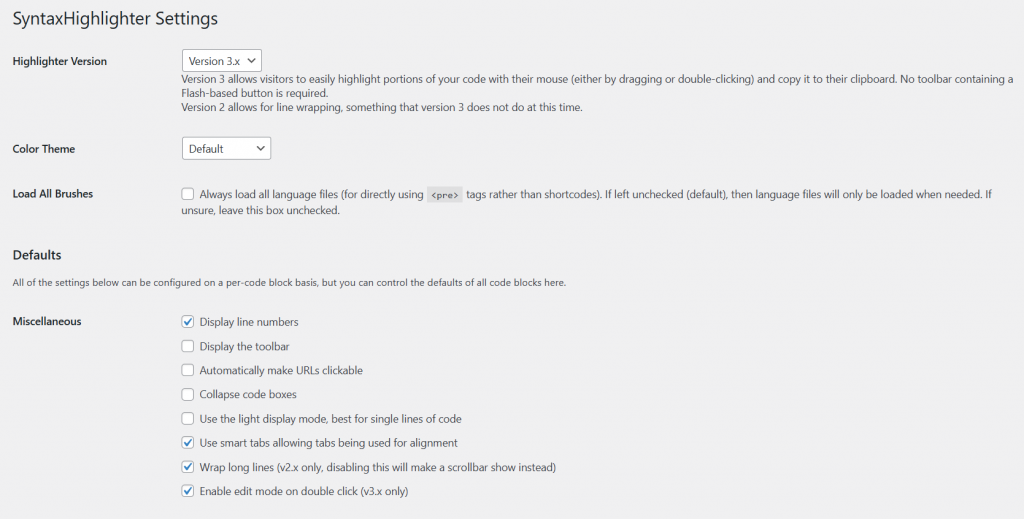
The default configuration options are fine, but if you need to tweak them, you can.
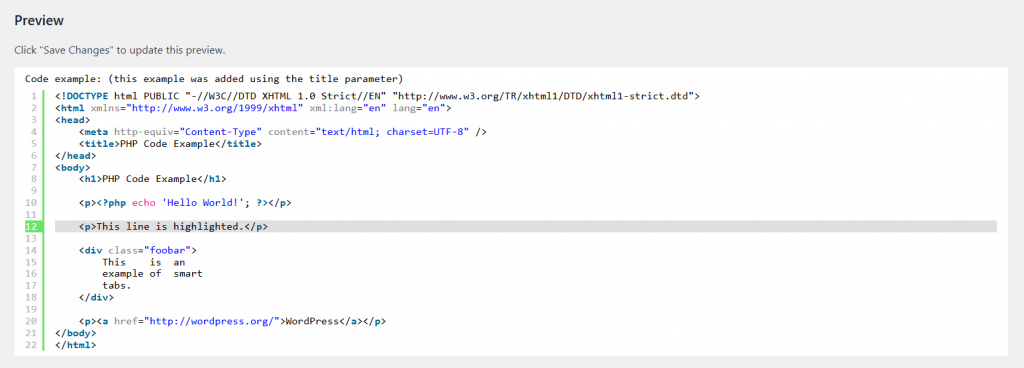
Save the changes after updating the settings. If you scroll down on the page, you can also see a live preview of the code block.
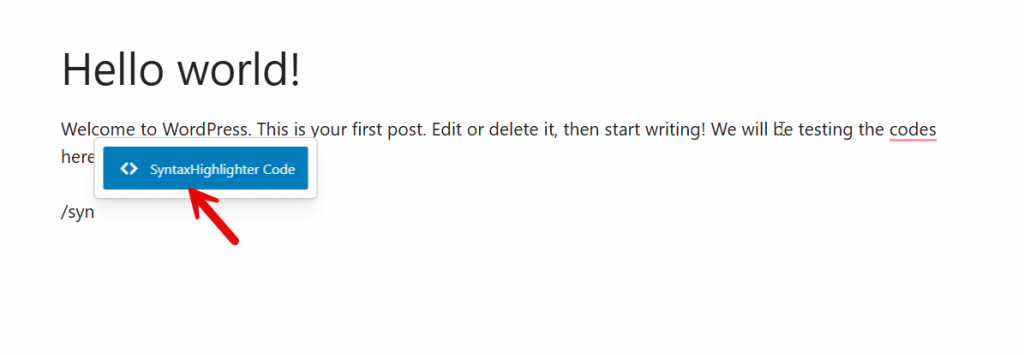
We are now ready to display code in WordPress. Go to any post or page and search for the SyntaxHighlighter block and add it to the editor.
Paste the code into the block. Once you have done that, you need to choose the language.
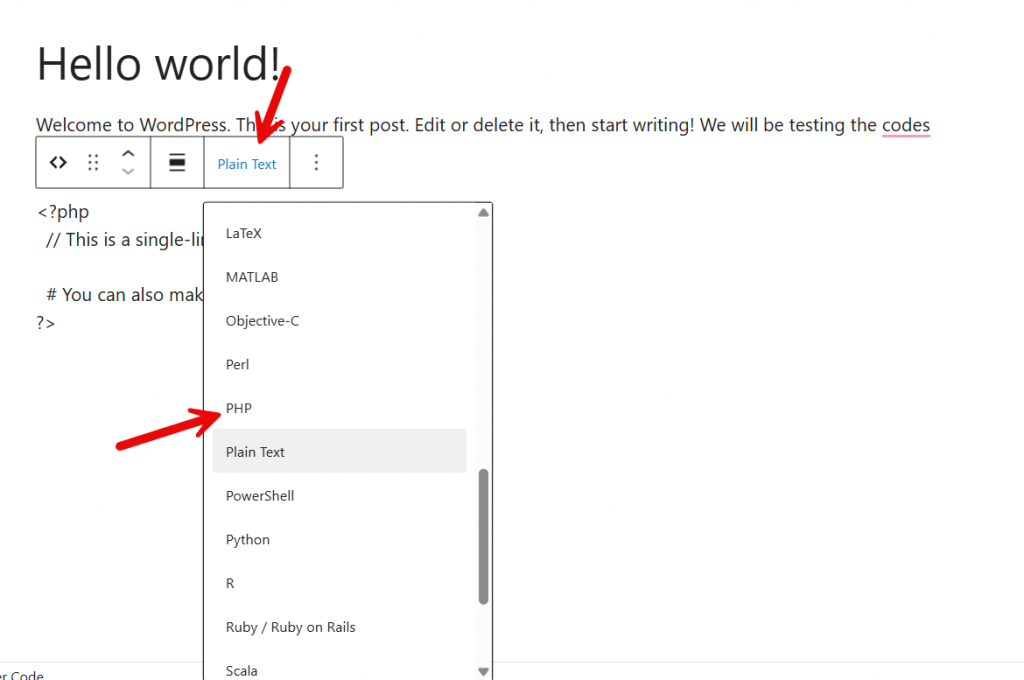
It depends on the language you want to display. If you are adding an HTML snippet to display, select HTML from the dropdown. Once you’re done, save the post and check it on the front end.
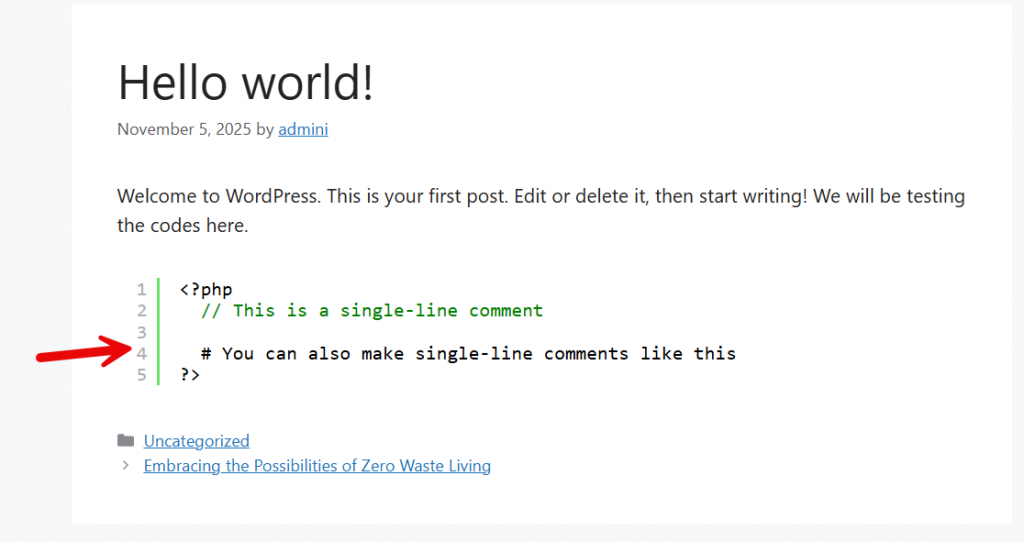
As you can see in the screenshot, you can easily display code with the help of the SyntaxHighlighter plugin.
That is it. This is how you can use a plugin to display code in WordPress.
Best WordPress Plugins to Display Code Snippets
When you want to display code correctly in WordPress without manual formatting, a dedicated plugin is often the most straightforward and most reliable option.
A good plugin helps you code and display snippets without them looking like regular text, while also giving you the flexibility to place code exactly where you want on the post or page.
These tools are simple to use, support multiple code types, and offer methods to present code clearly to your visitors.
- SyntaxHighlighter Evolved: A popular plugin like code editors use, SyntaxHighlighter Evolved allows you to display code with clean formatting and optional line numbers. It ensures code does not appear as regular text and works well for tutorials and technical blog posts.
- WPCode – Insert Headers and Footers + Custom Code Snippets: WPCode helps you code and display snippets safely without editing theme files. It is ideal if you want to display the code while keeping everything organized and easy to manage from a single place.
- Code Snippets: This plugin lets you add and manage code snippets directly from the WordPress dashboard. It is simple to use and ideal for users who want a plugin-like code management tool without added complexity.
- Highlighting Code Block: Highlighting Code Block helps you display code in posts and pages. It supports multiple formats and ensures your code stays readable and visually separated from regular content.
- Crayon Syntax Highlighter: Crayon Syntax Highlighter offers customization options for fonts, themes, and alignment, making it a good choice if you want more control over how code looks on the frontend while remaining easy to use.
Frequently Asked Questions
Now, let’s take a look at some frequently asked questions and answers about this topic.
How can I display code in WordPress without breaking the layout?
To display code correctly in WordPress, avoid pasting it as plain text. Use a code block, a custom HTML block, or a plugin to display code snippets so the formatting stays intact and the code displays correctly on the frontend.
Can I display code snippets in WordPress without using a plugin?
Yes. You can add the code using the WordPress content editor by selecting a code block or a custom HTML block. This is a simple way to display code in WordPress without relying on plugins.
Which plugin is best to easily display code snippets?
A code display plugin is often the easiest option. These tools help you easily display code snippets, manage code using shortcodes, and ensure proper code display across your WordPress website.
Why does my code appear as regular text instead of formatted code?
This usually happens when you paste code directly into the editor without the correct block or encoder. To display code correctly, always add code using the appropriate method rather than copying and pasting.
Can I display code in a WordPress post using the classic WordPress editor?
Yes. If you are still using the classic WordPress editor, you can use plugins or specific formatting options to add a code snippet and ensure it renders correctly.
What is the simplest way to add code snippets to multiple pages?
Using a plugin is simple and efficient. It lets you add code snippets once and display them anywhere on your WordPress site, across posts or pages.
Which method should I choose to display code in WordPress?
The best method depends on your needs. WordPress supports several methods, including blocks, plugins, and manual options. This approach helps you display code correctly and maintain consistent formatting where you want it.
Conclusion
Displaying code in WordPress does not have to be complicated if you choose the right approach. As this guide showed, there are several ways to display code in WordPress, ranging from built-in editor options to plugins for greater control.
The key is to display code so it does not appear as regular text and remains easy for users to read. If you want to display the code on a specific post or a page, selecting the correct method ensures clean formatting and correct code output.
From simple, native solutions to plugin-based workflows, WordPress gives you flexible ways to put a code snippet in place while maintaining a strong WordPress foundation and a better user experience.
Do you know any other method to display code in WordPress?
Let us know in the comments.
