

Do you want to create a WordPress site-specific plugin? If you are looking for a definitive guide, keep reading this article.
Building custom functionality into a WordPress site often goes beyond what themes and ready-made plugins can offer.
In such cases, creating a site-specific plugin is the most reliable way to manage site-specific code without touching the theme files. Instead of adding snippets to a child theme or relying on another plugin, you can create a site-specific WordPress plugin that keeps your custom logic separate, portable, and easy to maintain.
In this guide, you will learn how to make a site-specific plugin from scratch, install the plugin on your WordPress site, and manage site-specific code changes safely.
This approach is ideal when you need to add new features, apply specific code changes on the site, or create a custom site plugin that stays active as long as the plugin is enabled.
First, let’s understand how a site-specific plugin works in WordPress.
Table of Contents
Understanding Site-Specific Plugins in WordPress
A site-specific plugin is a custom WordPress plugin designed to handle functionality unique to a single WordPress site. Instead of placing custom code in a theme file, you create a site-specific plugin to store all site-specific code in one place.
This makes it easier to manage changes, avoid conflicts, and keep your WordPress site stable during theme updates. When you create a site-specific plugin, you can add specific code changes for your site, such as custom CSS, tracking scripts, or minor feature enhancements.
Unlike a child theme, a site-specific plugin continues to work even if you switch themes. Using WordPress this way helps separate design from functionality and keeps your custom logic organized.
Once created, you activate the plugin, and WordPress loads the file using its standard plugin system. You can add your code to the plugin file, paste the code using FTP if needed, and manage everything directly within the WordPress environment without relying on the theme’s functions file.
Why Site-Specific Plugins Are Better Than Theme-Based Code
Using a site-specific plugin is a cleaner and more reliable approach than adding custom code directly to a theme.
When you create a site-specific plugin, all site-specific code is separated from the design layer of your WordPress site, which reduces the risk of losing changes during theme updates.
In contrast, code added to a theme or even a child theme can still be affected when files are modified or replaced. A site-specific plugin is ideal for handling site-specific code changes, such as custom functionality and tracking scripts.
Once you create a site-specific plugin and activate the plugin, WordPress loads it independently of the active theme. This means your custom features remain intact even if you switch themes. Another advantage is portability and control.
You can easily move the plugin to another environment, manage it like any other WordPress plugin, and even upload it to your website using FTP if required.
This approach keeps your custom code organized, reusable, and aligned with best practices for long-term WordPress site management.
Use Cases for Creating a Site-Specific WordPress Plugin
Here are common use cases where creating a site-specific WordPress plugin is the best approach:
- Adding site-specific code that should remain active regardless of the active theme
- Managing custom PHP code that does not belong in the theme’s functions.php file
- Creating and registering custom post types or custom taxonomies
- Implementing specific code changes for your site, such as business logic or integrations
- Adding custom shortcodes or reusable code snippets across the WordPress site
- Inserting header code or footer code that applies site-wide
- Managing custom CSS or JavaScript that is tied to functionality, not design
- Keeping custom features separate from third-party WordPress plugins
- Ensuring custom functionality is preserved during theme updates or theme changes
How to Create a WordPress Site-Specific Plugin
Now, let’s see how to create a WordPress site-specific plugin. You can use an FTP client such as FileZilla for this task. Alternatively, you can use a plugin called Filester.
Here, we will use Filester because it is simple. The first step is to install and activate the plugin on your website.
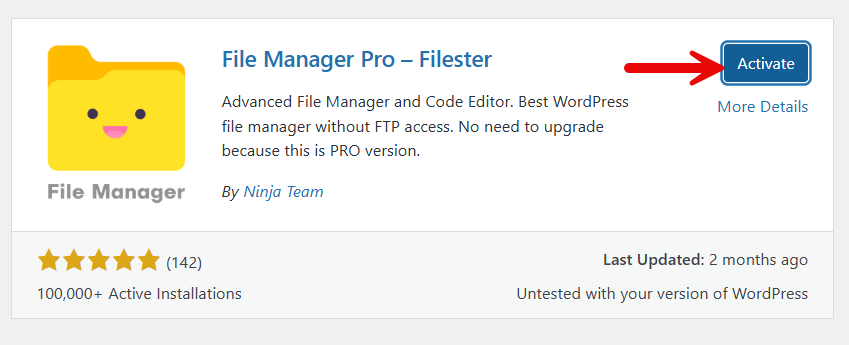
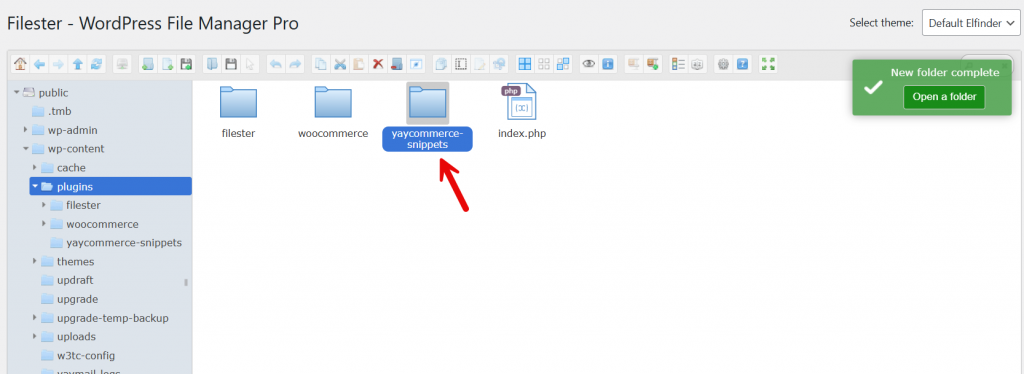
After activation, open up the plugin’s settings. Now, go to the plugins folder and create a new folder.
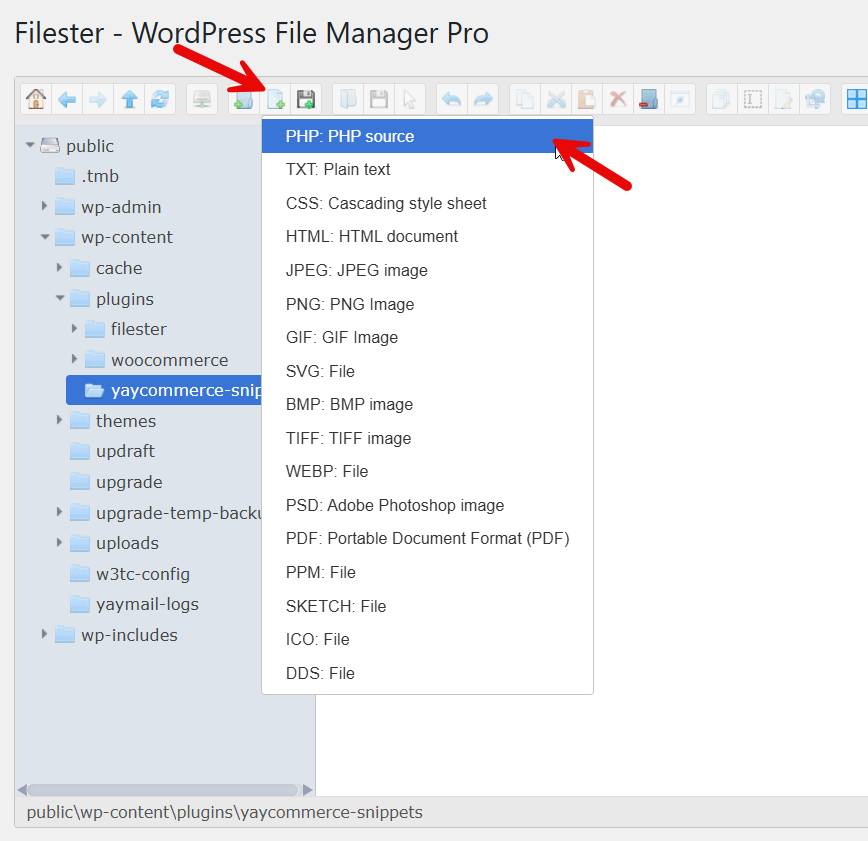
Next, create a new PHP file.
Now, name the file.
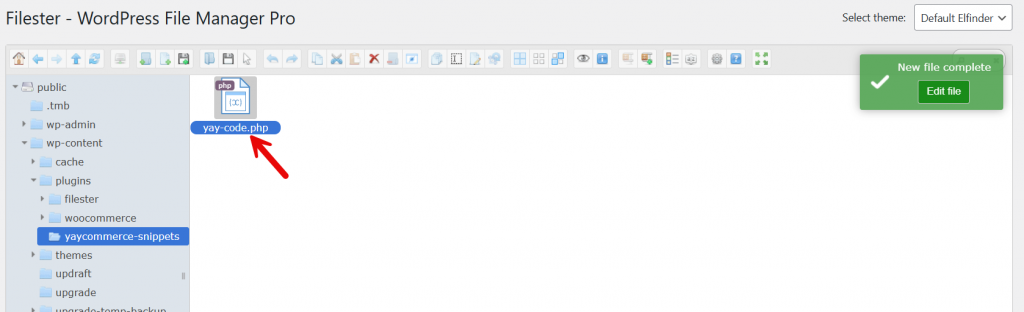
Now, you have to open it using any of the code editors available.
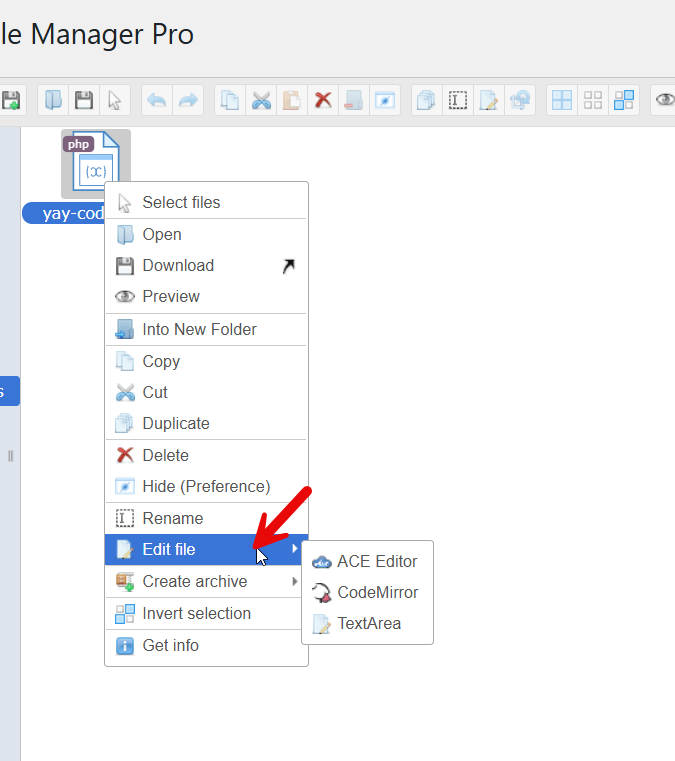
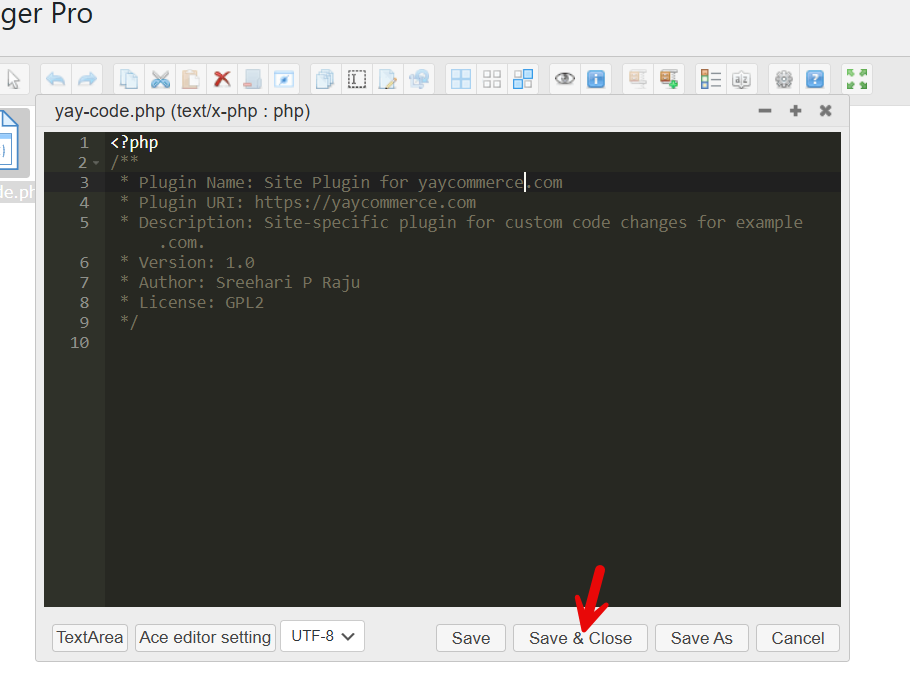
We will go with the Ace Editor. Here is the code you need to paste:
<?php
/**
 * Plugin Name: Site Plugin for yaycommerce.com
 * Plugin URI: https://yaycommerce.com
 * Description: Site-specific plugin for custom code changes for example.com.
 * Version: 1.0
 * Author: Sreehari P Raju
 * License: GPL2
 */
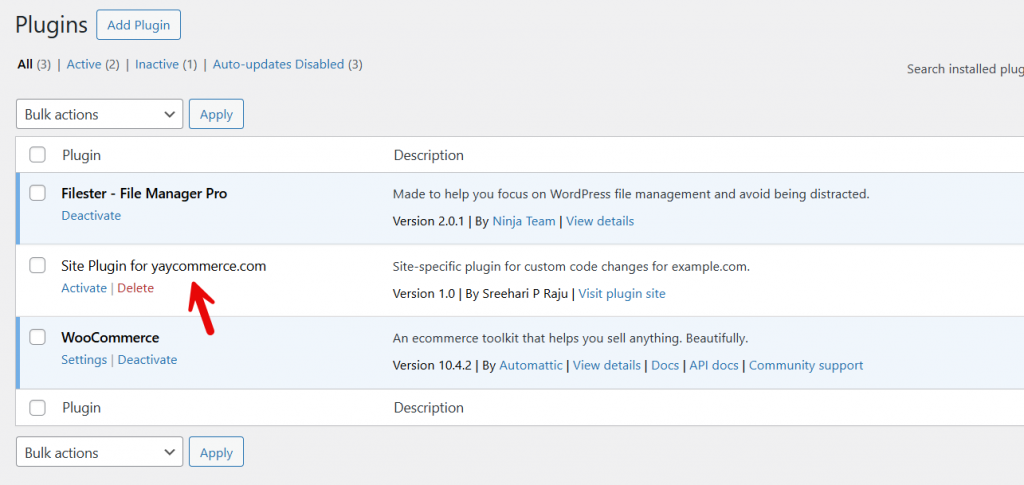
Save the file and check the installed plugins. You will see this plugin there.
Now, when you need to add code, go to the plugins editor, select the plugin from the dropdown, and add the code there.
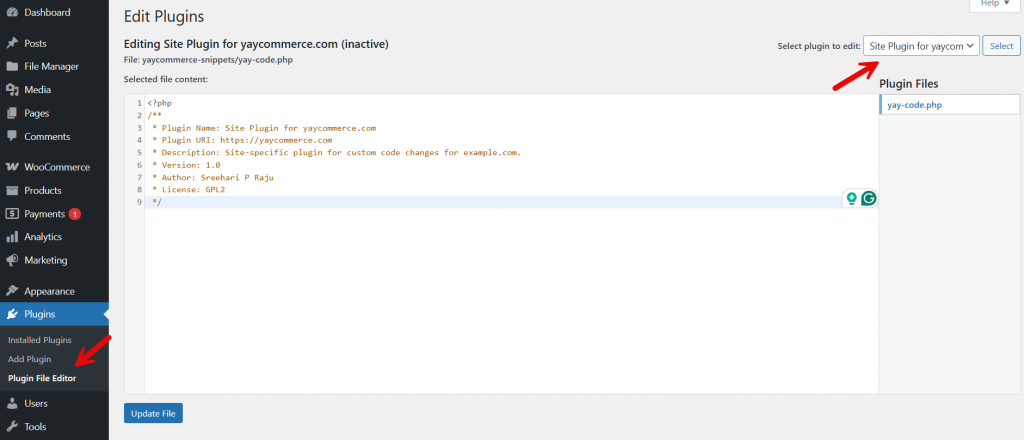
Update the file when you are done. Activate the plugin so the code executes.
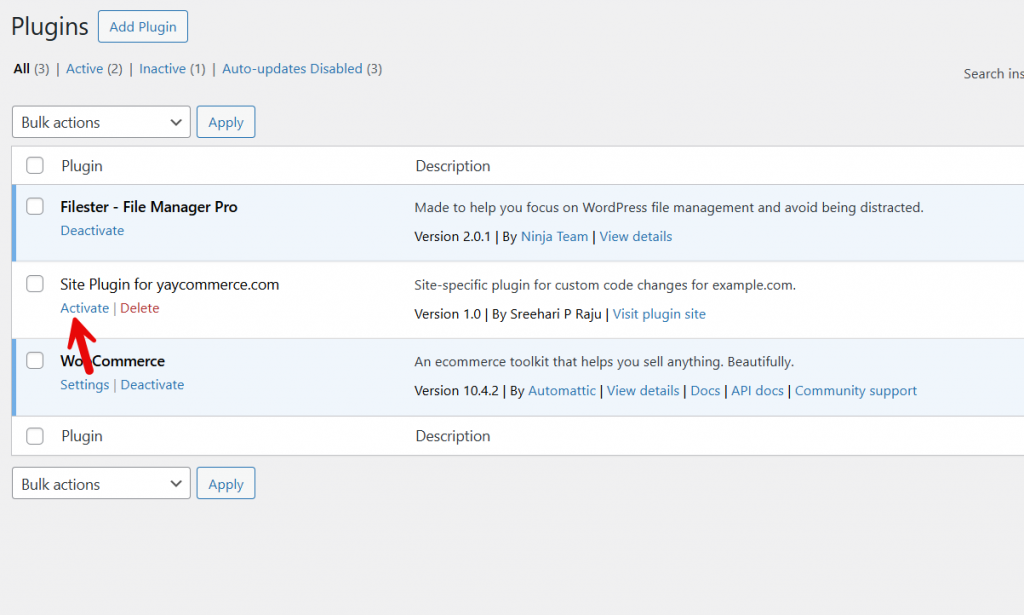
You have successfully created a site-specific WordPress plugin. Now you can add all custom code to the plugin, and it will work as expected.
Site-Specific Plugin vs Snippets Plugin
When deciding how to manage custom functionality in WordPress, many site owners compare a site-specific plugin with a snippets plugin.
Both options let you add custom code, but they serve different purposes and offer various levels of control. A site-specific plugin is a dedicated WordPress plugin designed for a single WordPress site.
It is stored in its own plugin folder, includes a proper plugin header, and loads independently of the theme. This makes it ideal for long-term site-specific code, complex PHP code, custom post types, and specific code changes for your site.
Once you activate the plugin, your custom logic remains safe even when you switch themes or update WordPress.
A snippets plugin, on the other hand, is designed for convenience. It allows you to paste a code snippet directly from the WordPress admin panel without creating a new plugin file or using FTP.
This approach works well for minor tweaks, testing code, or managing simple custom CSS and PHP snippets. However, snippet plugins introduce an additional dependency and may not be suitable for larger or more structured codebases.
In short, a site-specific plugin offers better scalability, performance, and complete control, while a snippets plugin is helpful for quick edits and lightweight customization.
Frequently Asked Questions
Now, let’s take a look at some of the frequently asked questions and answers regarding this topic.
What is a site-specific plugin in WordPress?
A site-specific plugin is a custom WordPress plugin designed for a single WordPress site. It stores site-specific code, custom PHP code, and code snippets that should not depend on a theme. This makes it easier to manage custom functionality across your WordPress website.
When should you create a site-specific WordPress plugin?
You should create a site-specific plugin when you need to add custom code, custom post types, or header code that must remain active even if you change themes. It is the best option for site-specific code changes rather than modifying the theme’s functions.php file.
How is a site-specific plugin different from a child theme?
A child theme focuses on design and layout changes, while a site-specific plugin handles functionality. Using a site-specific plugin keeps your plugin code independent from the parent theme and avoids losing changes during theme updates.
How do you create a site-specific plugin in WordPress?
To create a site-specific plugin, create a new folder in the plugin directory, add a new plugin file, write the plugin header, paste your PHP code, upload it via FTP or the WordPress admin panel, and activate the plugin from the WordPress dashboard.
Can I upload a site-specific plugin using FTP?
Yes, you can upload your site-specific plugin folder using an FTP client. After uploading the plugin folder and file, go to the WordPress admin panel and activate the plugin as you would any other WordPress plugin.
Is a site-specific plugin better than using code snippets plugins?
A site-specific plugin is better suited to long-term projects because it keeps all custom code in a single plugin for your site. Snippets plugins are helpful, but a custom plugin offers more control and cleaner organization.
Will a site-specific plugin affect my WordPress site performance?
No, a well-written site-specific plugin will not slow your WordPress site. Lightweight plugin code that only runs necessary PHP functions is efficient and often safer than adding code directly to multiple files.
Conclusion
Creating a site-specific plugin is one of the cleanest and safest ways to manage custom functionality on a WordPress site.
Instead of spreading site-specific code across themes or relying on multiple WordPress plugins, you can create a site-specific WordPress plugin that keeps everything organized and easy to maintain.
This approach is ideal when you need to create a custom solution, handle site-specific code changes, or add features that should stay active regardless of theme updates. Once you make a site-specific plugin, install it, add functionality by creating a new file or pasting code into the plugin editor, and activate it as you would any other plugin.
For long-term projects, creating a plugin gives you complete control, improves stability, and makes managing specific code changes for your WordPress site far more efficient.
What kind of code would you be adding to your WordPress site-specific plugin?
Let us know in the comments.

